

Send a Slack notification when a Chatfuel conversation is captured
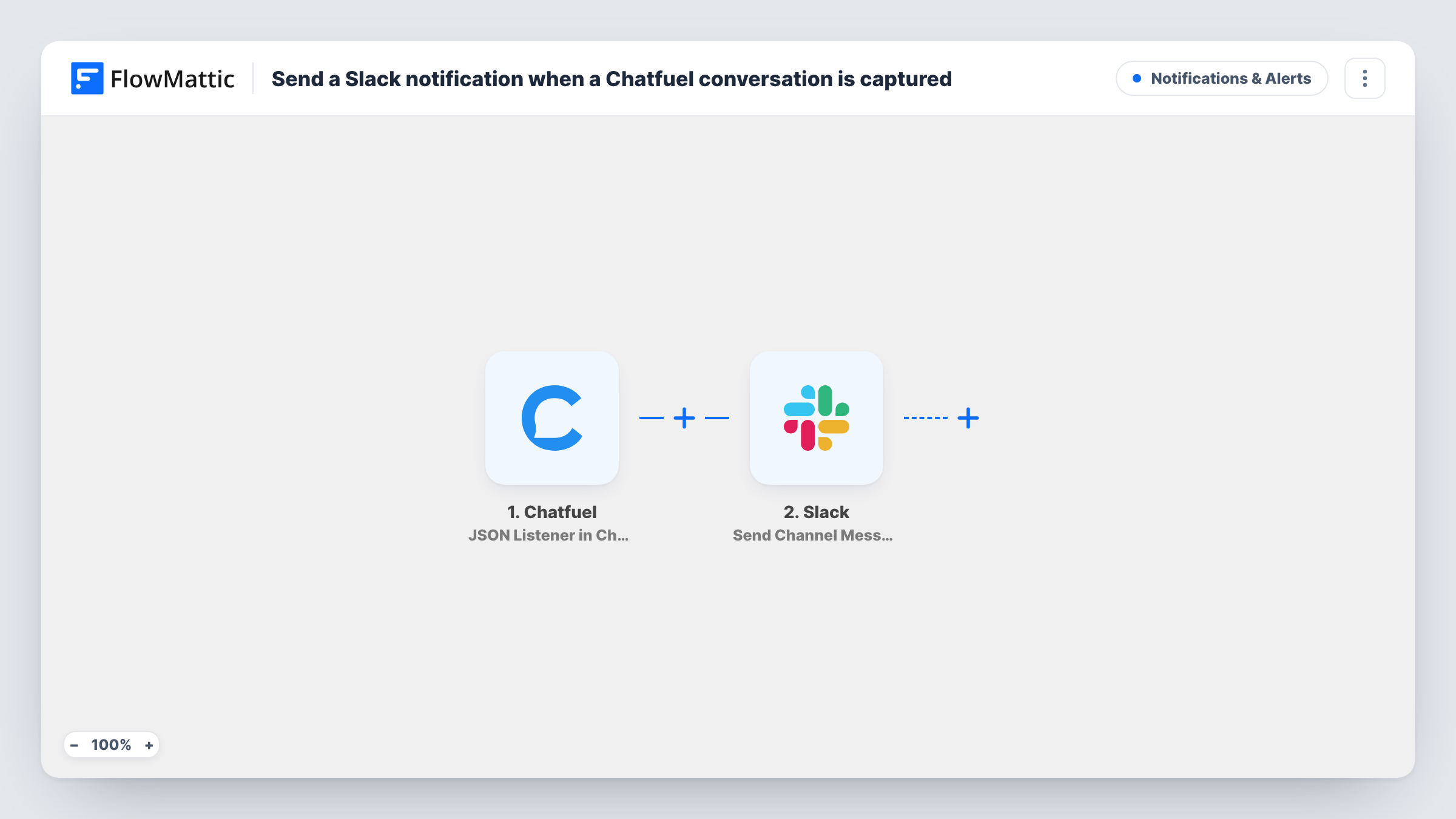
When your Chatfuel bot sends conversation data to FlowMattic, this workflow posts it as a message in a Slack channel, so your team sees what the bot collected without logging in to Chatfuel.
 Chatfuel
 Slack
2 steps Setup ~5 min Used on 738 sites Free to import
What this workflow does
A chatbot handles the first part of a conversation, but some chats need a person to step in: a sales question, a complaint, a booking that doesn't fit the script. If nobody is watching the bot's inbox, those conversations wait. Posting them to Slack puts them in front of the people who can answer.
The Chatfuel trigger listens for JSON sent by your bot. You add a request to the FlowMattic URL in your bot's flow, at the point where you want the team told, and include the user attributes worth sharing. Each time a conversation reaches that point, FlowMattic receives the values and hands them to Slack, which posts a message to the channel you choose.
You write the Slack message yourself after import and drop in the values from the bot, such as the person's name and their last answer. The workflow posts one message per request, with no Filter, so place the request only where a notification is useful. Task History records each run with the data Chatfuel sent and the reply from Slack.
Hand-off to a human agent
When a user taps Talk to a person in your bot, a message lands in the support channel with their name and question so an agent can reply in Messenger.
Hot sales leads from a pricing bot
Visitors who complete the bot's quote questions trigger a post in the sales channel listing their answers, ready for a rep to follow up.
Booking requests outside office hours
A clinic's bot collects appointment requests at night. The morning shift scrolls the Slack channel to see every request that came in.
How this workflow runs
What happens at each step once the workflow is on, and what you need before you import it.
 Chatfuel JSON Listener in Chatfuel
Runs when your Chatfuel bot sends a request to the FlowMattic JSON listener. The attributes the bot includes in that request become values you can use in the Slack message.
- Slack Send Channel Message
Sends the bot's details to Slack as a channel post. Choose the channel after import, write the text, and map in the values from Chatfuel so the team can see who the conversation is with and what they asked.
What you need
- FlowMatticCore
- Chatfuel AccountAccount
- Slack AccountAccount
After importing, map your own data. To keep the template universal, not every step is pre-filled. Open each step in the builder and connect your accounts and fields (channels, lists, sheets, recipients) before you switch the workflow on.
Make it yours
Changes worth making after you import it.
- If the team that needs the alert works in a private channel, switch the step to Slack's Send Private Channel Message action, since Send Channel Message is for public channels.
- Use a Router with routes that each check a distinct value of a bot attribute, such as the topic a user picked, to post sales and support chats to separate channels.
- To alert a single person instead of a channel, swap the step for Slack's Send Direct Message action and keep the same mapped values.
Questions about this workflow
When exactly does the Chatfuel conversation get posted to Slack?
When the bot reaches the request to FlowMattic's listener in your flow. Put that request where you want the alert, for example after the user asks for a human.
Does the Slack message include the whole chat transcript?
Only the values your bot sends in the request. Include the attributes you want the team to see, such as name, email and the user's last reply.
Can someone answer the Chatfuel user straight from the Slack post?
No. This template is one-way, from the bot into Slack. Your team answers the person in Chatfuel or in the messaging app the bot runs on.
Will Slack get a message for every Chatfuel user?
Only for users whose conversation reaches the request block. Users who never get to that point in the flow don't produce a message.
More Notifications & Alerts workflows
Other ready-to-import templates from the same category.




Import this workflow into your WordPress site
Download the JSON, import it from the Workflows screen and connect your accounts. Every run stays on your server, with no per-task fees.
30-day money-back guarantee Unlimited workflows and runs Self-hosted