

Send a Slack notification when a Gripp offer is accepted
When a client accepts an offer in Gripp, this workflow posts a message in a Slack channel, so the people who plan and deliver the work hear about the new job straight away.
 Gripp
 Slack
2 steps Setup ~5 min Used on 2.3k sites Free to import
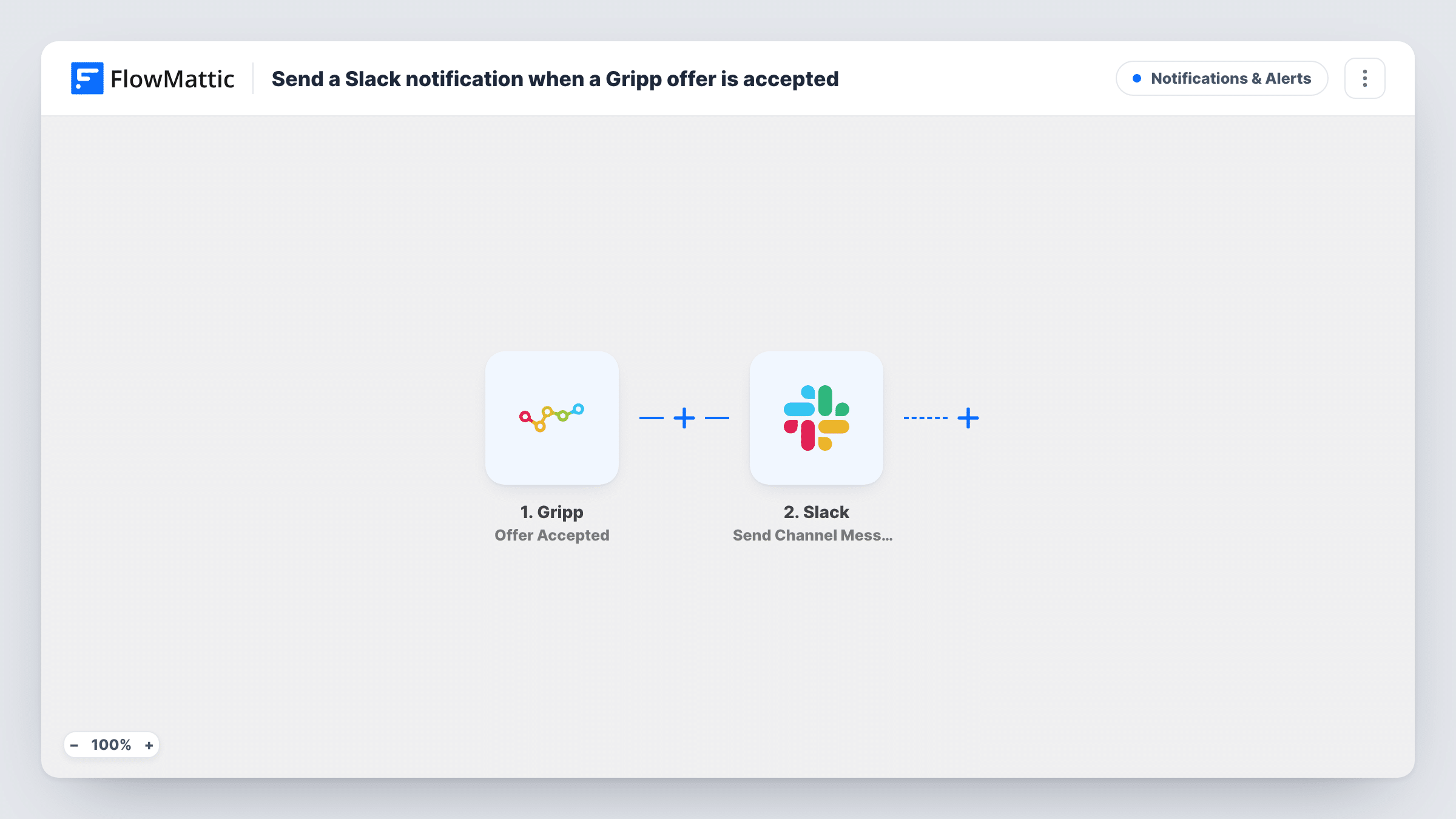
What this workflow does
An accepted offer is the point where sales hands over to delivery. In Gripp the status changes, but project leads and planners may not be looking at that screen. This workflow sends the news to Slack, where the team can react and start planning.
The Gripp trigger runs whenever an offer is accepted in your Gripp account. FlowMattic receives the offer data Gripp sends. The Slack step then sends a channel message, built from your own text and the offer details you insert.
One accepted offer means one Slack message. The workflow reads from Gripp but does not change anything there, so creating the project or tasks stays with your usual process. Each run is logged in Task History with the data that came in and the message that went out.
Agency wins channel
Every accepted offer is posted in #wins, so the whole agency sees which client signed and the account manager can thank the team that pitched.
Resource planning heads-up
Planners watch a Slack channel for accepted offers and use each one as the cue to book people onto the new project in Gripp.
Finance kick-off
The finance team gets a message for each accepted offer and knows to prepare the deposit invoice in Gripp.
How this workflow runs
What happens at each step once the workflow is on, and what you need before you import it.
 Gripp Offer Accepted
Runs each time an offer is accepted in your Gripp account. The offer details Gripp sends are passed to the Slack step.
- Slack Send Channel Message
Sends a message to a Slack channel of your choice when the offer is accepted. Combine your own words with the offer data you want shown, and check the wording with a test.
What you need
- FlowMatticCore
- Gripp AccountAccount
- Slack AccountAccount
After importing, map your own data. To keep the template universal, not every step is pre-filled. Open each step in the builder and connect your accounts and fields (channels, lists, sheets, recipients) before you switch the workflow on.
Make it yours
Changes worth making after you import it.
- Accept a test offer in Gripp after import so FlowMattic captures real data. You can then see which offer fields are available for the Slack message.
- Add a Filter after the trigger on an amount from the offer data, if Gripp sends one, so only larger jobs reach a leadership channel. Amounts are compared as whole numbers.
- Add a second Slack step, or a Router, if different teams need the news in their own channels.
Questions about this workflow
Does the Slack message go out for offers that are only sent or viewed in Gripp?
No. The trigger is Offer Accepted, so sending, viewing or declining an offer does not start a run.
Will offers accepted in Gripp before import be posted to Slack?
No. Only acceptances that happen while the workflow is on reach FlowMattic.
Does this workflow create a project in Gripp from the accepted offer?
No. It only posts to Slack. Gripp is read through the trigger and nothing is written back to it.
More Notifications & Alerts workflows
Other ready-to-import templates from the same category.




Import this workflow into your WordPress site
Download the JSON, import it from the Workflows screen and connect your accounts. Every run stays on your server, with no per-task fees.
30-day money-back guarantee Unlimited workflows and runs Self-hosted