

Send a Slack notification when a Hudby page is created or updated
When a page is created or updated in Hudby, FlowMattic posts a message to the Slack channel you choose, so designers, writers and reviewers hear about site changes where they already talk.
 Hudby
 Slack
2 steps Setup ~5 min Used on 2.7k sites Free to import
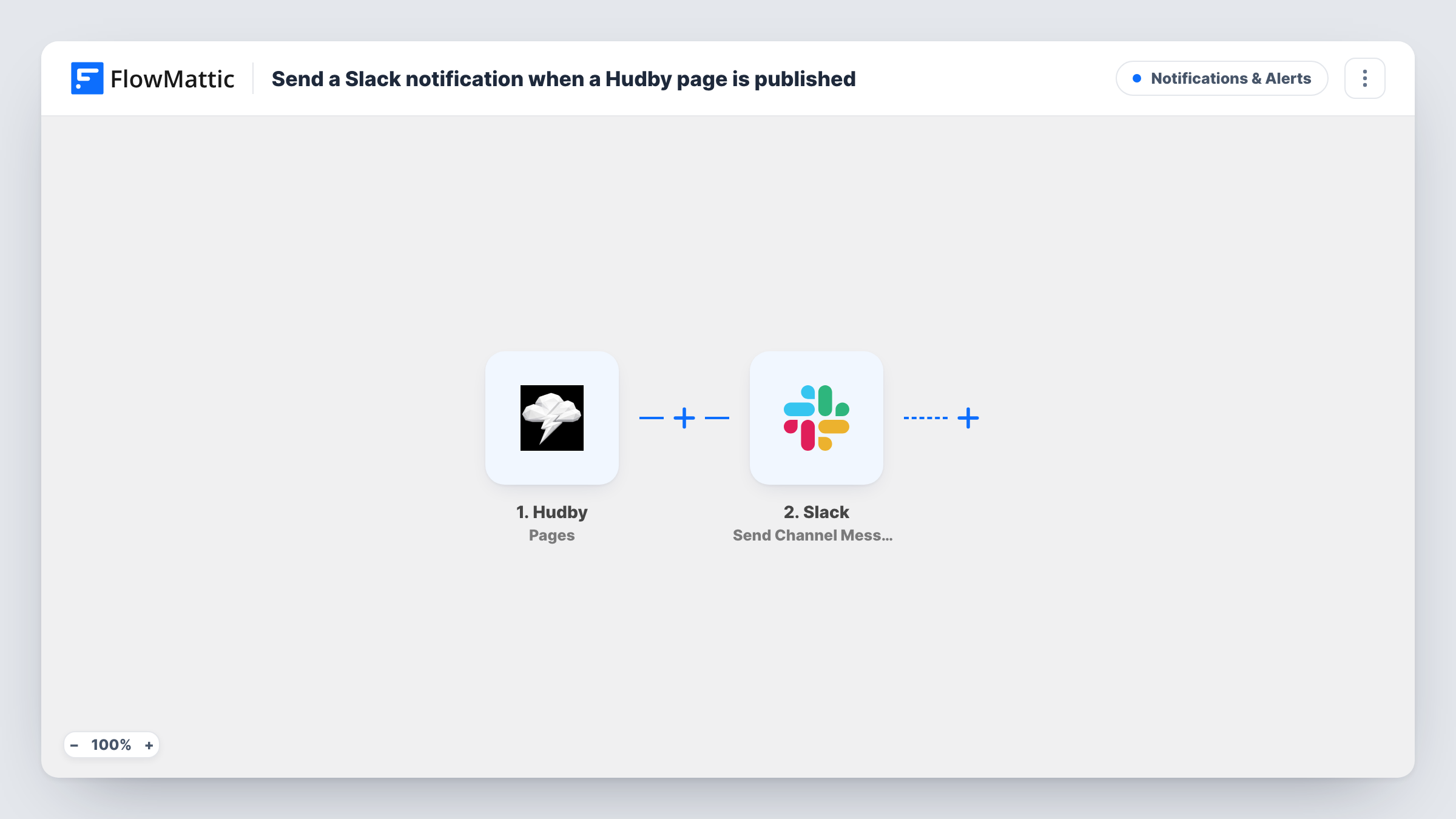
What this workflow does
Changes to a website's pages often go unnoticed until someone stumbles on them. When several people edit a Hudby site, a short heads-up in Slack lets the rest of the team review a new landing page or a revised pricing page while the change is fresh.
The Hudby Pages trigger fires when a page is created and again whenever a page is updated. FlowMattic hands the page details to the Slack step, which posts a message to a channel. The message step ships unmapped: after import you connect your Slack workspace, pick the channel and write the text, adding page fields such as the title or link from the trigger.
Since updates fire the trigger too, a page that is edited and saved several times posts several messages. That suits a review channel where each change matters. If the channel gets noisy, the tips show how to narrow it.
Create or edit a test page in Hudby after import, then open Task History to check the fields Hudby sent and what Slack returned.
Review new landing pages before a campaign
A marketing team gets a Slack post when someone builds a new Hudby landing page, so the copywriter can proofread it before ads go live.
Keep a client informed of site edits
An agency posts page changes to a shared Slack channel with its client, who sees each update to their Hudby site without asking.
Catch unplanned changes to key pages
A site owner watches a #website channel to notice when anyone edits the home or pricing page in Hudby.
How this workflow runs
What happens at each step once the workflow is on, and what you need before you import it.
 Hudby Pages
Fires when a page is created in Hudby and each time an existing page is updated. The page's details are available to map into the Slack message.
- Slack Send Channel Message
Sends the Hudby page alert to a Slack channel of your choice. The template leaves the channel and text for you to set, so write the message and map in page details such as the title and URL from the Hudby trigger.
What you need
- FlowMatticCore
- Hudby AccountAccount
- Slack AccountAccount
After importing, map your own data. To keep the template universal, not every step is pre-filled. Open each step in the builder and connect your accounts and fields (channels, lists, sheets, recipients) before you switch the workflow on.
Make it yours
Changes worth making after you import it.
- Map the page link into the message so teammates can open the changed page straight from Slack.
- For a private channel, switch the step to Slack's Send Private Channel Message action, or use Send Direct Message to alert one person.
- If only some pages matter, put a Filter between the Hudby trigger and the Slack step that checks the page title or URL, and set it to the pages you care about.
- Start the message with a fixed label such as "Hudby page change:" so the alerts are easy to search for in Slack later.
Questions about this workflow
Does every Hudby page update post to Slack?
Yes. The Pages trigger fires on updates as well as new pages, and each run sends one message. A Filter between the Hudby trigger and the Slack step can limit which pages post.
Can the Slack message include a link to the Hudby page?
Yes, if the trigger sends it. Run a test after import to see the page fields Hudby passes, then map the link and title into the message text.
Can I post Hudby page changes to a private Slack channel?
The imported Send Channel Message step is for ordinary channels. For Hudby alerts that should stay in a private channel, switch to the separate Send Private Channel Message action in FlowMattic's Slack integration.
Are Hudby blog posts covered by this workflow?
No. This one watches pages only. FlowMattic's Hudby integration also has a Blog trigger, which you can use in a second workflow with its own Slack step.
More Notifications & Alerts workflows
Other ready-to-import templates from the same category.




Import this workflow into your WordPress site
Download the JSON, import it from the Workflows screen and connect your accounts. Every run stays on your server, with no per-task fees.
30-day money-back guarantee Unlimited workflows and runs Self-hosted