

Send a Slack notification whenever a new file is uploaded to Uploadcare
Each time a file is uploaded to your Uploadcare project, this workflow posts a message in Slack, so your team knows a new image, document or video has arrived and can find it.
 Uploadcare
 Slack
2 steps Setup ~5 min Used on 1.2k sites Free to import
What this workflow does
Uploadcare often sits behind a website or app form, taking in files that customers, contributors or staff send. Nobody watches the dashboard all day, so new uploads can go unnoticed until someone asks. This workflow tells your team in Slack whenever a file comes in.
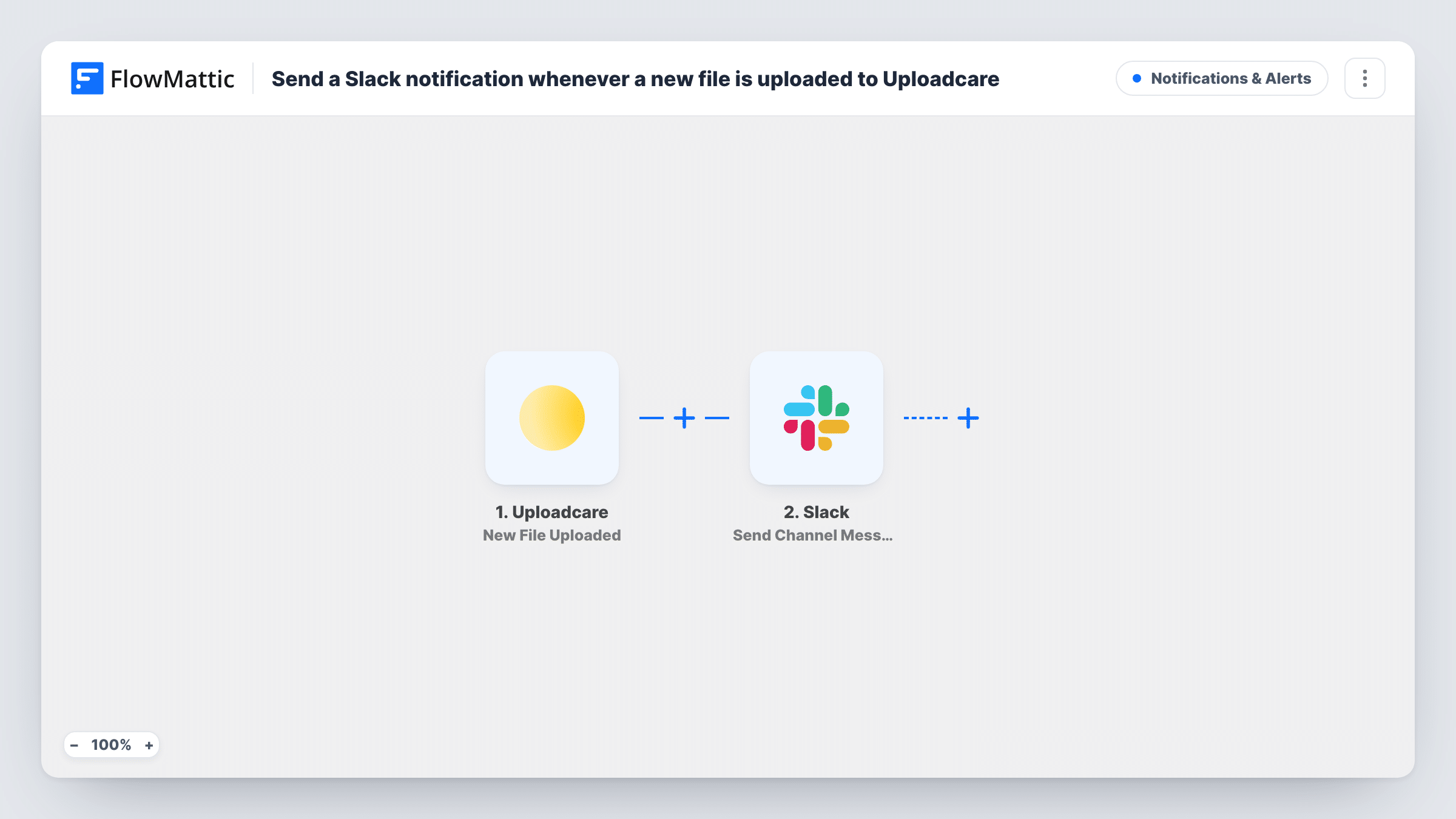
The Uploadcare trigger runs whenever a new file is uploaded to your account. FlowMattic receives the file data Uploadcare sends. The Slack step then sends a message to a channel, and you write it with the file details you want, such as its name or link, as shown by a test upload.
Every upload starts a run, so a busy upload form means a busy channel. The file itself stays in Uploadcare, and the message only describes it. Task History records each run with what Uploadcare sent and what was posted.
Customer artwork for print jobs
Customers upload artwork through a form on your site, and the production team sees each file in Slack so they can start proofing.
Job application documents
Applicants upload CVs through an Uploadcare widget. The hiring channel gets a message for each one, ready for the recruiter to open.
Content submissions for a publication
Contributors send photos and drafts. Editors see each upload in a Slack channel instead of checking Uploadcare for new files.
How this workflow runs
What happens at each step once the workflow is on, and what you need before you import it.
 Uploadcare New File Uploaded
Runs each time a new file is uploaded to your Uploadcare project. The file data Uploadcare sends is passed to the Slack step for the message.
- Slack Send Channel Message
Posts a Slack channel message about the uploaded file. Write the text, insert the file details from the trigger that your team needs, and send a test to see the result.
What you need
- FlowMatticCore
- Uploadcare AccountAccount
- Slack AccountAccount
After importing, map your own data. To keep the template universal, not every step is pre-filled. Open each step in the builder and connect your accounts and fields (channels, lists, sheets, recipients) before you switch the workflow on.
Make it yours
Changes worth making after you import it.
- Upload a test file after import so FlowMattic captures a real sample, then pick the file details for the Slack message from it.
- Add a Filter after the trigger to alert only on certain files, for example ones whose name contains .pdf, so the channel is not flooded with every image.
- Want a record too? Add a Google Sheets step after Slack that logs each upload in a row.
Questions about this workflow
Does the Slack message include the Uploadcare file itself?
No. The step posts a text message. Include a file link from the trigger data if your team needs to open the file from Slack.
Will files uploaded to Uploadcare before import be announced?
No. Only uploads that happen while the workflow is on start a run.
Can I send Uploadcare alerts to different Slack channels by file type?
Yes, with a change. Replace the single Slack step with a Router that checks the file name or type, and give each route its own Slack step.
More Notifications & Alerts workflows
Other ready-to-import templates from the same category.



Import this workflow into your WordPress site
Download the JSON, import it from the Workflows screen and connect your accounts. Every run stays on your server, with no per-task fees.
30-day money-back guarantee Unlimited workflows and runs Self-hosted