

Send a Slack notification whenever a new SocialBu post is published
Every time SocialBu publishes a new post, FlowMattic posts a message in a Slack channel, so your team knows what just went live on your social accounts without checking each network.
 Socialbu
 Slack
Slack2 steps Setup ~5 min Used on 1.6k sites Free to import
What this workflow does
Scheduled posts go out while nobody is watching. Support might field questions about a promotion they never saw announced, or a colleague shares the same news an hour later. A quick note in Slack whenever a post goes live keeps everyone on the same page.
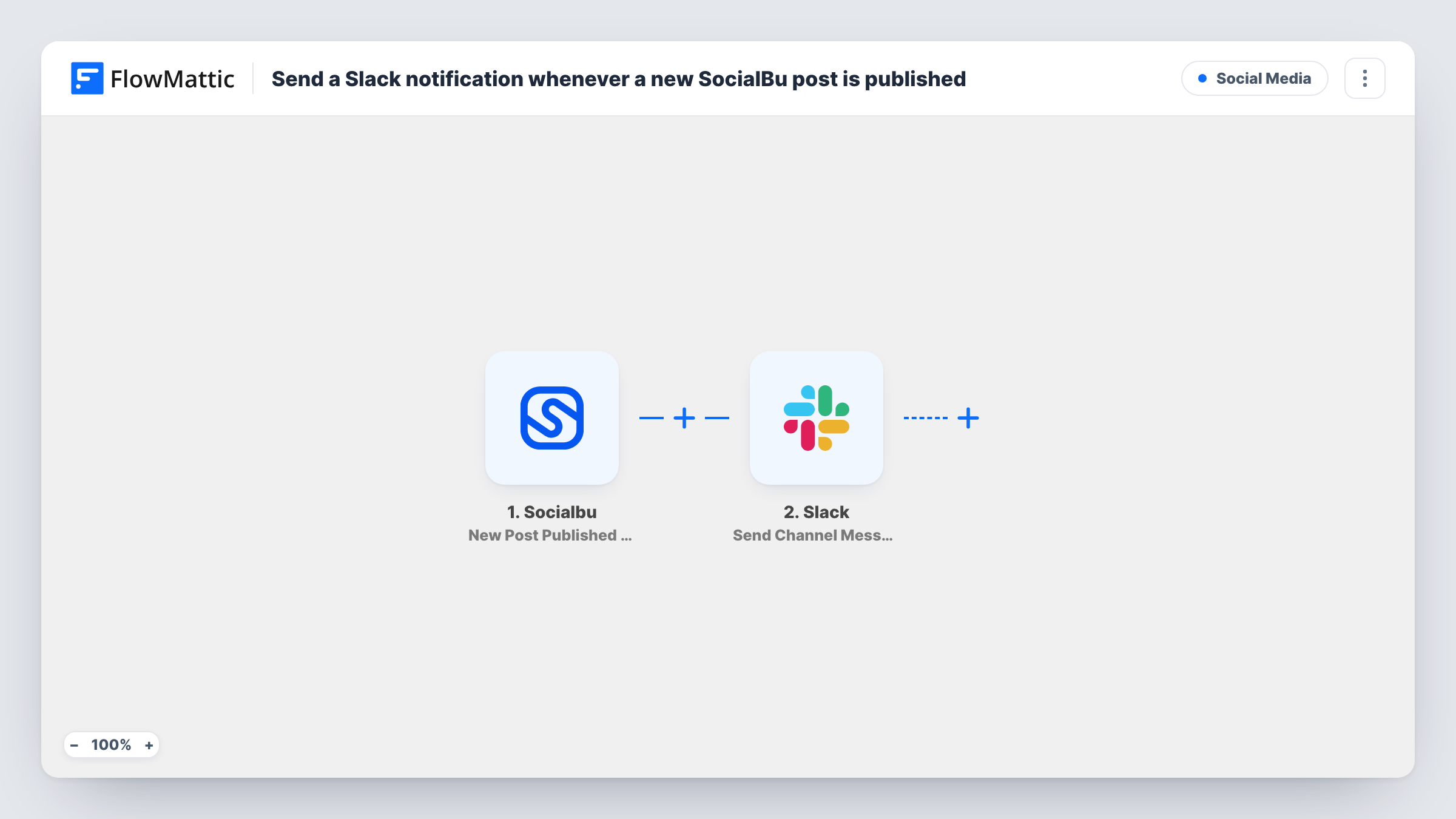
The SocialBu trigger fires when a new post is published by an account. FlowMattic captures the post data so you can map it. Next, a message goes to your chosen Slack channel. You write that message from fixed text and the SocialBu values a test post shows, such as the post text or a link to it.
Each published post sends one Slack message, and nothing changes in SocialBu itself. Posts published before the workflow is on are not announced. Task History lists every run with the data sent to Slack.
Giving support a heads-up on promotions
When a sale announcement is published through SocialBu, the support team sees it in Slack before customers start asking about it.
Agency account teams
Account managers follow a channel that shows each client post as it goes out, so they can mention it on their next client call.
Encouraging staff to share posts
A company posts each new social update in its #general channel so employees can like or share it from their own profiles.
How this workflow runs
What happens at each step once the workflow is on, and what you need before you import it.
 Socialbu New Post Published by Account
Runs whenever a post goes live through SocialBu. The post's details are handed to the Slack step for mapping.
- Slack Send Channel Message
Posts a message to the Slack channel you set. Combine your own words with the SocialBu post values, then publish a test post to see how the message looks.
What you need
- FlowMatticCore
- Socialbu AccountAccount
- Slack AccountAccount
After importing, map your own data. To keep the template universal, not every step is pre-filled. Open each step in the builder and connect your accounts and fields (channels, lists, sheets, recipients) before you switch the workflow on.
Make it yours
Changes worth making after you import it.
- Put a link to the published post in the Slack message if SocialBu sends one, so teammates can open it straight from the channel.
- Add a Filter after the trigger if only posts from one SocialBu account should be announced, using an account value if your test data has one.
- Add a Google Sheets step after Slack if you also want a running log of everything published.
Questions about this workflow
Does every SocialBu post send a Slack message?
Yes, as imported. Each post published by the account runs the workflow once. Add a Filter to announce only some posts.
Are scheduled SocialBu posts announced when they are created?
No. The trigger fires when a post is published, so a scheduled post is announced when it goes live, not when you schedule it.
Can I send the SocialBu alerts to a private Slack channel?
Yes. Choose the channel in the Slack step after connecting your workspace. Make sure the Slack connection can post there.
Does this workflow change my SocialBu posts?
No. It only reads published posts and sends a message to Slack.
More Social Media workflows
Other ready-to-import templates from the same category.





Import this workflow into your WordPress site
Download the JSON, import it from the Workflows screen and connect your accounts. Every run stays on your server, with no per-task fees.
30-day money-back guarantee Unlimited workflows and runs Self-hosted