

Send a Telegram message for every new Chartink alert
When a Chartink screener alert fires, this workflow sends a Telegram text message with the alert details, so the signals you set up reach your phone or a trading group chat.
 Chartink
 Telegram
2 steps Setup ~5 min Used on 1.4k sites Free to import
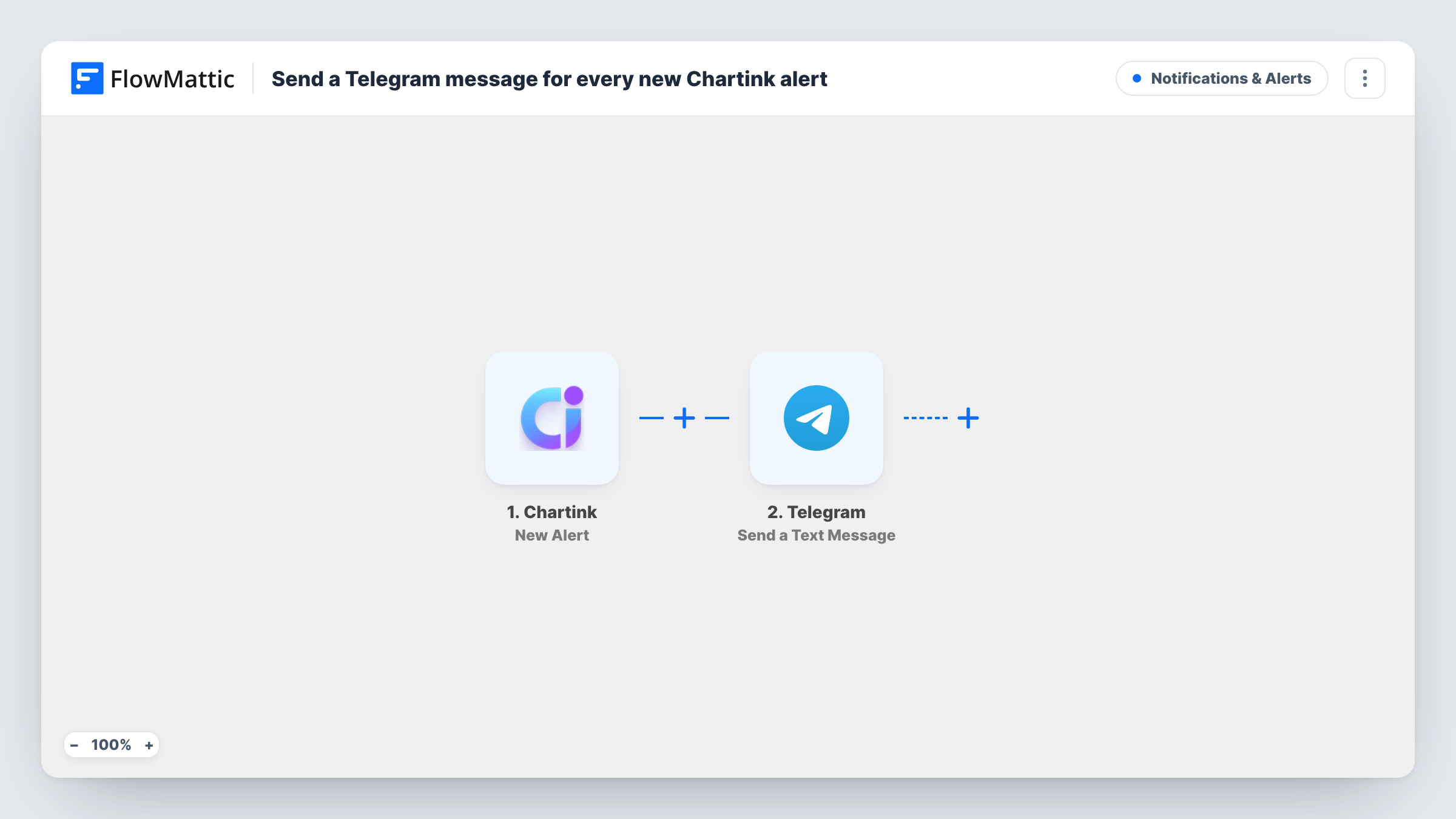
What this workflow does
Chartink scans stocks against the screener conditions you build and raises an alert when they match. If you are away from the screen, those alerts are easy to miss. Telegram is already on your phone, so a message there is a simple place to receive them.
The Chartink trigger fires on New Alert. FlowMattic takes the alert data Chartink sends and passes it to Telegram, where Send a Text Message delivers a text to the chat you set. You write the message and place alert fields in it, and the step supports markup, so you can format key parts.
Every alert produces one message. The workflow does not judge or trade on the signal; it only forwards what Chartink sends. Task History lists each run, which helps when you want to compare what arrived against your screener.
Personal intraday alerts
A breakout screener in Chartink fires during market hours, and each alert arrives as a Telegram message while you are away from your desk.
Sharing signals with a study group
A Telegram group for a trading course receives every alert from the screener your instructor maintains in Chartink.
Keeping a running record in a chat
A private Telegram chat collects every Chartink alert, giving you a scrollable history of what fired and when.
How this workflow runs
What happens at each step once the workflow is on, and what you need before you import it.
 Chartink New Alert
Fires when Chartink raises a new alert for the event you set up. The alert data becomes available to place in the Telegram message. Connect Chartink on import and test with a live alert.
- Telegram Send a Text Message
Sends a text message to the Telegram chat you choose, with support for markup. Write the text and insert the Chartink alert fields you want to read. Connect Telegram on import.
What you need
- FlowMatticCore
- Chartink AccountAccount
- Telegram AccountAccount
After importing, map your own data. To keep the template universal, not every step is pre-filled. Open each step in the builder and connect your accounts and fields (channels, lists, sheets, recipients) before you switch the workflow on.
Make it yours
Changes worth making after you import it.
- Add a Filter after the trigger if only alerts from one screener should reach Telegram. Check a test run to see which alert field names the screener, then build the condition on it.
- Use a Router with a Telegram step on each route to send alerts from different screeners to different chats.
- Wait for one real Chartink alert after import so FlowMattic captures its fields, then build the Telegram message from them before turning the workflow on.
Questions about this workflow
Does every Chartink alert send a Telegram message?
Yes, as imported. Each new alert runs the workflow once and sends one message. Add a Filter if you want to forward only some of them.
Can the Telegram message go to a group?
The step sends to the chat you set. Test with the group you have in mind after connecting Telegram, and check Task History if the message does not appear.
Does FlowMattic place trades from Chartink alerts?
No. This workflow only forwards the alert text to Telegram. Any trading decision stays with you.
What Chartink data can I show in the Telegram text?
Whatever the alert carries when Chartink sends it. Let one alert come through after import to see the fields, then map them into the message.
More Notifications & Alerts workflows
Other ready-to-import templates from the same category.





Import this workflow into your WordPress site
Download the JSON, import it from the Workflows screen and connect your accounts. Every run stays on your server, with no per-task fees.
30-day money-back guarantee Unlimited workflows and runs Self-hosted