

Send a Slack alert for every new Social Intents missed chat
When a visitor’s chat goes unanswered in Social Intents, this workflow posts a message to the Slack channel you choose, so your team can see the missed conversation and follow up with that visitor.
 Social Intents
 Slack
2 steps Setup ~5 min Used on 2.2k sites Free to import
What this workflow does
A missed chat is a visitor who asked something and got no answer, often while your team was busy or away. Social Intents records it, but nobody may look until much later. This workflow puts each missed chat in a Slack channel where your team will see it.
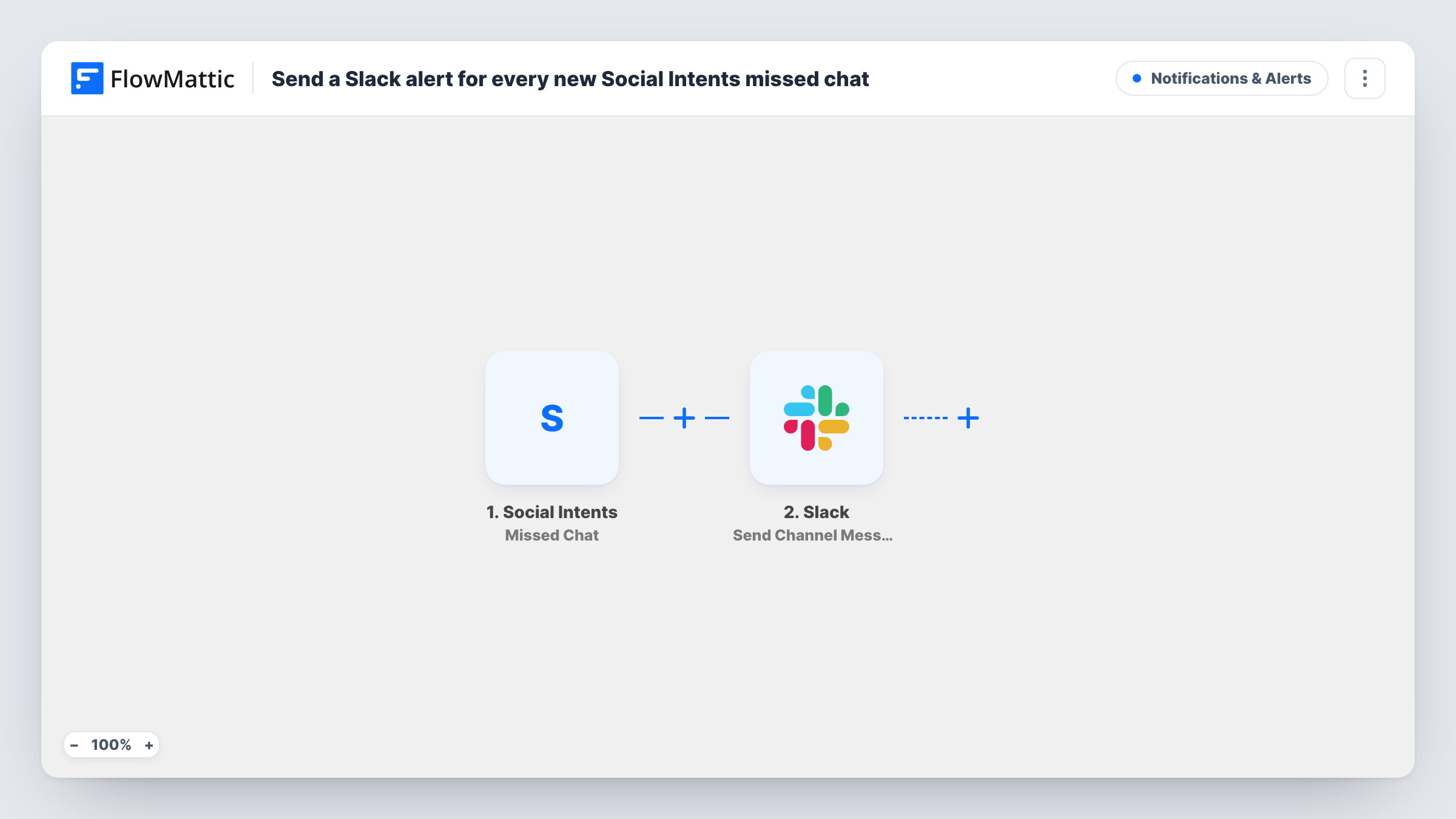
The Social Intents trigger fires when a visitor chat is missed, and FlowMattic captures the chat data. The Slack step runs Send Channel Message, posting the text you write to the channel you set. You can insert chat details from Social Intents, such as the visitor's contact details or message, if the trigger provides them.
Only missed chats run the workflow. Chats your team answers do not post anything. You can review each missed-chat alert, along with the data behind it, in Task History.
Out-of-hours chats
Visitors who start a chat overnight post to a #missed-chats channel, and the morning shift works through the list first thing.
Small teams sharing chat duty
When the person on chat steps away and a visitor is missed, the whole support channel sees it and someone else can reply by email.
Sales enquiries from a pricing page
Missed chats from prospects are posted to the sales channel, so a salesperson can contact them while their interest is fresh.
How this workflow runs
What happens at each step once the workflow is on, and what you need before you import it.
 Social Intents Missed Chat
Fires when a visitor's chat is missed in Social Intents. The chat data is captured so you can put it in the Slack message.
- Slack Send Channel Message
Posts an alert about the missed chat to the Slack channel set here. Connect Slack, write the message and insert any visitor details the trigger provides.
What you need
- FlowMatticCore
- Social Intents AccountAccount
- Slack AccountAccount
After importing, map your own data. To keep the template universal, not every step is pre-filled. Open each step in the builder and connect your accounts and fields (channels, lists, sheets, recipients) before you switch the workflow on.
Make it yours
Changes worth making after you import it.
- Trigger a missed chat on your own site after import, for example by leaving a test chat unanswered, so FlowMattic captures real data to use in the Slack message.
- Add a Google Sheets step after Slack that logs each missed chat, so you can see later how many were missed and at what times.
- If missed chats need a follow-up task, add a step after Slack that creates one in your project or CRM tool with the visitor's details.
Questions about this workflow
Do answered Social Intents chats post to Slack?
No. The trigger is Missed Chat, so only chats that go unanswered start the workflow.
Can the Slack alert include the visitor's email?
Only if Social Intents includes it in the missed chat data. Leave a test chat unanswered and check what the trigger captures before you write the message.
Are older missed chats sent to Slack?
No. Only chats missed after you turn the workflow on are posted.
Which Slack channel gets the missed chat alerts?
The one you choose in the Send Channel Message step after connecting your workspace. A dedicated channel keeps the alerts apart from other conversations.
More Notifications & Alerts workflows
Other ready-to-import templates from the same category.





Import this workflow into your WordPress site
Download the JSON, import it from the Workflows screen and connect your accounts. Every run stays on your server, with no per-task fees.
30-day money-back guarantee Unlimited workflows and runs Self-hosted