

Send a Telegram notification when a customer replies in Google RCS Business Messaging
When your Google RCS Business Messaging agent receives a customer message or event, FlowMattic sends a Telegram text with the details you map, so you see replies without watching the RCS console.
 Google RCS Business Messaging
 Telegram
2 steps Setup ~5 min Used on 2.3k sites Free to import
What this workflow does
Customers answer RCS business messages when it suits them, and you may not be at a desk when they do. This workflow forwards what reaches your RCS agent to Telegram, an app you probably already have on your phone.
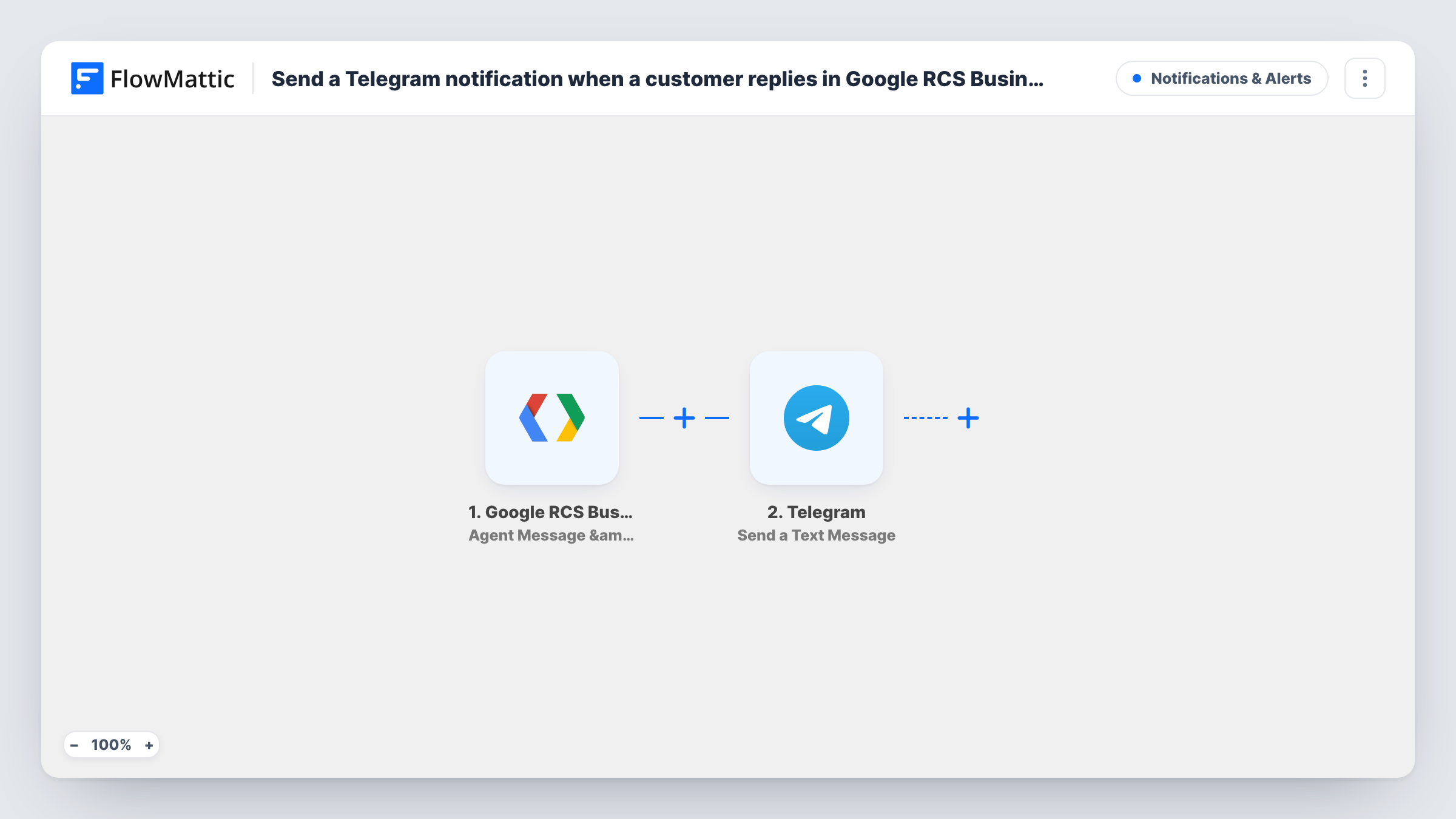
The Google RCS Business Messaging trigger fires for the agent you connect. It runs when a user sends a message or selects a suggestion chip, and also when a delivery or read receipt is generated. FlowMattic then runs Send a Text Message in Telegram, where you write the text and map in data from the event, such as the message the customer sent.
As imported, every one of those events produces a Telegram message, receipts included. If you only want to hear about real replies, add a Filter between the two steps. Run a test to see which field tells a customer message apart from a receipt, then set the Filter on it. The tips below cover this.
Owner of a small shop answering RCS replies
Customers reply to order updates sent over RCS. Each reply is forwarded to your Telegram, so you can open the conversation and answer.
Tracking suggestion chip choices
A campaign message offers chips such as Book now or Call me. A chip tap reaches Telegram, so staff can follow up the same day.
Support team group chat
Point the message at a Telegram group used by your support staff, so everyone sees incoming RCS replies and one person picks each up.
How this workflow runs
What happens at each step once the workflow is on, and what you need before you import it.
 Google RCS Business Messaging Agent Message & Event Received
Fires for your RCS agent when a user sends a message, taps a suggestion chip, or when a delivery or read receipt is generated. The event data is passed on for the Telegram message.
- Telegram Send a Text Message
Sends a text message through Telegram, with markup support. Connect Telegram on import, write the text and map in the customer's message or chip choice from the RCS event.
What you need
- FlowMatticCore
- Google RCS Business Messaging AccountAccount
- Telegram AccountAccount
After importing, map your own data. To keep the template universal, not every step is pre-filled. Open each step in the builder and connect your accounts and fields (channels, lists, sheets, recipients) before you switch the workflow on.
Make it yours
Changes worth making after you import it.
- Add a Filter after the trigger so receipts don't send a Telegram message. Send a test reply first, then use the field that marks a customer message as the Filter condition.
- Include the sender's identifier from the RCS event in the Telegram text, so you know which conversation to open.
- Use a Router instead of a Filter if you want customer messages and chip selections sent to different Telegram chats.
Questions about this workflow
Will delivery and read receipts also send me a Telegram message?
Yes, as imported. The RCS trigger fires for receipts as well as customer messages and chip taps. Add a Filter after the trigger to pass only the events you care about.
Can I reply to the RCS customer from Telegram?
No. This workflow only sends you a notification. You answer the customer through your RCS Business Messaging setup.
Can the Telegram alert go to a group instead of just me?
It depends on where your Telegram connection is allowed to post. Point the Telegram step at the group after import and run a test to confirm the message lands there.
Does this cover every RCS agent I run?
The trigger is tied to one agent. For a second agent, import the workflow again and connect that agent.
More Notifications & Alerts workflows
Other ready-to-import templates from the same category.





Import this workflow into your WordPress site
Download the JSON, import it from the Workflows screen and connect your accounts. Every run stays on your server, with no per-task fees.
30-day money-back guarantee Unlimited workflows and runs Self-hosted