

Send a thank-you email via Gmail after a successful Payhip transaction
Each time someone completes a purchase on Payhip, this workflow sends them a thank-you email from your Gmail account, written your way and filled with details from the transaction.
 Payhip
 Gmail
Gmail2 steps Setup ~5 min Used on 2.9k sites Free to import
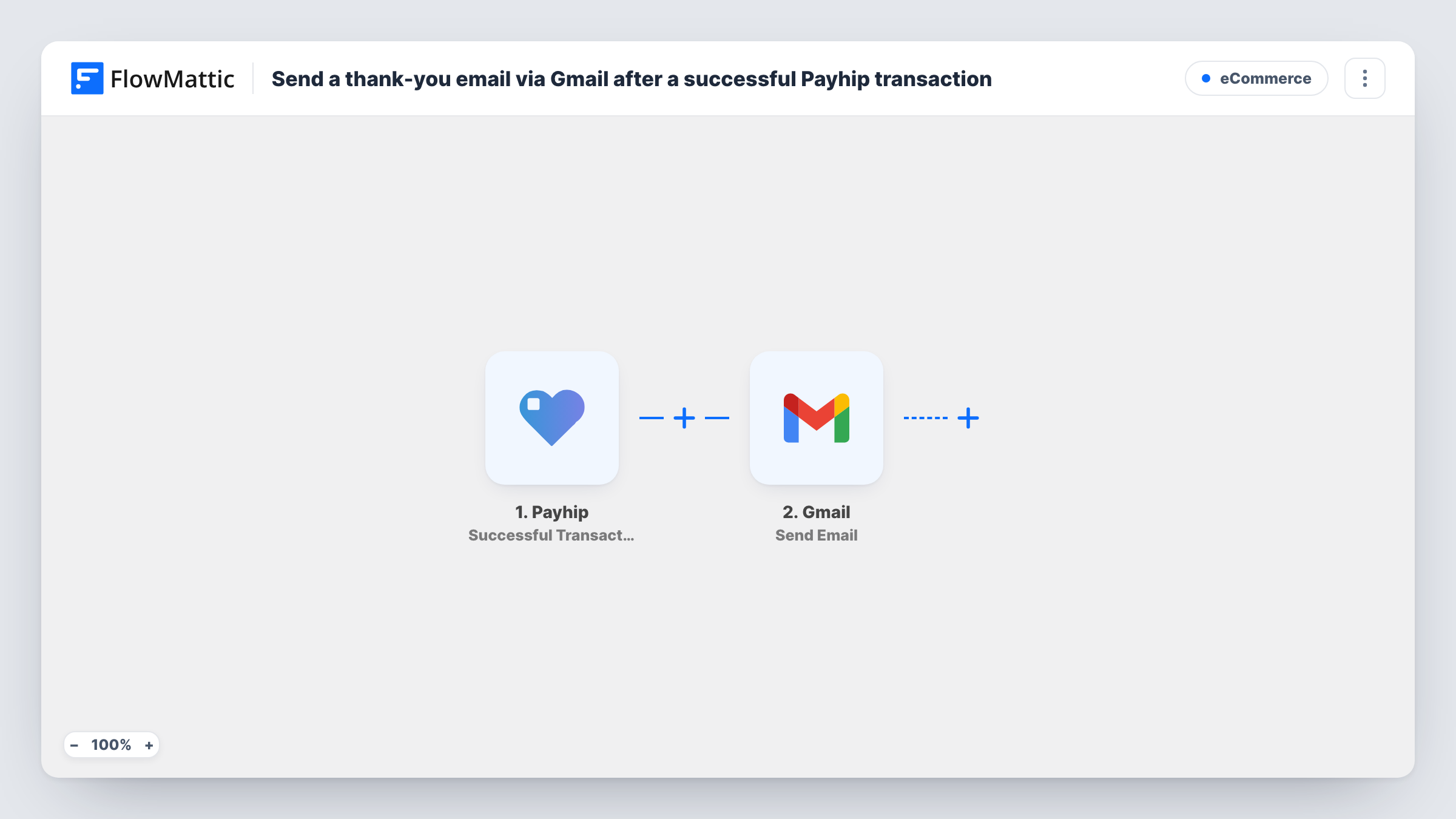
What this workflow does
A short note from the seller reads differently from an automated invoice. Writing that note by hand after every sale is easy to forget once orders pick up. This workflow sends a thank-you email from your own Gmail address after each successful Payhip transaction.
Each completed sale in your store reaches the Payhip trigger as a successful transaction. The transaction details it carries become data you can map, including the buyer's email address. Next, Gmail sends one message per sale to whichever recipient you map. Map the buyer's email into the recipient, then write the subject and message, dropping in transaction fields wherever you want them.
Because the email goes out through your connected Gmail account, it appears in your Sent folder and replies come back to your inbox. Every purchase starts its own run, so a returning buyer gets a fresh note each time they buy. Task History lists each run with the data sent to Gmail.
Personal note from an ebook author
An author selling ebooks on Payhip sends each buyer a short thank-you from their own address, with a line inviting replies about the book.
Getting-started email for a course or template pack
A creator selling design templates uses the Gmail message to point buyers to a help page and explain how to open the files they bought.
Asking buyers for feedback
A software seller adds a question at the end of each thank-you email, and the answers arrive as Gmail replies the seller can read and file.
How this workflow runs
What happens at each step once the workflow is on, and what you need before you import it.
 Payhip Successful Transaction
Runs when a successful transaction is made in your Payhip store. The transaction data, including the buyer and the purchase, is passed on so you can use it in the email.
- Gmail Send Email
Delivers the thank-you message through the Gmail account you connect on import. Map the buyer's email address from the Payhip step as the recipient, then write the subject and body and insert transaction fields where you need them.
What you need
- FlowMatticCore
- Payhip AccountAccount
- Gmail AccountAccount
After importing, map your own data. To keep the template universal, not every step is pre-filled. Open each step in the builder and connect your accounts and fields (channels, lists, sheets, recipients) before you switch the workflow on.
Make it yours
Changes worth making after you import it.
- Run one test purchase after import so FlowMattic captures Payhip's transaction fields, then check which of them hold the buyer's email and name before you map the Gmail step.
- Sell several products? Put a Router after the trigger with one route per product, each checking a distinct product value, and a Gmail step on each route, so buyers get a message about their item.
- Add a Google Sheets step after Gmail to log each buyer and product, which gives you a running list of who has received a thank-you email.
Questions about this workflow
Does this replace the receipt Payhip sends?
No. The workflow only listens for successful transactions and sends an extra email through Gmail. Whatever Payhip itself sends to buyers stays as it is.
Will a repeat Payhip buyer get another thank-you email?
Yes. Every successful transaction starts a run, so each purchase sends its own email, even from someone who has bought before.
Do buyers see my Gmail address as the sender?
Yes. The message is sent from the Gmail account you connect in FlowMattic, so it shows that address and replies go to that inbox.
Are past Payhip sales included when I turn this on?
No. The trigger fires on new successful transactions, so only purchases made after the workflow is active get an email.
More E-Commerce workflows
Other ready-to-import templates from the same category.







Import this workflow into your WordPress site
Download the JSON, import it from the Workflows screen and connect your accounts. Every run stays on your server, with no per-task fees.
30-day money-back guarantee Unlimited workflows and runs Self-hosted