

Send a thank-you email via Gmail when a Copecart payment is received
Each time Copecart receives a payment, this workflow sends the buyer a thank-you email from your Gmail account, written by you and filled with their name and product, so every purchase gets a personal note.
 Copecart
 Gmail
Gmail2 steps Setup ~5 min Used on 3.5k sites Free to import
What this workflow does
An automatic payment confirmation tells buyers the money went through, but it reads like a system message. A short thank-you from your own Gmail address feels like it came from a person, and buyers can reply to it directly. This workflow sends one for every payment.
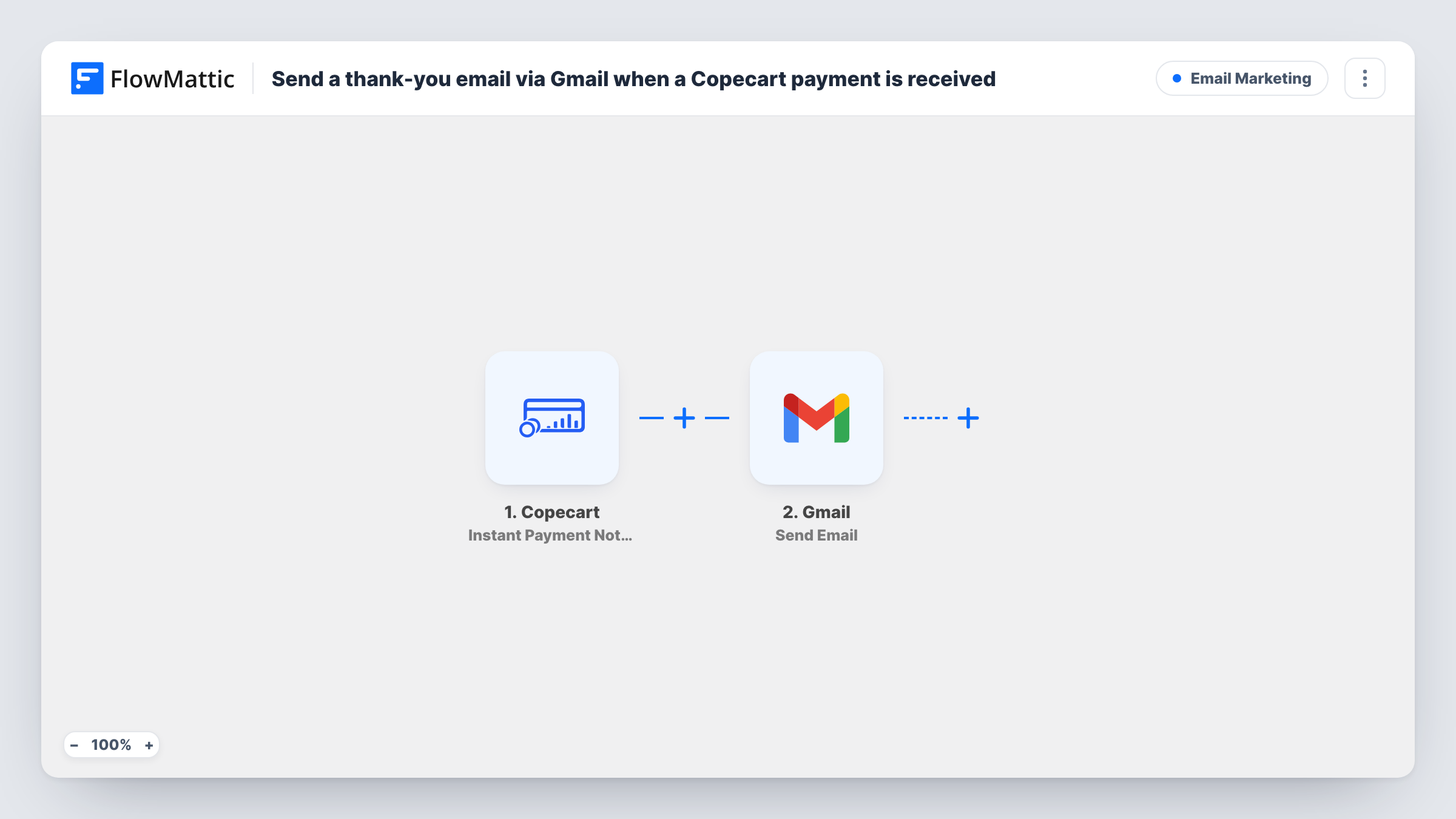
The Copecart trigger Instant Payment Notification fires when a payment is received in Copecart and passes the payment data to FlowMattic. The Gmail step then runs Send Email from the account you connect. You map the buyer's email as the recipient and write the subject and message, adding their name and the product they bought.
Every payment notification runs the workflow. If you sell payment plans or subscriptions, each later payment may send another thank-you, so word the email to fit or add a Filter. Make a test purchase after import to see the fields Copecart sends, and check Task History if a buyer says the email never arrived.
Personal note from a course creator
Students who buy your course get an email from your own address thanking them and telling them where to log in first.
Digital product with a reply-to conversation
Buyers of an ebook or template pack receive a thank-you they can answer, so questions arrive in your Gmail inbox instead of a support form.
Coaching programme purchase
After paying for a coaching package in Copecart, clients get a thank-you that explains how to book their first session.
How this workflow runs
What happens at each step once the workflow is on, and what you need before you import it.
 Copecart Instant Payment Notification
Runs as soon as Copecart reports an incoming payment. The buyer's details and the product information from the notification are ready to use in the email.
- Gmail Send Email
Delivers the thank-you through the Gmail account you link. Map the buyer's email address from Copecart as the recipient, then write a message that includes their name and product.
What you need
- FlowMatticCore
- Copecart AccountAccount
- Gmail AccountAccount
After importing, map your own data. To keep the template universal, not every step is pre-filled. Open each step in the builder and connect your accounts and fields (channels, lists, sheets, recipients) before you switch the workflow on.
Make it yours
Changes worth making after you import it.
- Add a Filter on the product field and duplicate the workflow so each product sends its own thank-you with links that fit it.
- Add a Delay before the Gmail step if you would like the thank-you to land a little while after the purchase rather than at the same moment.
- Add a Google Sheets step after the email to log each payment and the date the thank-you was sent.
Questions about this workflow
Will Copecart installment payments send another thank-you email?
If Copecart sends a payment notification for each installment, yes, because every notification runs the workflow. Add a Filter if you only want the first payment thanked.
Does the Gmail thank-you replace emails Copecart sends?
No. This workflow changes nothing in Copecart, so any emails Copecart sends still go out. The Gmail message is an extra note from your own address.
Can buyers reply to the Gmail thank-you?
Yes. It is sent from your connected Gmail account, so replies go to that inbox like any other email.
Are past Copecart buyers emailed when I turn this on?
No. Only payments received after the workflow is active trigger a thank-you.
More Email Marketing workflows
Other ready-to-import templates from the same category.





Import this workflow into your WordPress site
Download the JSON, import it from the Workflows screen and connect your accounts. Every run stays on your server, with no per-task fees.
30-day money-back guarantee Unlimited workflows and runs Self-hosted