

Add EasySend applicants to a Mailchimp audience when a transaction is created
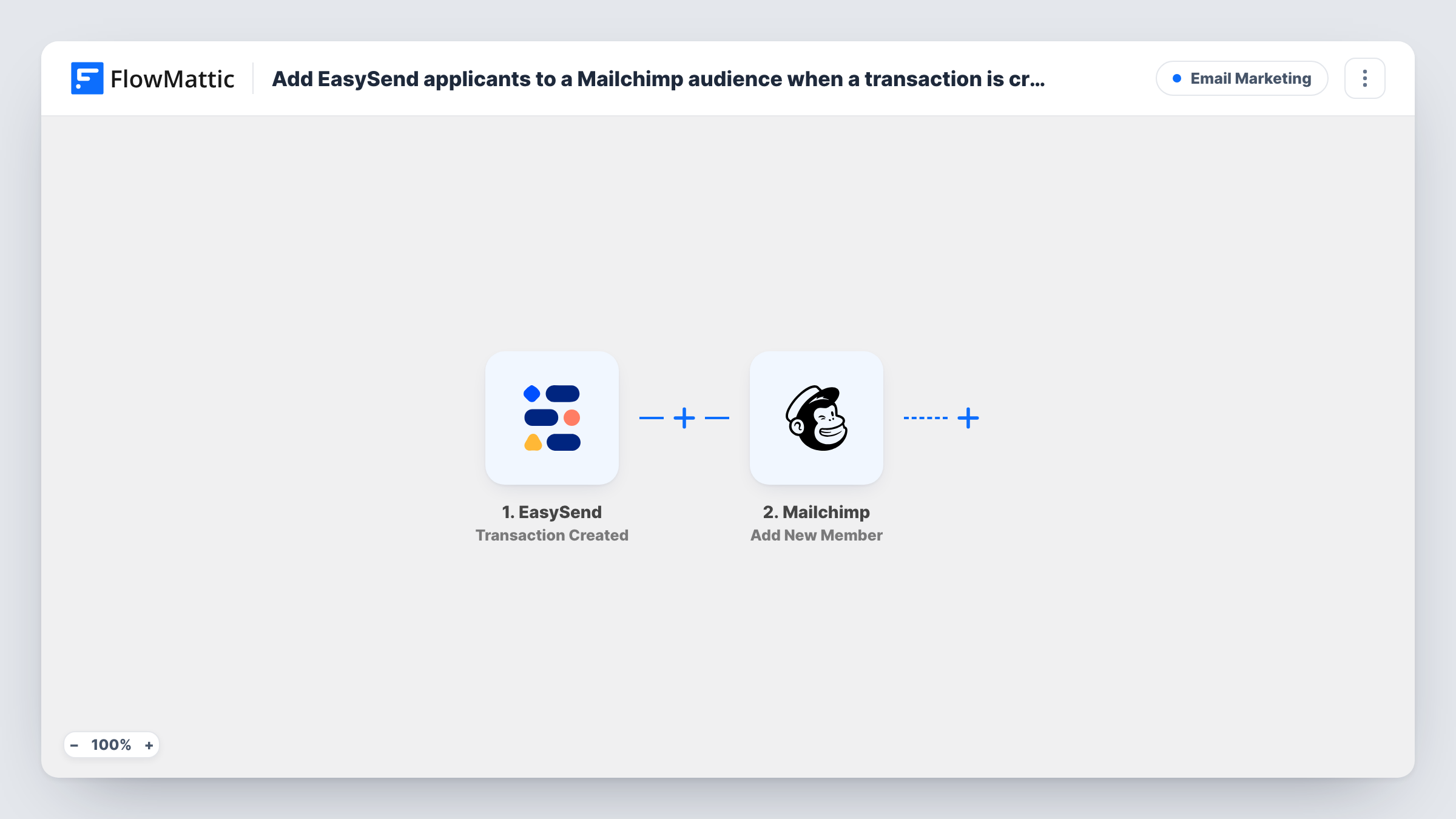
When EasySend generates a new transaction, this workflow adds the applicant to your Mailchimp audience, or updates them if they are already on the list, using the email address you map from the transaction.
 EasySend
 Mailchimp
2 steps Setup ~5 min Used on 2.7k sites Free to import
What this workflow does
Applicants who start a form in EasySend are people you may want to keep in touch with by email. Moving them into Mailchimp by hand means exports and imports that are always behind. This workflow adds each applicant to your audience when their transaction is created.
The EasySend trigger fires when a transaction is generated, and the transaction's details become fields in FlowMattic. The Mailchimp step runs Add New Member, which adds a new member to the list, or updates the member if that address is already there. You map the applicant's email and any name details into the member.
A transaction may be generated before the applicant has typed everything in, so check what it holds. Send a test through EasySend and look in Task History for an email address in the trigger data; without one, Mailchimp has nothing to add. Mailchimp's response for each run is shown there too.
Loan or insurance applicants
Each applicant who starts an EasySend application joins a Mailchimp audience you use for updates about the products they applied for.
Onboarding sequences for new customers
Put new applicants in the audience behind your welcome emails, so the sequence you built in Mailchimp starts for each of them.
Keeping one list for every channel
If people also sign up through your website, the EasySend applicants land in the same audience, and a person who is already there is updated rather than added twice.
How this workflow runs
What happens at each step once the workflow is on, and what you need before you import it.
 EasySend Transaction Created
Fires when EasySend generates a new transaction. The transaction's details, including any applicant information it holds at that point, become fields to map.
- Mailchimp Add New Member
Adds the applicant as a new member of your Mailchimp list, or updates them if the address already exists. Map the email from the EasySend transaction and connect your Mailchimp account.
What you need
- FlowMatticCore
- EasySend AccountAccount
- Mailchimp AccountAccount
After importing, map your own data. To keep the template universal, not every step is pre-filled. Open each step in the builder and connect your accounts and fields (channels, lists, sheets, recipients) before you switch the workflow on.
Make it yours
Changes worth making after you import it.
- If the transaction doesn't hold the applicant's email yet, try rebuilding the workflow on EasySend's Data Submitted or Transaction Completed trigger and compare what each one sends.
- Add a Filter after the trigger that continues only when the applicant agreed to marketing emails, if your EasySend form asks for consent.
- Send EasySend applicants to a Mailchimp audience of their own if their emails should differ from your general newsletter, and choose that list in the Mailchimp step.
Questions about this workflow
What if the EasySend applicant is already in my Mailchimp audience?
Add New Member adds the person, or updates them if they already exist, so you won't get a duplicate or an error for an address that is already on the list.
Does the EasySend transaction include the applicant's email?
That depends on when the transaction is created in your EasySend setup. Run a test and check the trigger data in Task History before you rely on it.
Are applicants from earlier EasySend transactions added to Mailchimp?
No. Only transactions generated after you switch the workflow on add people to your audience.
Will this send them a Mailchimp email straight away?
FlowMattic sends no email itself here; it just puts the EasySend applicant on the list. Whether Mailchimp emails them depends on the automations you have set up for that audience.
More Email Marketing workflows
Other ready-to-import templates from the same category.




Import this workflow into your WordPress site
Download the JSON, import it from the Workflows screen and connect your accounts. Every run stays on your server, with no per-task fees.
30-day money-back guarantee Unlimited workflows and runs Self-hosted