

Send a Twilio SMS confirmation when a Shoprocket order is created
When an order is created in Shoprocket, this workflow sends the customer an SMS through Twilio, so buyers get a text confirming their order with the details you choose to include.
 Shoprocket
 Twilio
2 steps Setup ~5 min Used on 3.0k sites Free to import
What this workflow does
Shoprocket handles the checkout, but some shoppers want more than an email to know their order went through. A text message is read quickly and doesn't get lost in a spam folder. This workflow sends one through Twilio each time a Shoprocket order is created.
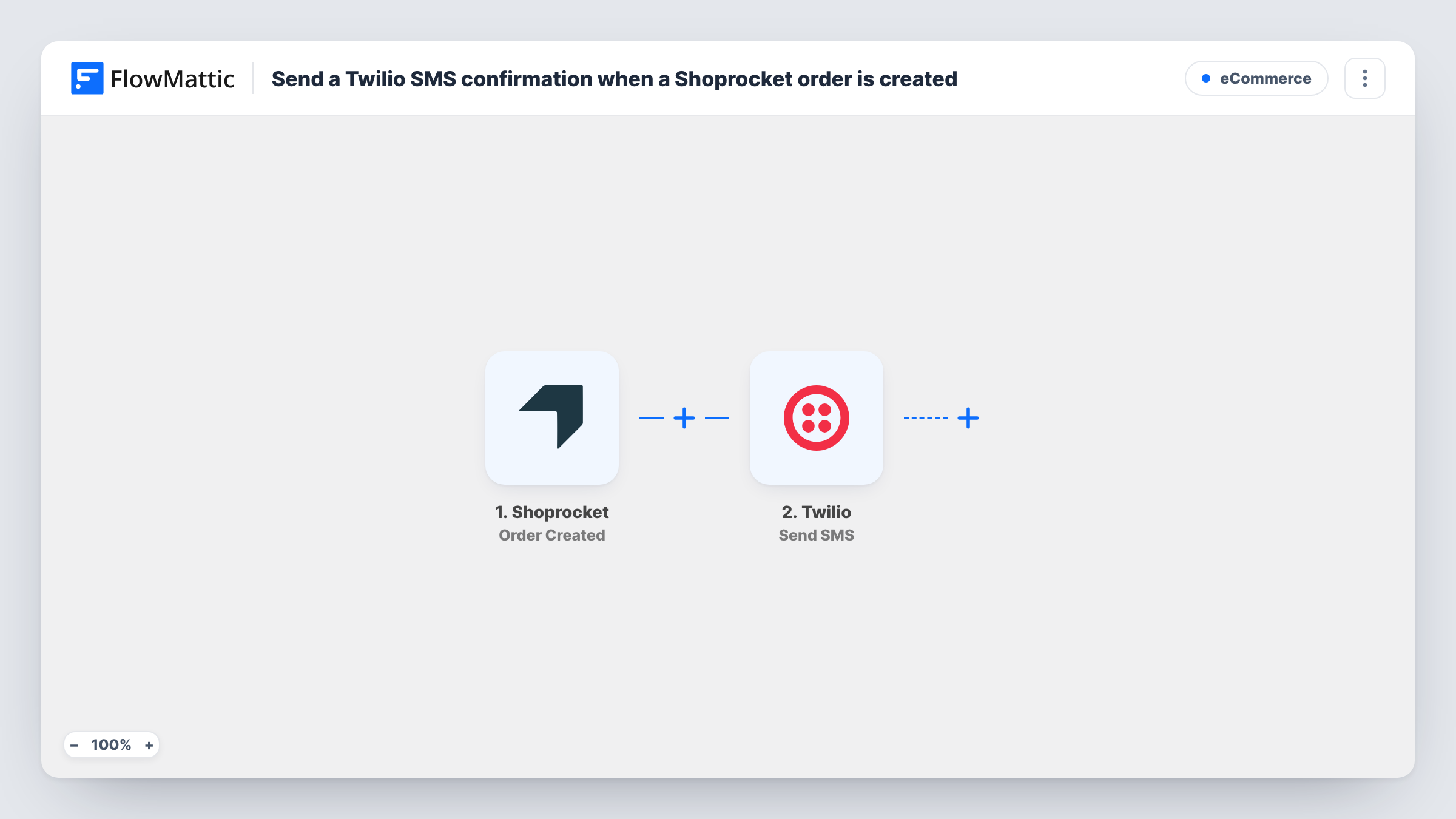
A run begins as soon as Shoprocket records a new order in your store. FlowMattic passes the order data, including the customer's details, to Twilio. The Send SMS action texts the phone number you map, from your Twilio number, with a message that can include the order number, the buyer's name or other order details.
The text can only go out if the order holds a phone number in a format Twilio accepts. If it doesn't, Twilio returns an error and Task History shows it on that step.
Order confirmation for a merch shop
A band selling shirts through Shoprocket texts each buyer with their order number, so fans know the order was received.
Local pickup orders
A bakery taking orders on Shoprocket sends an SMS confirming the order so customers have the details on their phone when they arrive.
Gift shop with mobile shoppers
Most buyers order from their phone, so a short text with the order reference is the easiest confirmation for them to find.
How this workflow runs
What happens at each step once the workflow is on, and what you need before you import it.
 Shoprocket Order Created
Fires when an order is created in Shoprocket. The order and customer details from that event become data you can map into the text message.
- Twilio Send SMS
Texts the buyer from your Twilio account. Map the customer's phone number from the order, choose your sending number, and write a message with the order details you want.
What you need
- FlowMatticCore
- Shoprocket AccountAccount
- Twilio AccountAccount
After importing, map your own data. To keep the template universal, not every step is pre-filled. Open each step in the builder and connect your accounts and fields (channels, lists, sheets, recipients) before you switch the workflow on.
Make it yours
Changes worth making after you import it.
- Make the phone field required at Shoprocket checkout if you can, so every order has a number to send to.
- Add a Filter after the trigger that continues only when the phone number is not empty, which avoids Twilio errors on orders without one.
- Place a test order after import so FlowMattic captures the Shoprocket fields, then map the phone number and order reference into the Twilio step.
Questions about this workflow
What happens if a Shoprocket order has no phone number?
Twilio can't send without a number, so that step returns an error. Task History shows it. Add a Filter on the phone field to skip those orders.
Do I need my own Twilio number to text Shoprocket buyers?
Yes. Messages are sent from a number in your Twilio account, which you connect on import.
Does this replace Shoprocket's order confirmation email?
No. The workflow adds a text message. Shoprocket's own emails are not changed.
Can the text include what the customer bought?
You can map any order detail the Shoprocket trigger provides into the message. Run a test order to see which fields are available.
More E-Commerce workflows
Other ready-to-import templates from the same category.







Import this workflow into your WordPress site
Download the JSON, import it from the Workflows screen and connect your accounts. Every run stays on your server, with no per-task fees.
30-day money-back guarantee Unlimited workflows and runs Self-hosted