

When Submission Received in KwesForms, Add Customer in WooCommerce, Send Confirmation Email via Gmail
Each KwesForms submission creates a customer profile in your WooCommerce store and then sends the person a confirmation email from your Gmail account, so sign-ups made outside the store are set up and acknowledged in one run.
 KwesForms
 WooCommerce
 Gmail
Gmail3 steps Setup ~5 min Used on 3.0k sites Free to import
What this workflow does
Sometimes customers sign up before they buy: a trade account request, a wholesale application or a registration form on a static site built with KwesForms. Someone then has to create the WooCommerce customer by hand and write back to confirm. This workflow does both from the form submission.
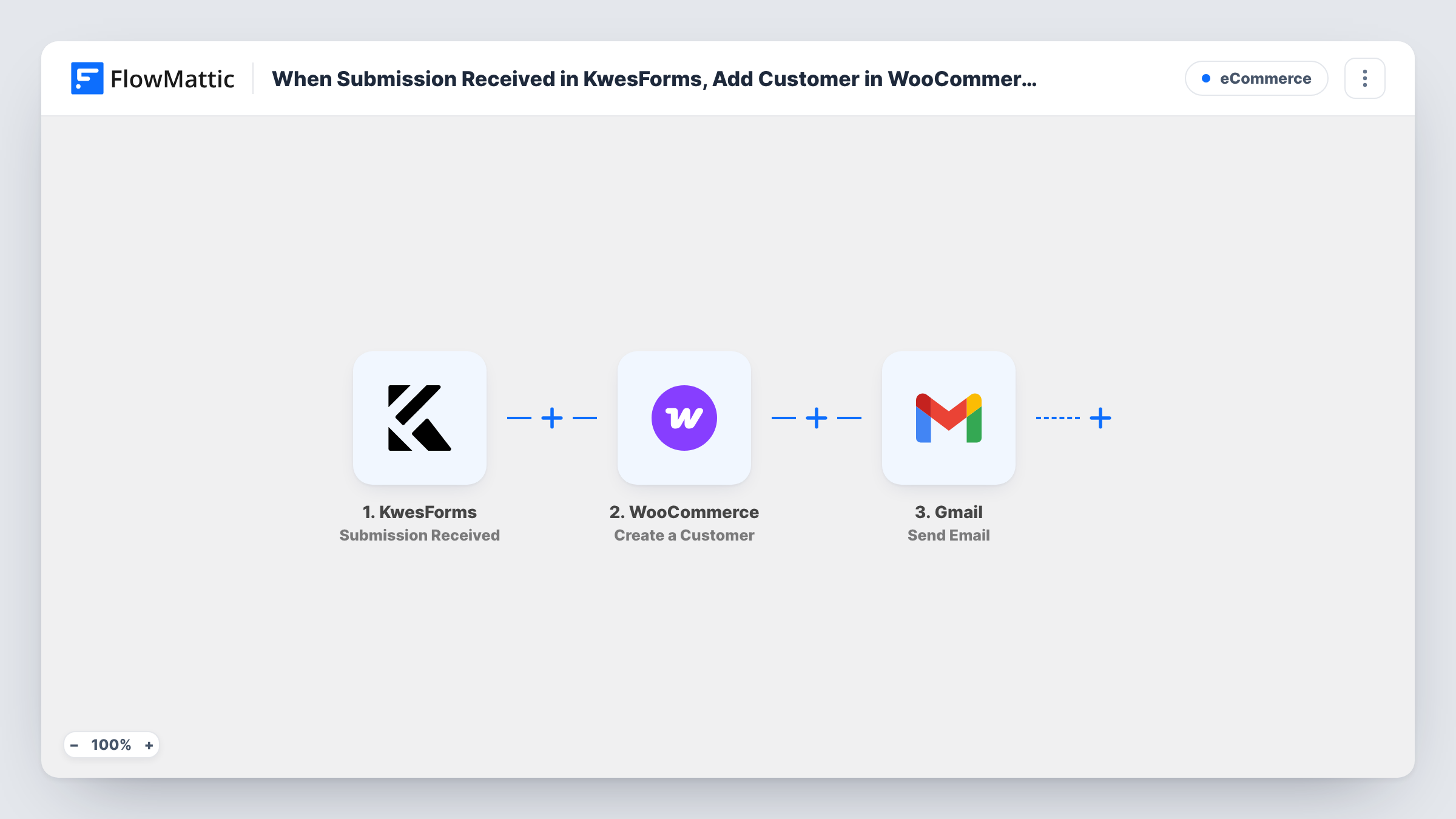
The KwesForms trigger fires when a new submission is received. FlowMattic passes the answers to WooCommerce, where Create a Customer adds a new customer profile to your store using the email, name and other details you map. Finally, Gmail sends an email from your connected account to the address on the form, with the subject and message you write.
WooCommerce customers are WordPress users, and an email address can only belong to one of them. If the person already has an account, WooCommerce will likely reject the new customer and Task History shows the response. The Gmail step still runs in that case, so word the confirmation so it makes sense either way, or add a check first.
Wholesale or trade account applications
Businesses apply through a KwesForms form, get a WooCommerce customer profile, and receive an email confirming the application was received.
Pre-launch customer registration
Visitors register on a landing page before the store opens, so their customer profiles are ready on launch day and they get a welcome note.
Offline or phone orders entered by staff
Staff fill in a KwesForms form for a phone customer, which creates the WooCommerce customer and emails them a confirmation.
How this workflow runs
What happens at each step once the workflow is on, and what you need before you import it.
 KwesForms Submission Received
Fires when a new submission is received on your KwesForms form. The answers, including the email address, are passed to the WooCommerce and Gmail steps.
- WooCommerce Create a Customer
Creates a new customer profile in WooCommerce from the submission. Map the email and the name fields, plus any other details the step offers that your form collects.
- Gmail Send Email
Sends an email from your Gmail account to the address submitted on the form. Write the subject and body, and add the person's name or other answers to make the message personal.
What you need
- FlowMatticCore
- KwesForms AccountAccount
- WooCommerce PluginPlugin
- Gmail AccountAccount
After importing, map your own data. To keep the template universal, not every step is pre-filled. Open each step in the builder and connect your accounts and fields (channels, lists, sheets, recipients) before you switch the workflow on.
Make it yours
Changes worth making after you import it.
- Make the email field required in your KwesForms form, because WooCommerce needs an email address to create a customer.
- Add a Filter before the WooCommerce step that continues only when an account-type answer equals Wholesale, if the form serves several purposes.
- Send a test submission with an email that has no account on your store, then check the new customer in WooCommerce and the message in the inbox.
Questions about this workflow
What if the KwesForms email already belongs to a WooCommerce customer?
WooCommerce allows one account per email, so the create step will likely be refused and Task History shows the response. The Gmail confirmation is still sent.
Does creating the WooCommerce customer send WooCommerce's own new-account email?
That depends on your WooCommerce email settings, not on this workflow. Check them so the person does not receive two messages that say different things.
Why is the confirmation sent from Gmail rather than from WooCommerce?
The template uses the Gmail app's Send Email action, so the message comes from your connected Gmail account with the wording you write in the step.
Does the KwesForms form need to be on my WordPress site?
No. KwesForms forms can live on any site. FlowMattic receives the submission and creates the customer in WooCommerce on your WordPress site.
More E-Commerce workflows
Other ready-to-import templates from the same category.



Import this workflow into your WordPress site
Download the JSON, import it from the Workflows screen and connect your accounts. Every run stays on your server, with no per-task fees.
30-day money-back guarantee Unlimited workflows and runs Self-hosted