

Send a Twilio SMS to the customer when a Synchroteam job is started
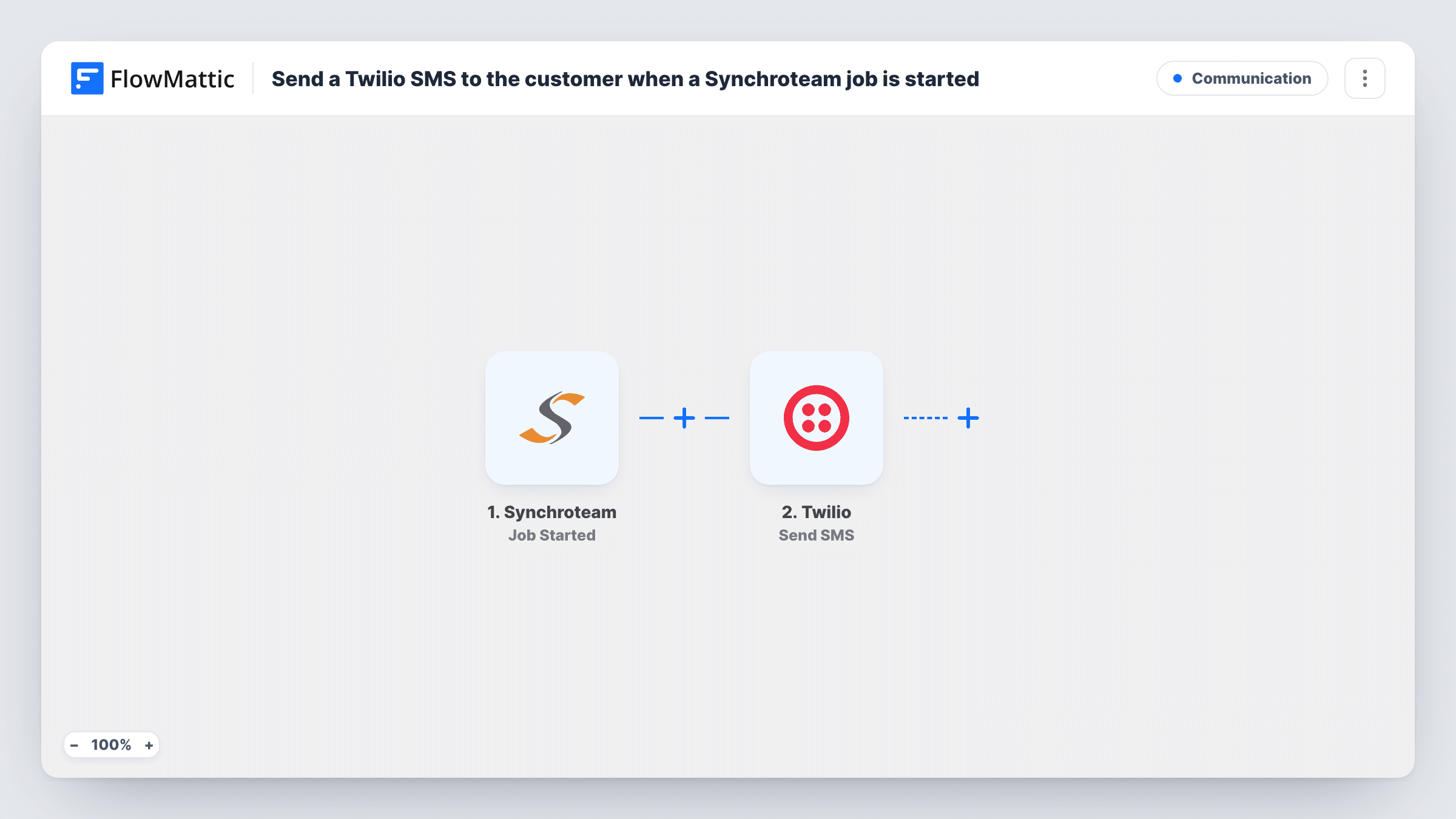
When a technician starts a job in Synchroteam, this workflow sends a text message through Twilio to the phone number you map from the job, so your customer hears that work has begun.
 Synchroteam
 Twilio
2 steps Setup ~5 min Used on 3.2k sites Free to import
What this workflow does
Customers waiting for a field visit want to know when work is under way. Calling each one when a job starts takes your office staff away from other work, and technicians on site have their hands full. This workflow sends that update as a text message instead.
The Synchroteam trigger fires when a job's status moves to started. FlowMattic receives the job data and passes it to Twilio, whose Send SMS action texts the number you map. You write the message yourself and can put values from the job into it, so the customer knows which visit the text is about.
The text goes out once for each Job Started event. Check with a test job that the customer's phone number is in the data Synchroteam sends and that it is in a format Twilio accepts. Task History records every run, along with the response from Twilio.
HVAC or plumbing visits
When the technician marks the job as started in Synchroteam, the homeowner receives a text saying the work has begun at their address.
Cleaning services
A business client gets a text as the cleaning crew starts the job, so the office manager knows the team is on site.
Equipment installation
Customers waiting on an install receive a message naming the job when your installer starts it, without the office making a call.
How this workflow runs
What happens at each step once the workflow is on, and what you need before you import it.
 Synchroteam Job Started
Fires each time a job is started in Synchroteam. The job's data is passed to FlowMattic for use in the text message.
- Twilio Send SMS
Texts the customer from your Twilio number when the job starts. Map the customer's phone number from the Synchroteam job data, write the message, and add any job values you want the customer to see.
What you need
- FlowMatticCore
- Synchroteam AccountAccount
- Twilio AccountAccount
After importing, map your own data. To keep the template universal, not every step is pre-filled. Open each step in the builder and connect your accounts and fields (channels, lists, sheets, recipients) before you switch the workflow on.
Make it yours
Changes worth making after you import it.
- Start a test job in Synchroteam right after import and look at the trigger data in FlowMattic. That shows you which value holds the customer's phone number before you map it into Twilio.
- Add a Filter after the trigger that continues only when the phone value is not empty, so jobs without a customer number do not reach the Twilio step.
- Keep the message short and name your business in it, so customers recognise who is texting them about the job.
Questions about this workflow
Which phone number does the Twilio SMS come from?
It comes from a number in your own Twilio account, which you connect to FlowMattic when you set up the Twilio step.
What if the Synchroteam job has no customer phone number?
Twilio has no number to send to, so the step returns an error, which you can see on that step in Task History. A Filter on the phone value avoids those runs.
Does the customer get another text when the job is completed?
No. This workflow listens only for Job Started. To text on completion, build a second workflow with the Synchroteam Job Completed trigger and its own Twilio step.
Can I send the text to the technician instead of the customer?
Yes. Map a different phone number into the Twilio step, such as one from the job data or a fixed number you type in.
More Communication workflows
Other ready-to-import templates from the same category.






Import this workflow into your WordPress site
Download the JSON, import it from the Workflows screen and connect your accounts. Every run stays on your server, with no per-task fees.
30-day money-back guarantee Unlimited workflows and runs Self-hosted