

Send a welcome email through Gmail to new GrooveSell customers
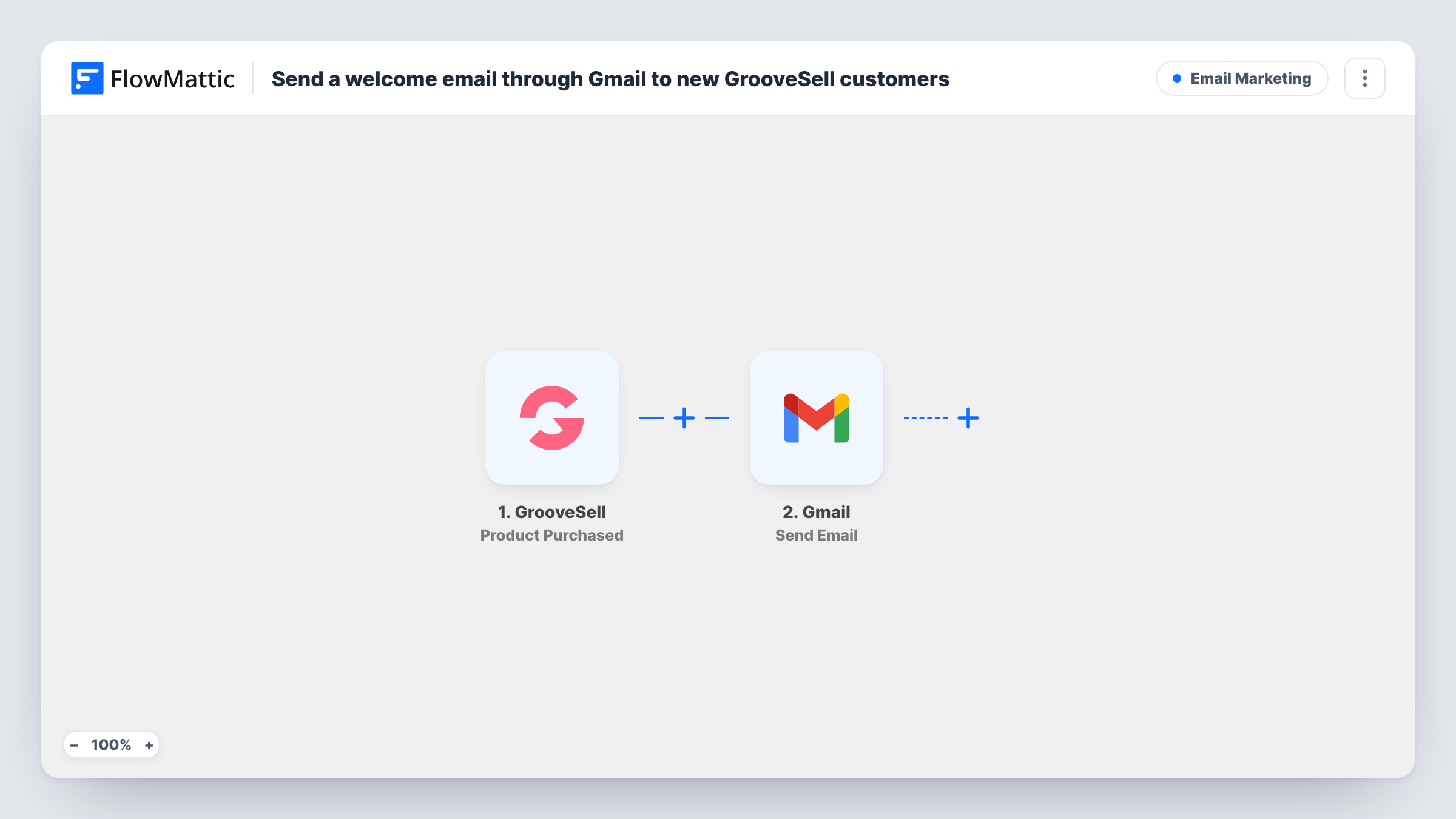
After each GrooveSell purchase, FlowMattic sends the buyer a welcome email from your Gmail account, with the subject and message you write and purchase details mapped in.
 GrooveSell
 Gmail
Gmail2 steps Setup ~5 min Used on 801 sites Free to import
What this workflow does
GrooveSell handles the checkout, but a short personal note from your own address makes the next step clear for the buyer: where to log in, how to get help, what to do first. This workflow sends that email from Gmail after each purchase.
A new sale in GrooveSell kicks off each run. The buyer's and product's details are passed to FlowMattic. The next step uses Send Email in Gmail, so the message comes from the mailbox you connect and replies land there.
The email isn't written for you. After import, map the buyer's email as the recipient, write the subject and body, and drop in details such as the buyer's name or the product they bought. A test purchase shows which details GrooveSell sends.
The trigger fires on every purchase, not only a buyer's first. Someone who buys a second product gets the welcome email again, so write it to make sense for repeat buyers or name the product in it. Task History records each email sent.
Course creators
A buyer purchases an online course through GrooveSell and gets a Gmail message from the creator with login steps and where to ask questions.
Software sold with licence keys
After a purchase, the welcome email tells the buyer where to download the product and how to reach support.
Coaching programmes
A coach's welcome email asks each new client to book their first session and explains what to prepare.
How this workflow runs
What happens at each step once the workflow is on, and what you need before you import it.
 GrooveSell Product Purchased
Fires each time a product is purchased through GrooveSell. Connect GrooveSell on import; the buyer and product details become available for the email.
- Gmail Send Email
Sends an email from your Gmail account to the buyer. Map their email as the recipient, then write the subject and message with any GrooveSell details you want.
What you need
- FlowMatticCore
- GrooveSell AccountAccount
- Gmail AccountAccount
After importing, map your own data. To keep the template universal, not every step is pre-filled. Open each step in the builder and connect your accounts and fields (channels, lists, sheets, recipients) before you switch the workflow on.
Make it yours
Changes worth making after you import it.
- Mention the product name in the subject so buyers of more than one product can tell the emails apart.
- Add a Router with one route per product, each with its own Gmail step, if different products need different welcome messages. Base each route on an exact product name so they can't overlap.
- Add a Delay before the Gmail step if you'd rather the welcome arrive a little while after the purchase instead of straight away.
Questions about this workflow
Will a repeat GrooveSell buyer get the welcome email again?
Yes. The trigger runs on every purchase, so each one sends the email. Write it so it reads well for returning buyers too.
Which address does the GrooveSell welcome email come from?
It goes out from whichever Gmail mailbox you link to this workflow. Buyers who reply reach that inbox.
Is the welcome email ready to send once imported?
No. The Gmail step is empty in the template. Set the recipient, subject and message before turning the workflow on.
More Email Marketing workflows
Other ready-to-import templates from the same category.





Import this workflow into your WordPress site
Download the JSON, import it from the Workflows screen and connect your accounts. Every run stays on your server, with no per-task fees.
30-day money-back guarantee Unlimited workflows and runs Self-hosted