

Send a welcome email via Gmail when a new Pagewiz lead is captured
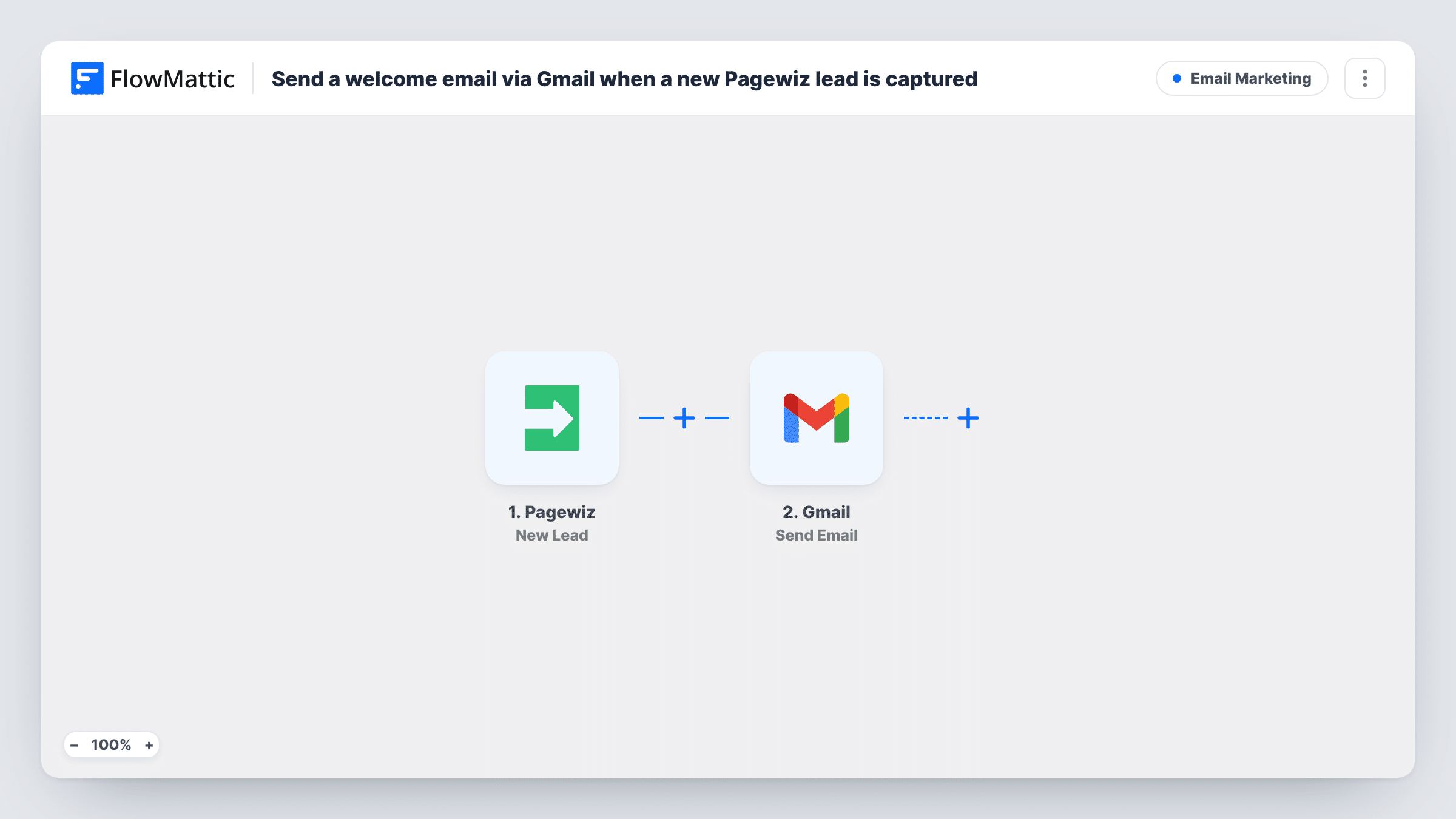
Each time Pagewiz captures a lead on one of your landing pages, FlowMattic sends that person a welcome email from your own Gmail account, written by you and filled in with what they entered.
 Pagewiz
 Gmail
Gmail2 steps Setup ~5 min Used on 3.5k sites Free to import
What this workflow does
A landing page lead is warmest in the minutes after they fill in your form. If the welcome note waits until someone on your team exports the leads, that moment has passed. This workflow sends the first email for you, from your Gmail address, as each lead arrives.
The Pagewiz trigger runs when a new lead is captured. The lead's form answers come into FlowMattic as data you can map. The Gmail step then sends an email through the Google account you connect. You map the lead's email address as the recipient and write the subject and body yourself, dropping in any captured answer, such as a first name.
The message leaves from your real mailbox, so it sits in your Sent folder and replies come straight back to you. Pagewiz keeps the lead as before, since FlowMattic reads it without changing anything there. Every run shows up in Task History, with the data sent to Gmail and any error Google returned.
Deliver a promised download
Your Pagewiz page offers a checklist in return for an email address. The Gmail message carries the download link, so the lead gets it without waiting for you.
Consultation request pages
A service business runs a Pagewiz page for free consultations. Each lead gets a note from the owner's Gmail with a booking link and a line on what to prepare.
Event pre-registration
Leads from an event landing page receive a welcome that confirms their interest and tells them when ticket sales open.
How this workflow runs
What happens at each step once the workflow is on, and what you need before you import it.
 Pagewiz New Lead
Fires when Pagewiz captures a new lead on your landing page. The answers the visitor gave become available to map in the Gmail step.
- Gmail Send Email
Emails the new lead through the Google account you link here. Map the lead's email address as the recipient, then write the subject and message, inserting captured answers where you want them.
What you need
- FlowMatticCore
- Pagewiz AccountAccount
- Gmail AccountAccount
After importing, map your own data. To keep the template universal, not every step is pre-filled. Open each step in the builder and connect your accounts and fields (channels, lists, sheets, recipients) before you switch the workflow on.
Make it yours
Changes worth making after you import it.
- Make the email field required on your Pagewiz form, so every lead that reaches the Gmail step has an address to send to.
- Run with a test lead after import, then check Task History to see which Pagewiz values arrived before you write the message around them.
- Add a Delay before the Gmail step if you would rather the welcome arrive a few minutes after sign-up than at the same moment.
Questions about this workflow
Which address does the Pagewiz welcome email come from?
From the Gmail account you connect in the Gmail step. Replies go to that inbox, and a copy of each sent message appears in its Sent folder.
Can I send a different Gmail welcome for each Pagewiz page?
Not as imported; every lead gets the same message. If the lead data includes a value that tells your pages apart, add a Router with a route for each value and give each route its own Gmail step.
Are leads captured before I import this emailed?
No. Only leads that Pagewiz captures after you turn the workflow on reach the Gmail step.
What if a Pagewiz lead has no email address?
The Gmail step has no recipient and Google returns an error. Task History shows it on that step for the run.
More Email Marketing workflows
Other ready-to-import templates from the same category.




Import this workflow into your WordPress site
Download the JSON, import it from the Workflows screen and connect your accounts. Every run stays on your server, with no per-task fees.
30-day money-back guarantee Unlimited workflows and runs Self-hosted