

Send a Zenzap message for every new WooCommerce order
Every time a new WooCommerce order is created, this workflow sends a text message to a Zenzap topic, so your team gets order news in the chat they already use.
 WooCommerce
 Zenzap
2 steps Setup ~5 min Used on 1.6k sites Free to import
What this workflow does
When orders arrive in WooCommerce, the people who pack, ship or answer questions about them often hear late. They either watch the WordPress admin or wait for someone to forward the order email. This workflow puts each new order into a Zenzap topic as it is created.
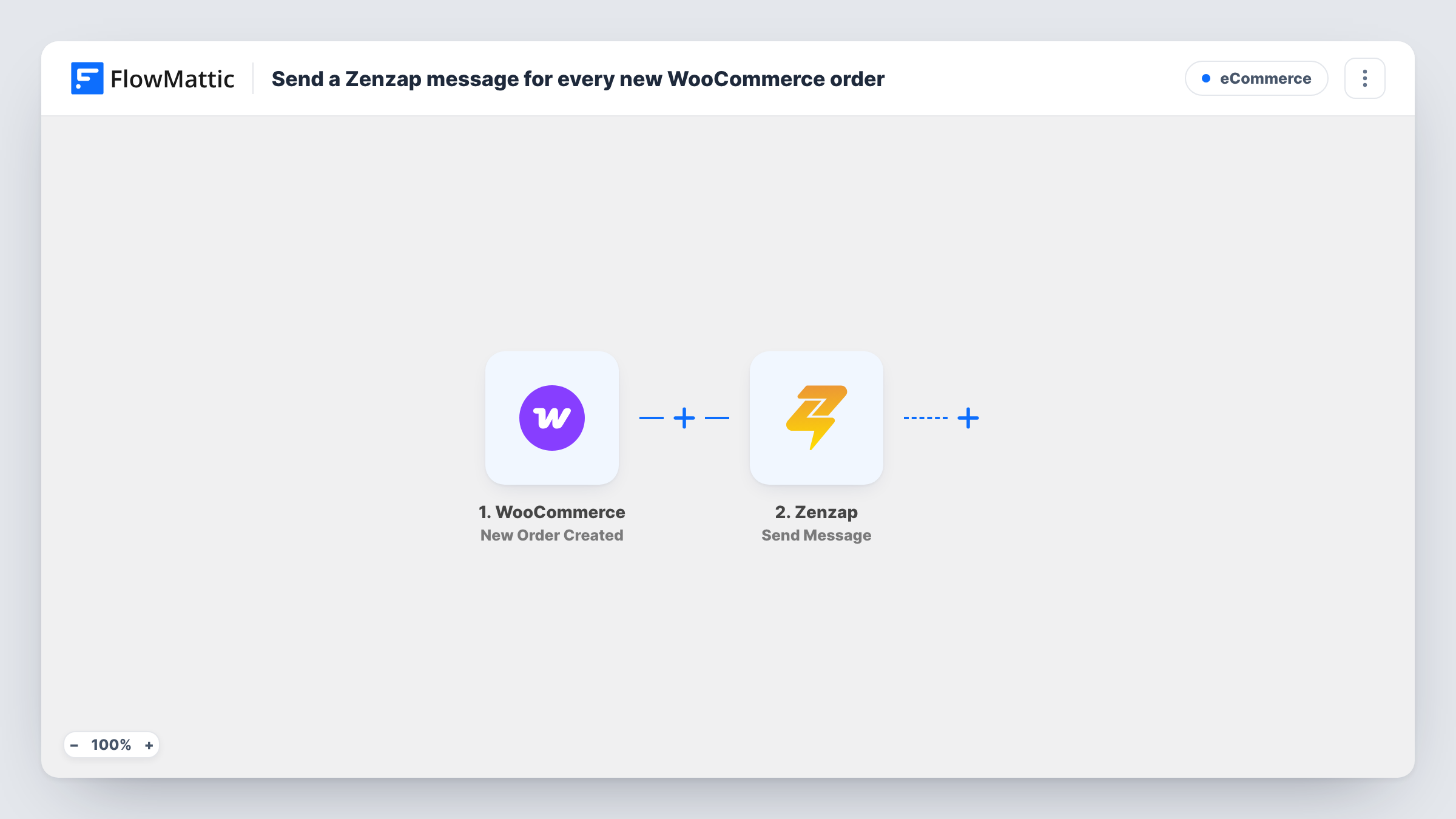
The WooCommerce trigger fires when a new order is created in your store and passes the order data on. FlowMattic then uses Zenzap to send a text message to the topic you choose. You write that message and map in order details such as the order number, the customer's name and the total.
Nothing checks the order first, so every new order sends one message, whatever its payment method or status at creation. The order stays in WooCommerce as normal. Only the details you place in the message go to Zenzap.
Warehouse team on Zenzap
Packers follow a Zenzap topic for the store and see the order number and items for each order as it comes in, ready to pick and pack.
Owner away from the admin
A shop owner who runs the business from their phone sees each WooCommerce order in Zenzap without opening the WordPress dashboard.
Support staying ahead of questions
Support agents read new orders in their Zenzap topic, so when a customer writes about an order they already know what was bought.
How this workflow runs
What happens at each step once the workflow is on, and what you need before you import it.
 WooCommerce New Order Created
Runs as soon as your WooCommerce store records a new order. That order's details become available to place in the Zenzap message.
- Zenzap Send Message
Sends a text message to the Zenzap topic you set in this step. Write the message and map in WooCommerce fields such as the order number, customer name and order total.
What you need
- FlowMatticCore
- WooCommerce PluginPlugin
- Zenzap AccountAccount
After importing, map your own data. To keep the template universal, not every step is pre-filled. Open each step in the builder and connect your accounts and fields (channels, lists, sheets, recipients) before you switch the workflow on.
Make it yours
Changes worth making after you import it.
- Add a Filter after the trigger on the order total so only orders above an amount you set reach the Zenzap topic.
- Add a Router with a condition on the shipping method, sending local pickup orders and shipped orders to different Zenzap topics.
- Place a test order after import so FlowMattic captures the WooCommerce order fields, then build the Zenzap message from them.
Questions about this workflow
Does every WooCommerce order send a Zenzap message?
Yes. The trigger fires for each new order, and there is no Filter in the template. Add one if you only want certain orders posted.
Are orders that are later cancelled or refunded posted again?
No. The trigger fires when the order is created, not when its status changes later, so each order sends one message at creation.
Which Zenzap topic does the order message go to?
The topic you set in the Send Message step after connecting your Zenzap account. Every new order is posted to that same topic.
Do I need a Zenzap account to use this?
Yes. The Zenzap step sends through your Zenzap account, which you connect after importing the workflow.
More E-Commerce workflows
Other ready-to-import templates from the same category.





Import this workflow into your WordPress site
Download the JSON, import it from the Workflows screen and connect your accounts. Every run stays on your server, with no per-task fees.
30-day money-back guarantee Unlimited workflows and runs Self-hosted