

When new sales order created in Zoho Inventory, send notification to fulfillment team via Slack, create picking task in ClickUp, and email customer confirmation via Gmail
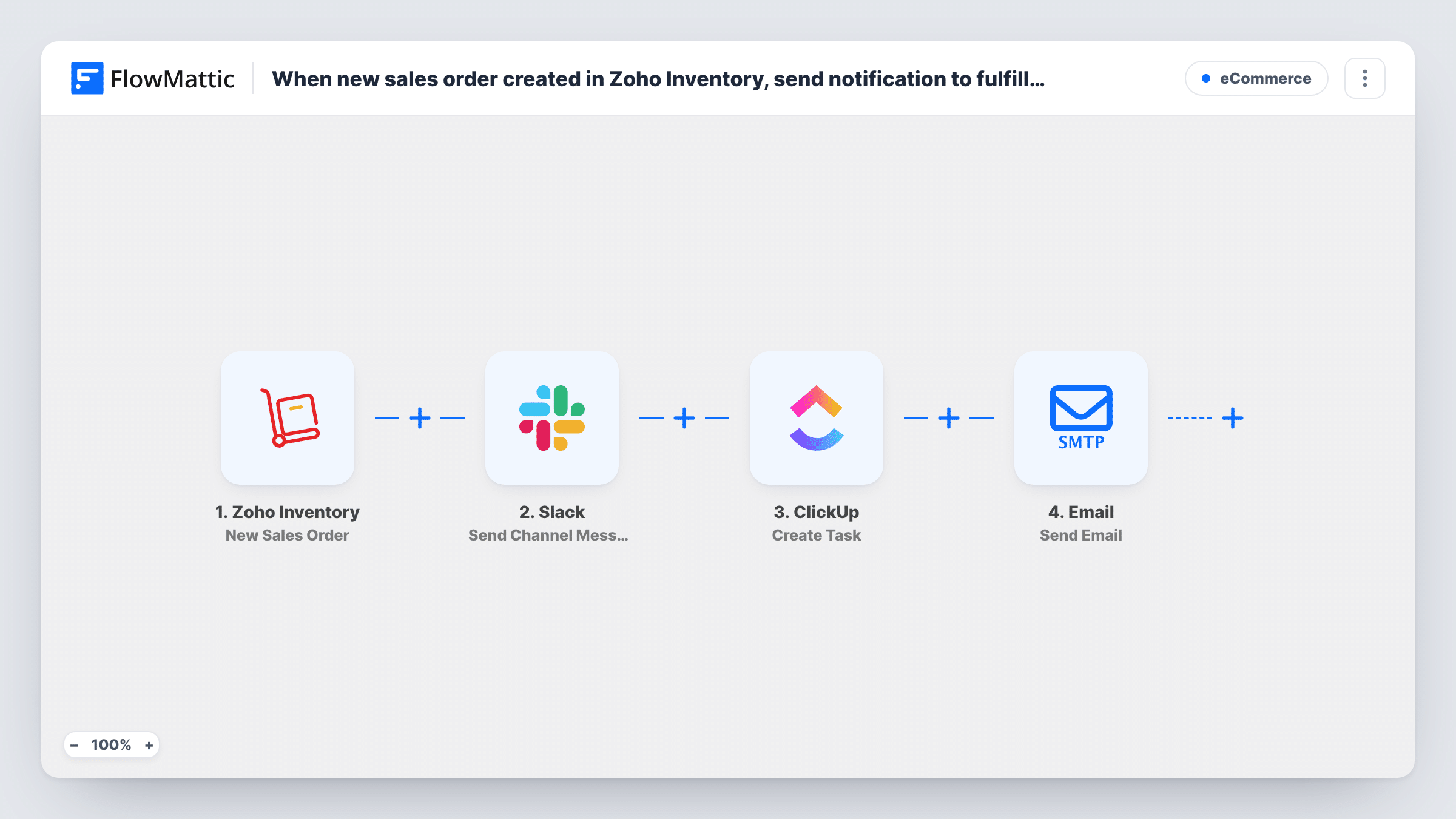
Each new sales order in Zoho Inventory sets off three actions: a Slack post for your fulfillment team, a picking task in ClickUp, and a confirmation email to the customer, all from the same order data.
 Zoho Inventory
 Slack
Slack
 ClickUp
 Email
Email4 steps Setup ~8 min Used on 314 sites Free to import
What this workflow does
A new sales order usually means three separate jobs. The warehouse needs to hear about it, someone has to track the picking work, and the customer expects to know the order went through. When those depend on one person relaying the order, any of them can be late. This workflow handles all three from one trigger.
The Zoho Inventory trigger fires when a sales order is created. Its data is available to every later step. First, a Slack message goes to the channel your fulfillment team reads. Next, ClickUp gets a new task in the list you pick, which you can name after the order number. Last, a Send Email step emails the customer a confirmation you write.
That last step is FlowMattic's own Email module, not the Gmail app. It sends through WordPress mail or a custom SMTP server you enter. To send from a Gmail address, either enter your Gmail SMTP details there or replace the step with the Send Email action from FlowMattic's Gmail app. Map the customer's email address from the order data. A test order shows whether Zoho Inventory includes it. The steps run in order for every new order, and Task History lists each run.
Small warehouse with a shared Slack channel
Packers watch a #fulfillment channel. Each post names the order and customer, and the matching ClickUp task tracks the pick until it is closed.
Orders entered by sales staff
Your sales team keys phone orders into Zoho Inventory. The customer gets an email confirming the order, and the warehouse sees it without a separate handover.
Wholesale orders with picking lists
Map the order's line items into the ClickUp task description so the picker works from the task, and the Slack post tells the shift lead a new order is waiting.
How this workflow runs
What happens at each step once the workflow is on, and what you need before you import it.
 Zoho Inventory New Sales Order
Runs when a sales order is created in your Zoho Inventory organization. The order data is passed to all three actions for mapping.
- Slack Send Channel Message
Posts the order alert to the Slack channel your fulfillment team uses. Write the text and insert order values such as the order number and customer name.
- ClickUp Create Task
Creates a picking task in ClickUp. Choose where it goes after import and map the order number into the task name and the order details into its description.
 Email Send Email
Emails the customer through FlowMattic's Email module, using WordPress mail or the SMTP server you set, including Gmail SMTP. Map the customer's email from the order and write the confirmation.
What you need
- FlowMatticCore
- Zoho Inventory AccountAccount
- Slack AccountAccount
- ClickUp AccountAccount
After importing, map your own data. To keep the template universal, not every step is pre-filled. Open each step in the builder and connect your accounts and fields (channels, lists, sheets, recipients) before you switch the workflow on.
Make it yours
Changes worth making after you import it.
- Add a Filter between the Zoho Inventory trigger and the Slack step that continues only when a customer email is present. Orders without one then skip the Slack, ClickUp and email steps.
- Swap the Email step for the Gmail app's Send Email action if you want confirmations to come from your Gmail mailbox and show in its Sent folder.
- Create one test sales order after import. The trigger captures real Zoho Inventory data, which makes the order number, customer and line items easy to map in each step.
Questions about this workflow
Is the customer confirmation sent through Gmail?
Not by default. The step is FlowMattic's Email module, which uses WordPress mail or custom SMTP. Enter Gmail's SMTP details in it, or replace it with the Gmail app's Send Email action.
Does every Zoho Inventory sales order go to Slack and ClickUp?
Yes. The template has no Filter, so each new sales order runs all three actions. To leave some orders out of all three actions, add a Filter between the Zoho Inventory trigger and the Slack step.
Where does the ClickUp picking task for a Zoho order go?
Into the ClickUp list you choose in the Create Task step after import. Name the task after the Zoho Inventory order number so the picker can match it to the Slack post.
Does the workflow change the sales order in Zoho Inventory?
No. It reads the new order and acts in Slack, ClickUp and email. The order's status and stock stay under Zoho Inventory's control.
More E-Commerce workflows
Other ready-to-import templates from the same category.







Import this workflow into your WordPress site
Download the JSON, import it from the Workflows screen and connect your accounts. Every run stays on your server, with no per-task fees.
30-day money-back guarantee Unlimited workflows and runs Self-hosted