

Send daily Slack channel messages with Google AI responses
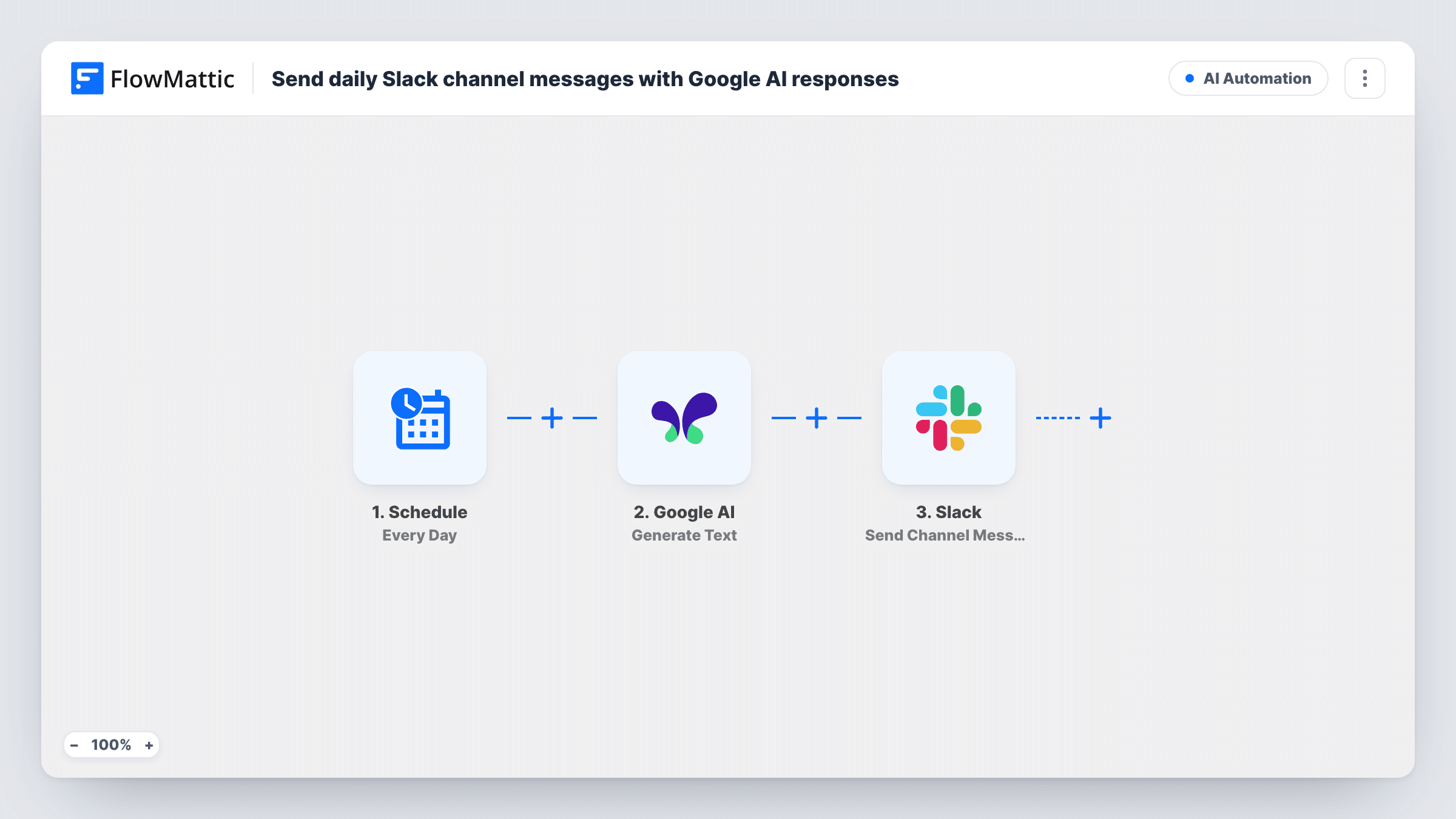
Once a day, this workflow asks Google AI to generate text from a prompt you write and posts the response to a Slack channel, giving your team a daily AI-written message.
 Schedule
 Google AI
 Slack
3 steps Setup ~5 min Used on 1.2k sites Free to import
What this workflow does
Some teams like a daily post in Slack: a tip, a writing prompt, a stand-up question or a quote. Writing one every morning is a chore that falls through on busy days. This workflow has Google AI write the message and posts it on schedule.
The Schedule trigger runs the workflow every day at the time you set. The Google AI step runs Generate Text with the prompt you write in it. The Slack step then posts the generated text to the channel you pick.
The prompt is fixed, so the model gets the same instruction each day and its answers may repeat. Ask for variety in the prompt, or add the date to it so each run has something different to work with. The workflow posts whatever the model returns, without review. If a person should check the text first, put a Human in the Loop step before Slack and set its timeout action to End Workflow.
Daily team stand-up question
Each morning the channel gets a fresh question for the team to answer in the thread, written by Google AI from your prompt.
Writing prompt for a content team
A marketing channel receives one blog or social post idea per day to start the team's brainstorming.
Learning tip of the day
A developer channel gets a short tip on a topic you name in the prompt, such as SQL or accessibility, every weekday.
How this workflow runs
What happens at each step once the workflow is on, and what you need before you import it.
 Schedule Every Day
Starts the workflow once every day at the time you choose. No data comes in from outside; the run itself is the cue for the next step.
- Google AI Generate Text
Sends the prompt you write to Google AI and generates text from it. Connect your Google AI account and write a prompt that says what the daily message should be.
- Slack Send Channel Message
Posts the generated text to the Slack channel you select. Map Google AI's response into the message and connect your Slack workspace.
What you need
- FlowMatticCore
- Google AI AccountAccount
- Slack AccountAccount
After importing, map your own data. To keep the template universal, not every step is pre-filled. Open each step in the builder and connect your accounts and fields (channels, lists, sheets, recipients) before you switch the workflow on.
Make it yours
Changes worth making after you import it.
- Map the run date into the Google AI prompt, if the trigger offers it in a test run, so each day's request differs and answers repeat less.
- Add a Human in the Loop step before Slack to approve each message, and set its timeout action to End Workflow so nothing posts without approval.
- Replace the trigger with Schedule's Every Week trigger if a daily post is too much for the channel.
Questions about this workflow
Will the Google AI message be different every day?
It may vary, but the prompt is the same each run. Ask for variety in the prompt, or add the date, to reduce repeats.
Can I post the daily AI message to a private Slack channel?
The template's Slack step targets regular channels. Swap it for Slack's Send Private Channel Message action if the daily post should go to a private one.
Does anyone check the Google AI text before it posts?
Not as imported. The text goes straight to Slack. Add a Human in the Loop step with its timeout action set to End Workflow if someone should approve it.
More AI Automation workflows
Other ready-to-import templates from the same category.









Import this workflow into your WordPress site
Download the JSON, import it from the Workflows screen and connect your accounts. Every run stays on your server, with no per-task fees.
30-day money-back guarantee Unlimited workflows and runs Self-hosted