

Send Gmail messages for new Airtable records
Every new record added to an Airtable table sends an email from your Gmail account, built from the record’s fields, so the right person hears about new entries without watching the base.
 Airtable
 Gmail
Gmail2 steps Setup ~5 min Used on 2.6k sites Free to import
What this workflow does
Airtable is often where requests, leads or tasks are collected, but nobody gets told when a new row appears unless they keep the base open. This workflow turns each new record into an email sent from your own Gmail account, so the update reaches someone who does not live in Airtable.
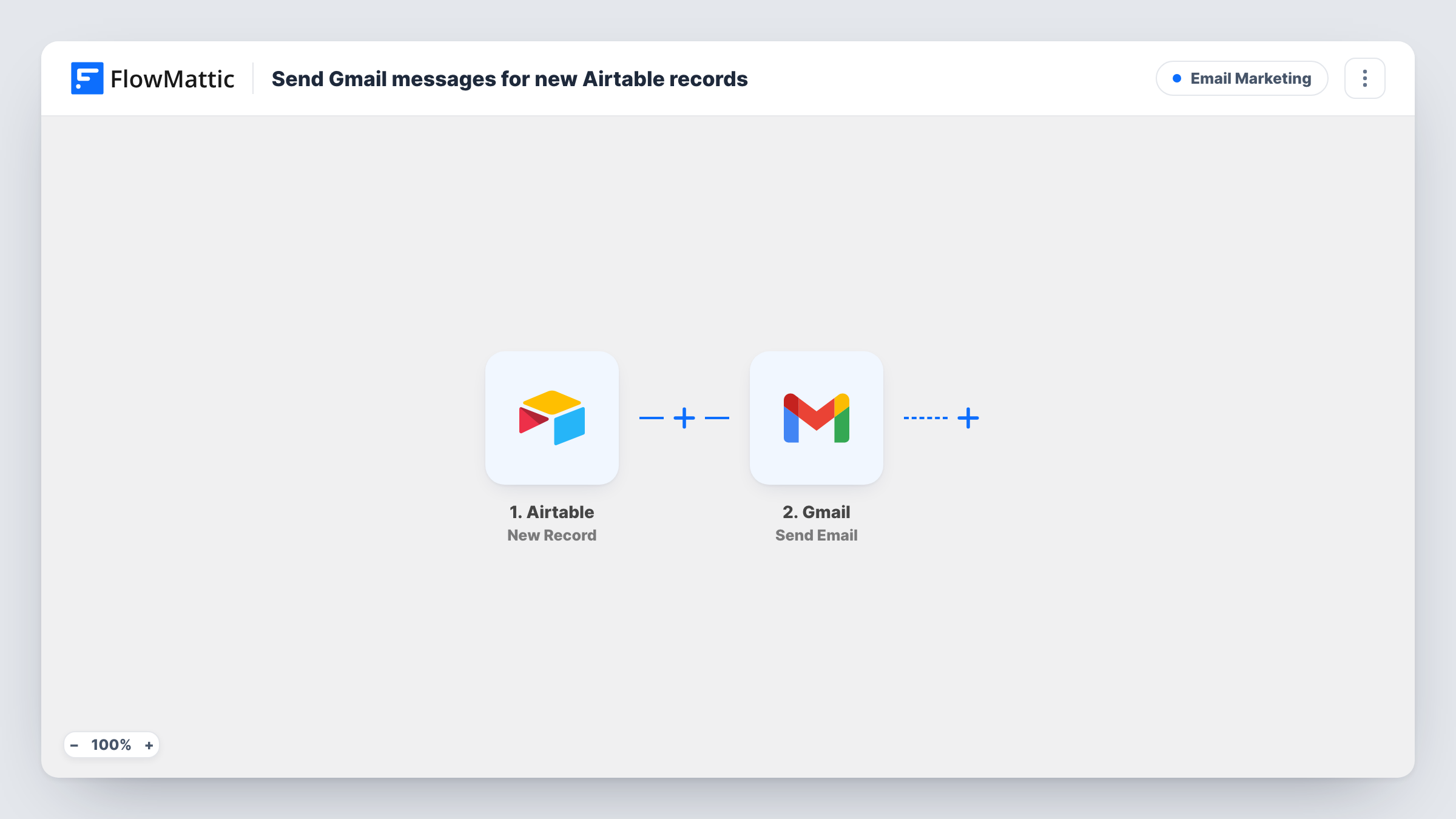
The Airtable trigger watches the table you pick and fires each time a record is added to it. FlowMattic passes the record's fields to the next step. The Gmail step then sends an email to the recipient you set, with a subject and body you write using those fields.
The recipient can be a fixed address, such as a team inbox, or an email field from the record itself, such as a contact column. That choice decides whether the flow works as an internal alert or as a message to the person in the record. Task History keeps each run, with the record data and Gmail's reply.
Alerting a team about new requests
Requests logged in an Airtable table send an email to a shared inbox, so the person on duty sees each one without checking the base.
Confirming an entry to the person in it
When a record holds an applicant's or client's email, map that field as the recipient and the Gmail step sends them a confirmation built from their record.
Passing new leads to a salesperson
Leads added to an Airtable sales table are emailed to the rep who handles them, with the company and contact fields in the body.
How this workflow runs
What happens at each step once the workflow is on, and what you need before you import it.
 Airtable New Record
Fires when a new record is created in the Airtable base and table you choose. The record's fields become available to map into the email.
- Gmail Send Email
Sends one email per new record through the Gmail account you link. Set the recipient, subject and body, using fields from the Airtable record where you need them, and connect your Google account on import.
What you need
- FlowMatticCore
- Airtable AccountAccount
- Gmail AccountAccount
After importing, map your own data. To keep the template universal, not every step is pre-filled. Open each step in the builder and connect your accounts and fields (channels, lists, sheets, recipients) before you switch the workflow on.
Make it yours
Changes worth making after you import it.
- Add a Filter after the trigger so only records with a certain value, such as a Priority field set to High, send an email.
- Map the recipient from an email column in the record when the message is meant for the person the record describes, not for your team.
- Create a test record after import so FlowMattic captures the table's fields, then map them into the Gmail subject and body.
Questions about this workflow
Does every new Airtable record send an email?
Yes, as imported. Each record created in the table you pick runs the Gmail step. Add a Filter if only some records should send one.
Who does the Gmail message go to?
Whoever you set as the recipient in the Gmail step. That can be a fixed address or an email field taken from the Airtable record.
Will records already in the Airtable table be emailed?
No. The trigger looks for records created after the workflow is on, so existing rows in the table do not send emails.
Which account sends the email?
Your own Gmail address, the one you link to this step in FlowMattic. Messages go out from that address and appear in its Sent folder.
More Email Marketing workflows
Other ready-to-import templates from the same category.







Import this workflow into your WordPress site
Download the JSON, import it from the Workflows screen and connect your accounts. Every run stays on your server, with no per-task fees.
30-day money-back guarantee Unlimited workflows and runs Self-hosted