

Send new WordPress posts as Discord channel messages
Each time you publish a WordPress post, this workflow posts a message about it to a Discord channel you pick, so your server members hear about new articles without you copying links by hand.
 WordPress
 Discord
2 steps Setup ~5 min Used on 1.7k sites Free to import
What this workflow does
Your Discord community is often the audience most likely to read a new article, yet telling them means opening Discord, finding the channel and pasting the link every time you publish. This workflow takes that job off your list.
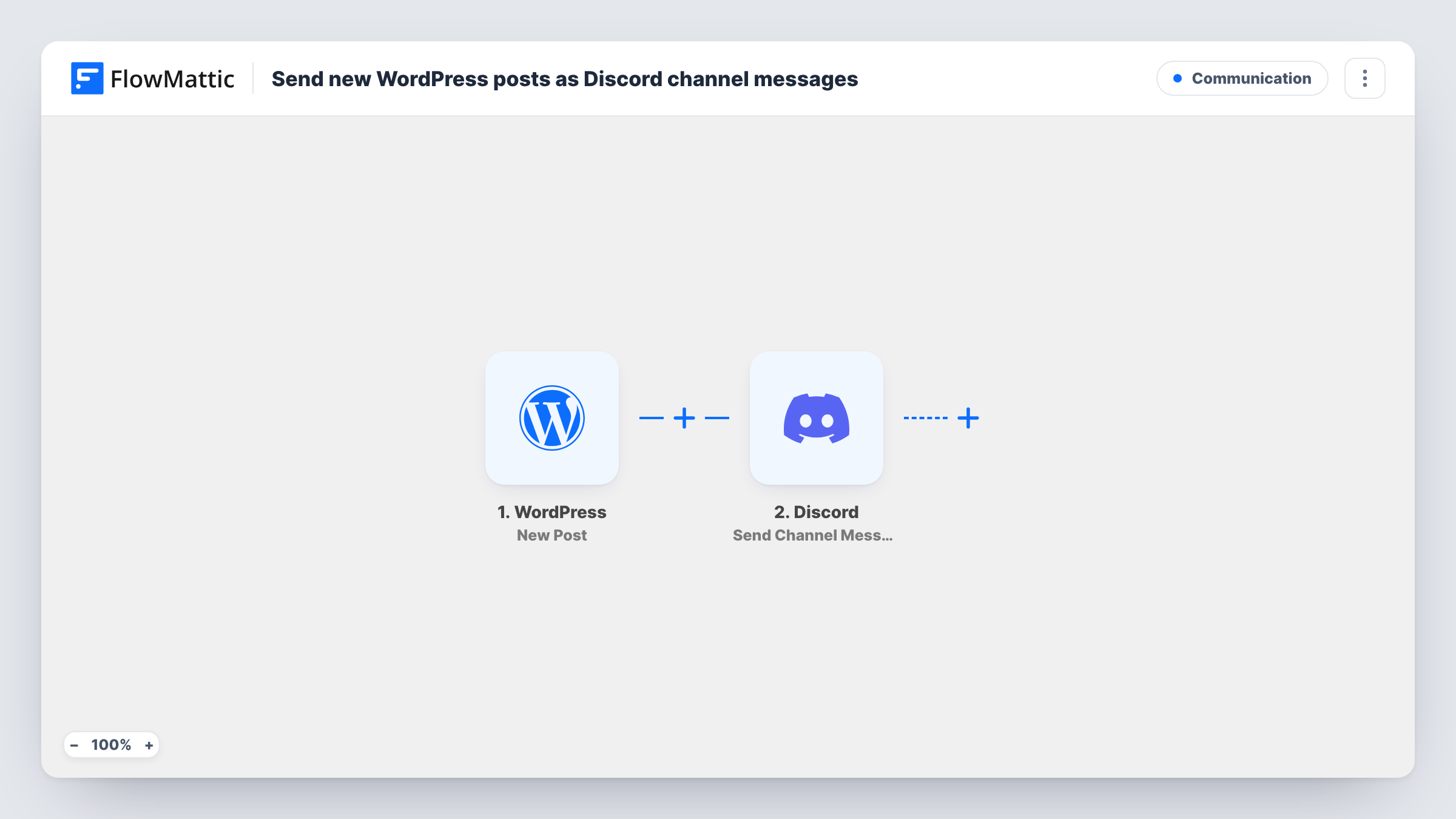
The WordPress trigger fires when a new post is published on your site. FlowMattic hands the post's data, such as its title and link, to the next step. The Discord step then posts a message to the channel you choose, built from whatever post data you map into it.
You decide what the message says. A short line with the post title and its URL is enough for most servers, but you can add the excerpt or the author name if the trigger provides them. Each run appears in Task History, so you can see which post was sent and what Discord returned.
Blog updates for a gaming community
A guides site posts every new walkthrough to an #announcements channel, so players on the Discord server see it the moment it goes live.
Release notes for a software project
When a changelog post is published in WordPress, the project's Discord server gets a message with the title and link in its updates channel.
Course or membership news
A creator who runs a paid Discord group shares each new lesson write-up or member article there without leaving the WordPress editor.
How this workflow runs
What happens at each step once the workflow is on, and what you need before you import it.
 WordPress New Post
Starts as soon as a fresh post goes live on your WordPress site. The post's details, such as title and permalink, become available to map in the Discord step.
- Discord Send Channel Message
Posts a message to the Discord channel you select. Build the message from the WordPress post data, for example the title followed by the link, and connect your Discord account on import.
What you need
- FlowMatticCore
- Discord AccountAccount
After importing, map your own data. To keep the template universal, not every step is pre-filled. Open each step in the builder and connect your accounts and fields (channels, lists, sheets, recipients) before you switch the workflow on.
Make it yours
Changes worth making after you import it.
- Add a Filter after the trigger that continues only for a chosen category or post type, so only the posts that suit your server reach Discord.
- Publish a test post after import so FlowMattic captures the trigger data, then check which fields you can map into the Discord message.
- Put the post link on its own line at the end of the Discord message. Discord usually shows a preview card for a plain URL.
Questions about this workflow
Will editing an old WordPress post send another Discord message?
No. FlowMattic's New Post trigger ignores posts that were already published, so an edit never sends a second Discord message.
Can the Discord message include the featured image or excerpt?
Only if the WordPress trigger passes those values. Publish a test post and look at the captured data; anything listed there can be mapped into the message text.
Which Discord channel does the post go to?
The one you choose in the Send Channel Message step after connecting your Discord account. To post to two channels, add a second Discord step.
More Communication workflows
Other ready-to-import templates from the same category.





Import this workflow into your WordPress site
Download the JSON, import it from the Workflows screen and connect your accounts. Every run stays on your server, with no per-task fees.
30-day money-back guarantee Unlimited workflows and runs Self-hosted