

Share new paid orders from Shopify to Slack
Each time a Shopify order is paid, this workflow posts a message to the Slack channel you choose with the order details you map, so your team sees sales as they come in.
 Shopify
 Slack
2 steps Setup ~5 min Used on 3.5k sites Free to import
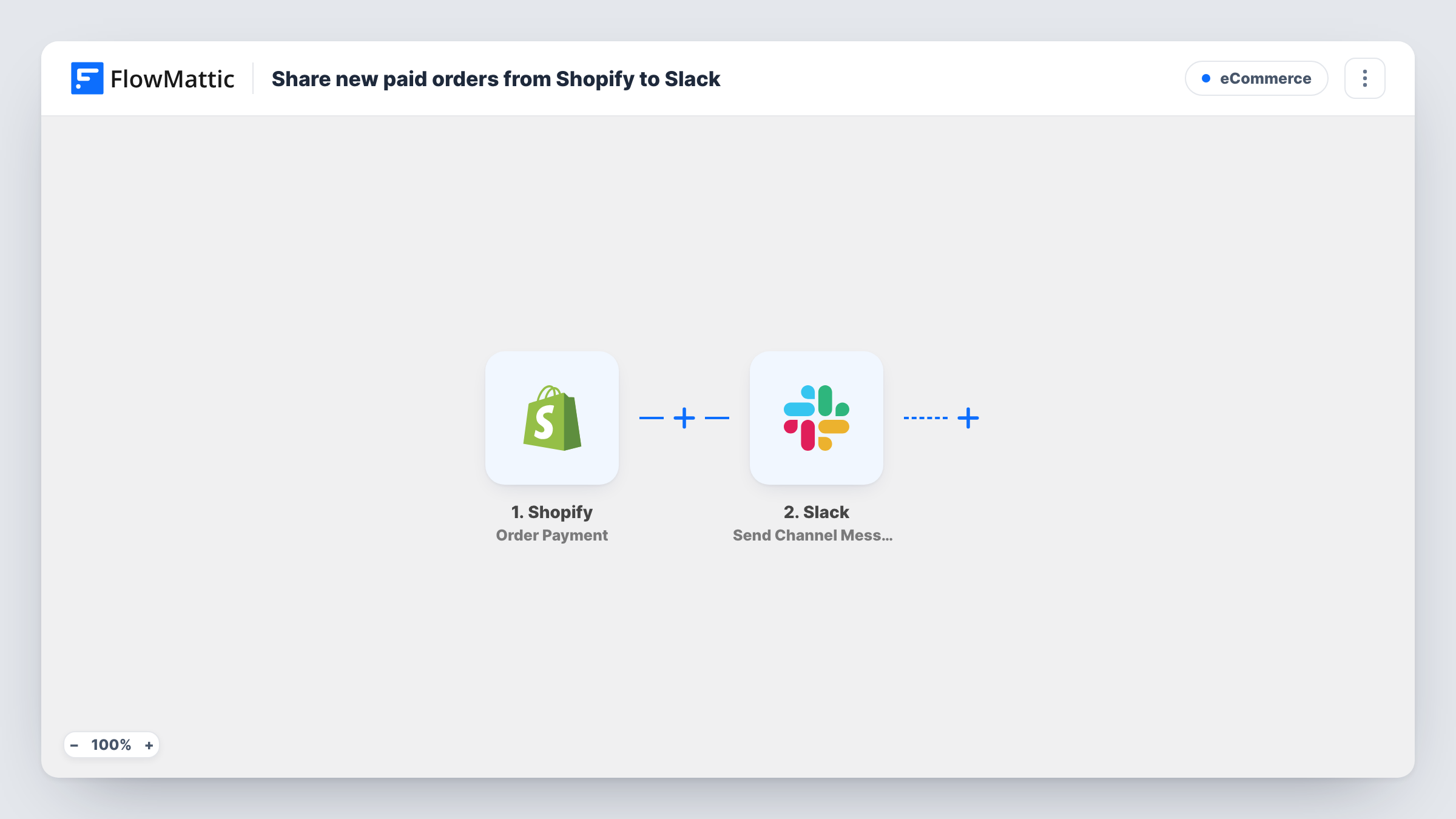
What this workflow does
Shopify tells the store owner about new orders, but the people who pack, ship or answer customer questions are often in Slack. Posting each paid order to a shared channel puts the news in front of them without forwarding emails or checking the admin.
The Shopify trigger fires when an order is paid. Waiting for payment means unpaid or pending orders don't reach the channel. FlowMattic receives the order data and passes it to Slack, where the Send Channel Message step posts a message to the channel you pick. You write the text and drop in order values such as the order number, customer name and total.
Every paid order posts once. There is no grouping or daily digest, so a busy store means a busy channel. Pick a channel meant for order alerts. Each run is listed in Task History with the order data and Slack's response.
Fulfilment team starts packing
Warehouse staff watch an orders channel in Slack. Each paid Shopify order appears with the items and shipping address, so packing starts without a login to the admin.
Small team celebrates sales
A two-person store posts paid orders to a general channel, so both founders see each sale and its total on their phones.
Support sees orders before customers ask
Support agents have the order number and customer name in Slack before the first where-is-my-order question arrives.
How this workflow runs
What happens at each step once the workflow is on, and what you need before you import it.
 Shopify Order Payment
Starts each time a customer's payment for a Shopify order goes through. The order's data, such as number, customer, items and totals, is passed on for mapping into the Slack message.
- Slack Send Channel Message
Sends one post per paid order into a Slack channel of your choice. Connect your Slack workspace, choose the channel and write the message with Shopify order values inserted.
What you need
- FlowMatticCore
- Shopify AccountAccount
- Slack AccountAccount
After importing, map your own data. To keep the template universal, not every step is pre-filled. Open each step in the builder and connect your accounts and fields (channels, lists, sheets, recipients) before you switch the workflow on.
Make it yours
Changes worth making after you import it.
- Add a Filter after the Shopify trigger that continues only when the order total is greater than a value you set, so only large orders reach the channel.
- Use a Router to post orders to different Slack channels by shipping country or by a product tag, with one Slack step per route and conditions that can't overlap.
- Place a test order in Shopify after import so FlowMattic captures real order data, then build the Slack message from the fields you see.
Questions about this workflow
Will unpaid Shopify orders show up in Slack?
No. This workflow listens to Shopify's Order Payment event, so nothing posts until payment is complete. Orders still waiting for payment don't start a run.
Can I choose what the Slack message says?
Yes. You write the message in the Slack step and insert any value from the paid order, such as the order number, customer name or total.
Does the Slack post include every line item?
That depends on what you map. The order data includes the line items Shopify sends, and you can place those values in the message. Check a test order in Task History to see the structure.
Can paid Shopify orders go to a private Slack channel?
Yes, if the Slack connection you use on import has access to that channel. Pick it in the Slack step like any other channel.
More E-Commerce workflows
Other ready-to-import templates from the same category.







Import this workflow into your WordPress site
Download the JSON, import it from the Workflows screen and connect your accounts. Every run stays on your server, with no per-task fees.
30-day money-back guarantee Unlimited workflows and runs Self-hosted