

Store each new SurveyCTO submission as a record in Airtable
Each new SurveyCTO form submission is saved as a new record in Airtable, so field survey data collected by your team can be sorted, filtered and shared in a base as it arrives.
 SurveyCTO
 Airtable
2 steps Setup ~5 min Used on 850 sites Free to import
What this workflow does
SurveyCTO is built for collecting data in the field, often on mobile devices and in remote areas. Analysis and follow-up often happen somewhere else, and Airtable is a common choice for working with that data as a team. This workflow moves each submission across without exports.
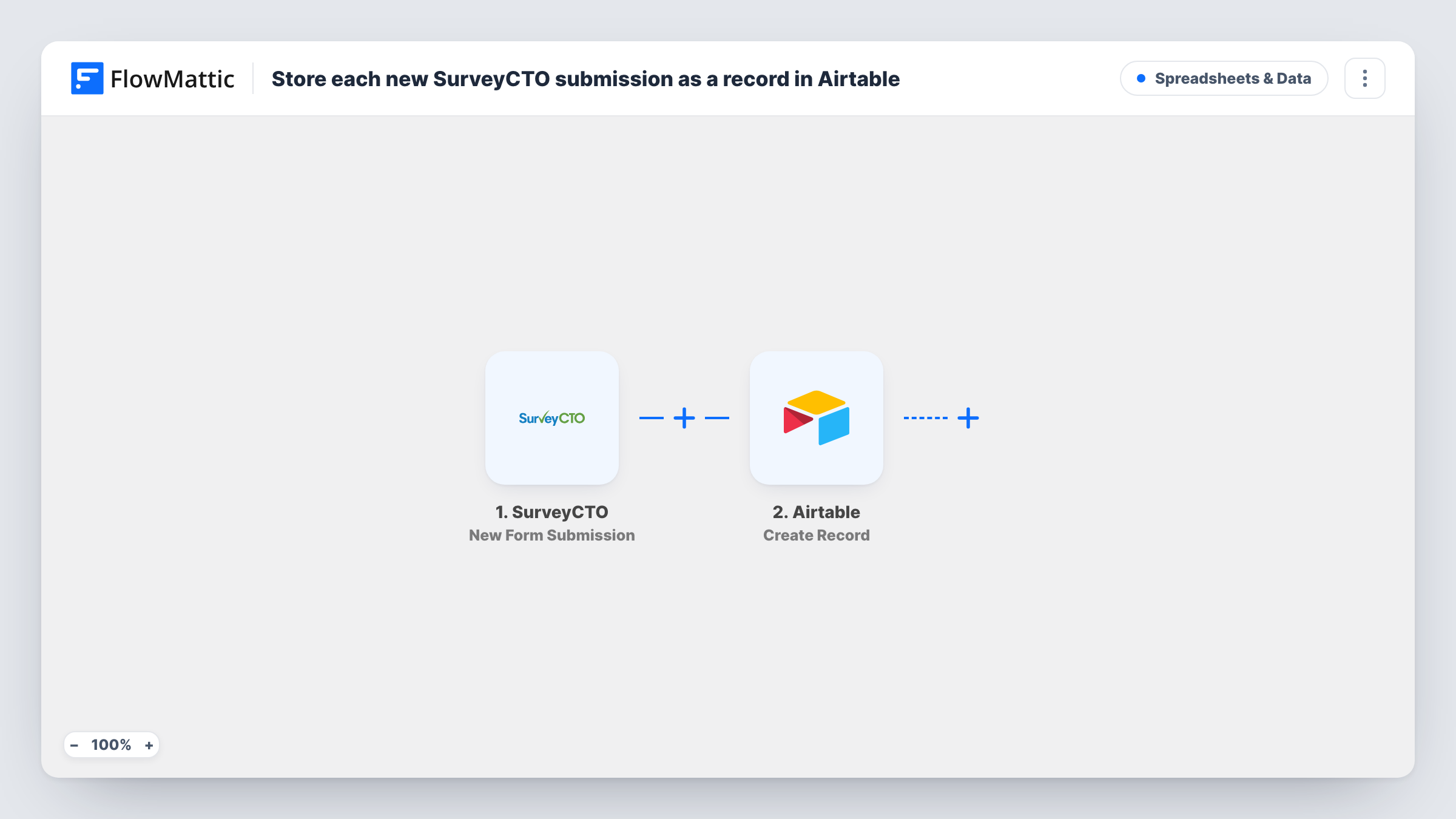
The SurveyCTO trigger runs for each new form submission. FlowMattic receives the answers and sends them to Airtable, where the Create Record action adds a record to the table you connect. You map each survey question to an Airtable field.
Every submission becomes its own record, so the table builds up row by row as enumerators submit. The workflow only creates records; it doesn't change SurveyCTO data or update older Airtable records. Task History lists each run and Airtable's response.
Household survey for a research project
Enumerators submit household interviews in SurveyCTO. Each interview becomes an Airtable record that the research team groups by village or district.
Site inspections for an NGO program
Field officers record inspection results in SurveyCTO, and program managers review them in an Airtable view that shows pending issues.
Beneficiary registration
New beneficiaries registered in the field appear as Airtable records, where staff link them to other program tables.
How this workflow runs
What happens at each step once the workflow is on, and what you need before you import it.
 SurveyCTO New Form Submission
Runs for each new submission to your SurveyCTO form. The answers in that submission are passed on so you can map them into Airtable.
- Airtable Create Record
Creates a new record in your Airtable table from the submission. Connect Airtable, map each SurveyCTO answer to the matching field, and run a test to check the field types.
What you need
- FlowMatticCore
- SurveyCTO AccountAccount
- Airtable AccountAccount
After importing, map your own data. To keep the template universal, not every step is pre-filled. Open each step in the builder and connect your accounts and fields (channels, lists, sheets, recipients) before you switch the workflow on.
Make it yours
Changes worth making after you import it.
- Set Airtable field types to match the answers, such as number fields for counts and date fields for dates, so the values are easy to sort and filter.
- Map the SurveyCTO submission ID or key to its own Airtable field. It gives you a way to match each record back to the original submission.
- Add a Filter after the trigger if only completed or approved submissions belong in the table, using a value from the survey data.
Questions about this workflow
Are older SurveyCTO submissions copied to Airtable?
No. The workflow handles new submissions after it is switched on. Bring older data across with an export and import.
How do SurveyCTO repeat groups appear in Airtable?
That depends on how SurveyCTO sends the repeat data. Submit a test with a repeat group and check the trigger output before you map it, since one record may not hold every repeat cleanly.
What if a SurveyCTO submission is corrected later?
The Airtable record keeps the values it was created with. This template does not update records after they are made.
Which accounts does this SurveyCTO to Airtable workflow need?
A SurveyCTO account with the form, and an Airtable account with access to the base and table you want to fill. Both are connected in FlowMattic.
More Spreadsheets & Data workflows
Other ready-to-import templates from the same category.




Import this workflow into your WordPress site
Download the JSON, import it from the Workflows screen and connect your accounts. Every run stays on your server, with no per-task fees.
30-day money-back guarantee Unlimited workflows and runs Self-hosted