

Store WooCommerce order data in Zoho Analytics and track it in Google Sheets
Every new WooCommerce order is added as a row to a Zoho Analytics table for reporting, then written to a Google Sheets row as well, so you have the same sale in your analytics and in a sheet anyone can open.
 WooCommerce
 Zoho Analytics
 Google Sheets
3 steps Setup ~5 min Used on 2.8k sites Free to import
What this workflow does
WooCommerce reports cover the basics, but many shops want order data next to other numbers in a reporting tool, and a plain spreadsheet for people who never log in to WordPress. Exporting orders by hand for both is easy to forget. This workflow sends each order to both places as it comes in.
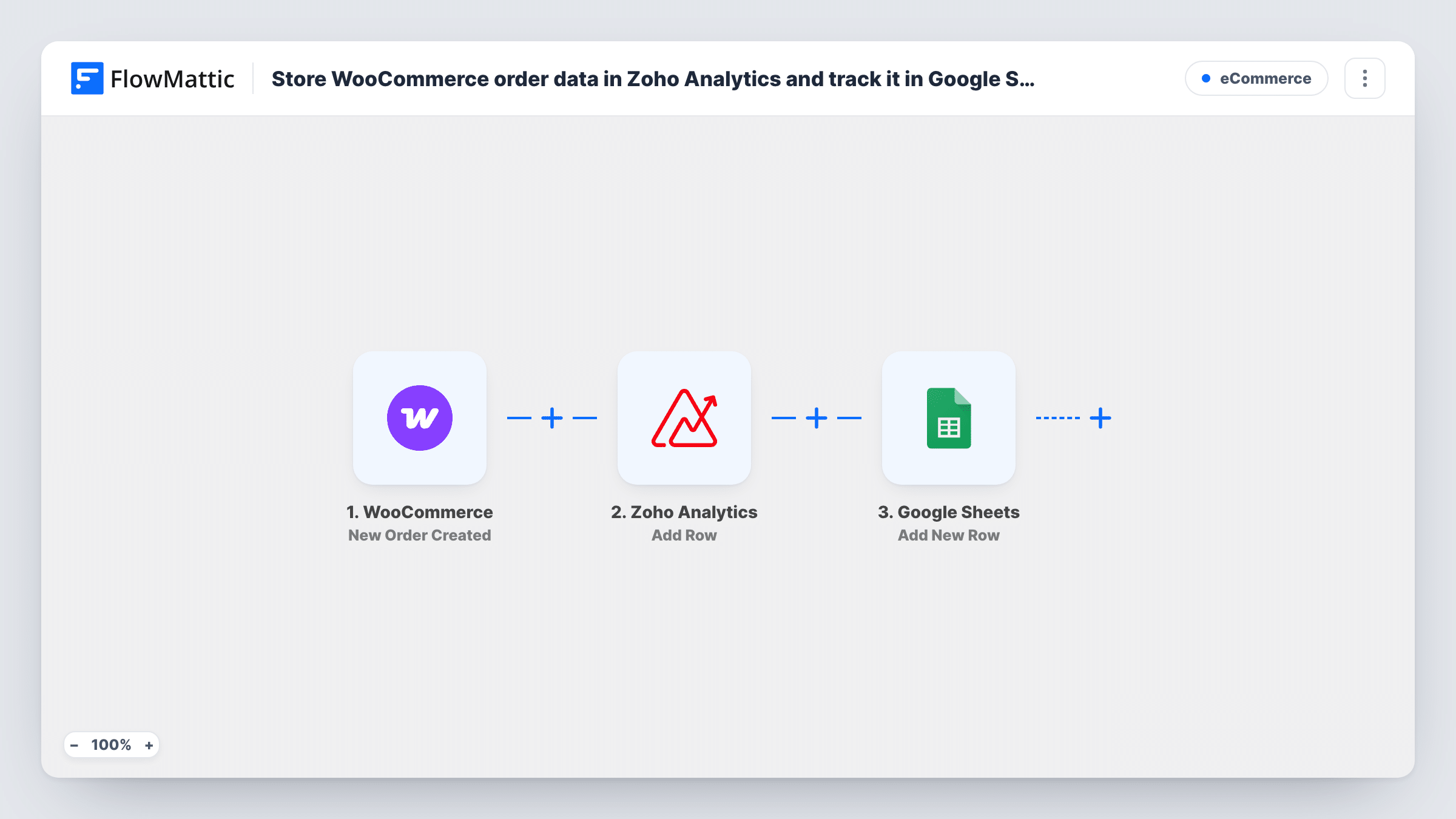
For this flow, the WooCommerce trigger picks up every order the moment checkout creates it. FlowMattic passes the order details to Zoho Analytics, whose Add Row action adds a row to the table you pick in your workspace. The same order data then goes to Google Sheets as a new row, with each column mapped to the order field you choose.
The two rows are separate records of the same order, and Task History shows what Zoho Analytics and Google Sheets returned for each one. Only orders created after you turn the workflow on are sent.
Sales dashboards in Zoho Analytics
Each order adds a row to a Zoho Analytics table, so charts built on that table pick up new sales without a CSV import.
A sheet for the bookkeeper
Your accountant works from a shared Google Sheet of orders with totals and dates, while the owner reads trends in Zoho Analytics.
A backup log of store orders
Keeping order rows in two services outside WordPress gives you a second record if you need to check a sale later.
How this workflow runs
What happens at each step once the workflow is on, and what you need before you import it.
 WooCommerce New Order Created
Starts as soon as WooCommerce creates an order in your shop. Its details, such as totals, items and the billing customer, become available to map in the next two steps.
- Zoho Analytics Add Row
Adds a row to a table view in Zoho Analytics. Connect your Zoho account, choose where the row goes, and map order fields to the table's columns. Run a test order to see the fields you can map.
- Google Sheets Add New Row
Adds a new row to your Google Sheets spreadsheet with the order data. Connect your Google account, choose the spreadsheet and sheet, and map each column to an order field.
What you need
- FlowMatticCore
- WooCommerce PluginPlugin
- Zoho Analytics AccountAccount
- Google Sheets AccountAccount
After importing, map your own data. To keep the template universal, not every step is pre-filled. Open each step in the builder and connect your accounts and fields (channels, lists, sheets, recipients) before you switch the workflow on.
Make it yours
Changes worth making after you import it.
- New Order Created fires once, when the order is created, which can be before payment clears. A Filter on the order status between the WooCommerce trigger and the Zoho Analytics step keeps only paid or processing orders, but orders paid later won't run again.
- Give the Zoho Analytics table and the sheet an order ID column. With the ID in both, you can match rows and spot an order that reached one service but not the other.
- Place a test order after import so FlowMattic captures the full order data, then map the same fields in both steps so the two records line up.
Questions about this workflow
Do I need the Zoho Analytics table set up before importing?
Yes. Add Row writes to an existing table, so create it with the columns you want first. The step then lets you map order fields to those columns.
Does a failed or cancelled order still get a row?
As imported, yes, if WooCommerce creates the order. The trigger fires on creation, not on payment. A Filter on the order status between the trigger and the Zoho Analytics step keeps only the statuses you want, though an order that is paid later won't start a new run.
Does each product in a WooCommerce order get its own row?
No. As imported, each order adds one row in Zoho Analytics and one in Google Sheets. For a row per product, add an Iterator over the line items between the trigger and the Zoho Analytics step, so both later steps repeat for each item.
Will updates to an existing WooCommerce order add more rows?
No. The trigger is New Order Created, so status changes or edits to an order already in the store do not start a new run.
More E-Commerce workflows
Other ready-to-import templates from the same category.



Import this workflow into your WordPress site
Download the JSON, import it from the Workflows screen and connect your accounts. Every run stays on your server, with no per-task fees.
30-day money-back guarantee Unlimited workflows and runs Self-hosted