

Subscribe a contact to a Mailchimp audience when an Ortto tag is added
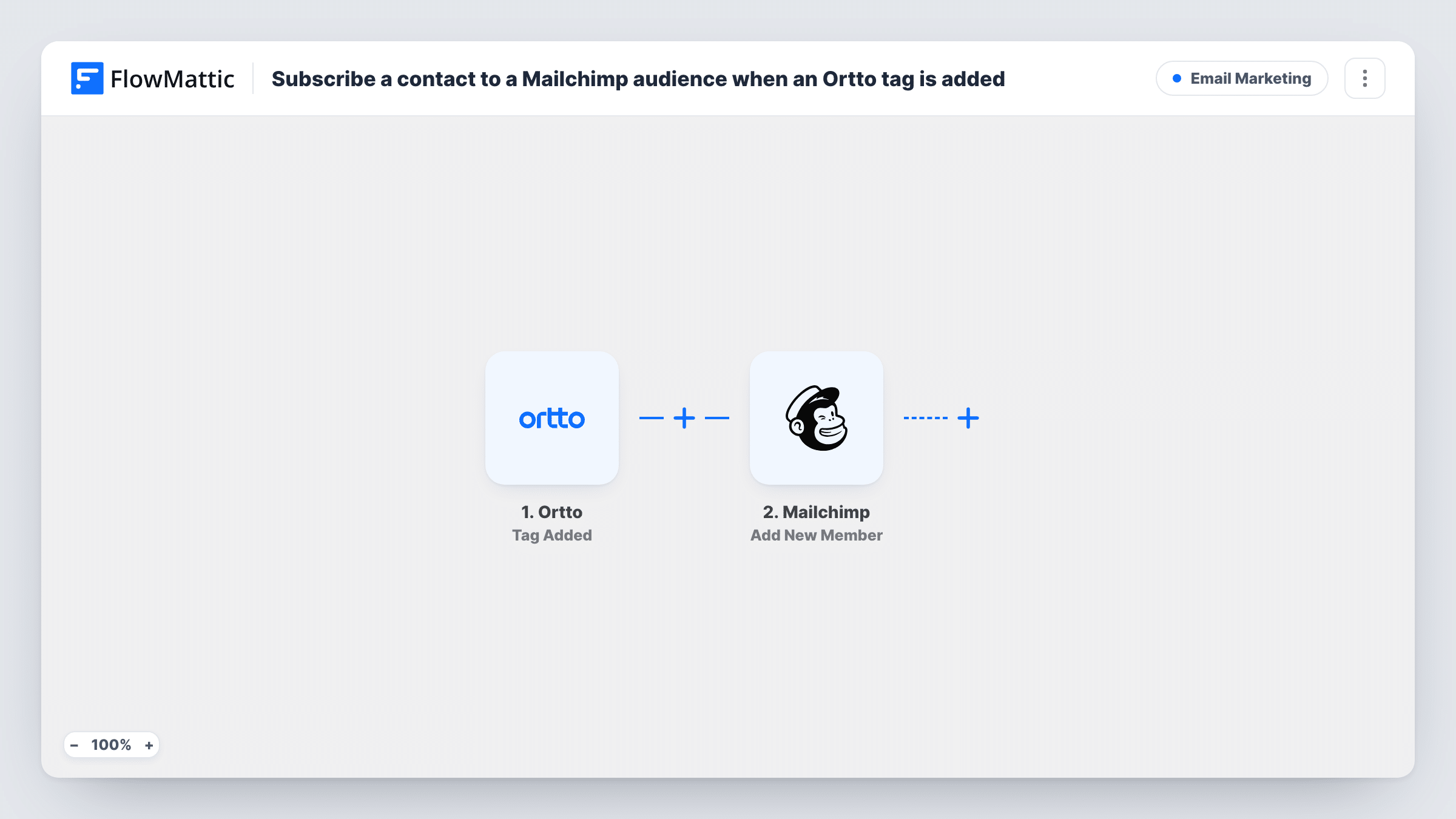
Whenever a tag is added to a record in Ortto, this workflow sends that person to Mailchimp as an audience member, adding them or updating the member if the address is already on the list.
 Ortto
Ortto
 Mailchimp
2 steps Setup ~5 min Used on 1.8k sites Free to import
What this workflow does
Ortto tags often mark the moment a person becomes relevant to a campaign: they joined a segment, finished a trial step, or were flagged by your team. If your newsletters still go out from Mailchimp, those people have to be copied across before they can receive anything. This workflow does the copying for you each time a tag lands.
The Ortto trigger is Tag Added, which fires when a tag is added to a record. FlowMattic hands the record's data to the next step. There, Mailchimp runs Add New Member, which adds the person to the audience you choose, or updates them if that address is already a member. You map the email address and any name data from the Ortto record into it.
As imported, any tag added to any record starts a run. If only one tag should send people to Mailchimp, add a Filter after the trigger that checks the tag; a test run shows which field carries it. Every run is listed in Task History with the data each step sent and received.
Tag-based newsletter hand-off
Your team tags Ortto records as newsletter-ready. Each tagged person is added to the Mailchimp audience your monthly newsletter goes to.
Webinar follow-up list
People tagged after attending a webinar in Ortto are pushed into the Mailchimp audience you use for webinar follow-up emails.
Keeping two tools in step during a move
While you move campaigns from Mailchimp to Ortto, tagging a record in Ortto keeps the same person present in your existing Mailchimp audience.
How this workflow runs
What happens at each step once the workflow is on, and what you need before you import it.
 Ortto Tag Added
Fires when a tag is added to a record in Ortto. The data Ortto sends with the event becomes available to map in the Mailchimp step. Connect your Ortto account on import.
- Mailchimp Add New Member
Sends the Ortto person to your chosen Mailchimp audience as a new member, or updates the member who already has that address. Map the Ortto email into it, plus name data if you want it, and connect your Mailchimp account.
What you need
- FlowMatticCore
- Ortto AccountAccount
- Mailchimp AccountAccount
After importing, map your own data. To keep the template universal, not every step is pre-filled. Open each step in the builder and connect your accounts and fields (channels, lists, sheets, recipients) before you switch the workflow on.
Make it yours
Changes worth making after you import it.
- Add a Filter right after the Ortto trigger that continues only for the tag you care about, built on the field a test run shows holding the tag. Without it, every tag added to any record sends that person to Mailchimp.
- Use a Router with one route per Ortto tag, each with its own Mailchimp step, if different tags should go to different Mailchimp audiences.
- Tag one test record in Ortto after import so FlowMattic captures the trigger data, then map the email in the Mailchimp step before you turn the workflow on.
Questions about this workflow
Does any Ortto tag start this workflow?
Yes, as imported. The Tag Added trigger fires whenever a tag is added to a record. Add a Filter on the tag field if only one tag should reach Mailchimp.
What if the person is already in my Mailchimp audience?
Add New Member adds a new member or updates them if they already exist, so an existing subscriber is updated rather than duplicated.
Does removing the tag in Ortto remove them from Mailchimp?
No. The workflow only reacts to tags being added. Nothing in it removes or unsubscribes anyone in Mailchimp.
Will records tagged before I turn this on be sent to Mailchimp?
No. The trigger fires on tags added after the workflow is on. Earlier tags do not start a run.
More Email Marketing workflows
Other ready-to-import templates from the same category.





Import this workflow into your WordPress site
Download the JSON, import it from the Workflows screen and connect your accounts. Every run stays on your server, with no per-task fees.
30-day money-back guarantee Unlimited workflows and runs Self-hosted