

Trigger a workflow from MCP Tool and create a new post in WordPress
Expose post creation to your AI assistant: when it calls this workflow’s MCP tool, FlowMattic creates a WordPress post from the values it sends and returns a reply to the assistant.
 FlowMattic MCP
 WordPress
3 steps Setup ~5 min Used on 2.5k sites Free to import
What this workflow does
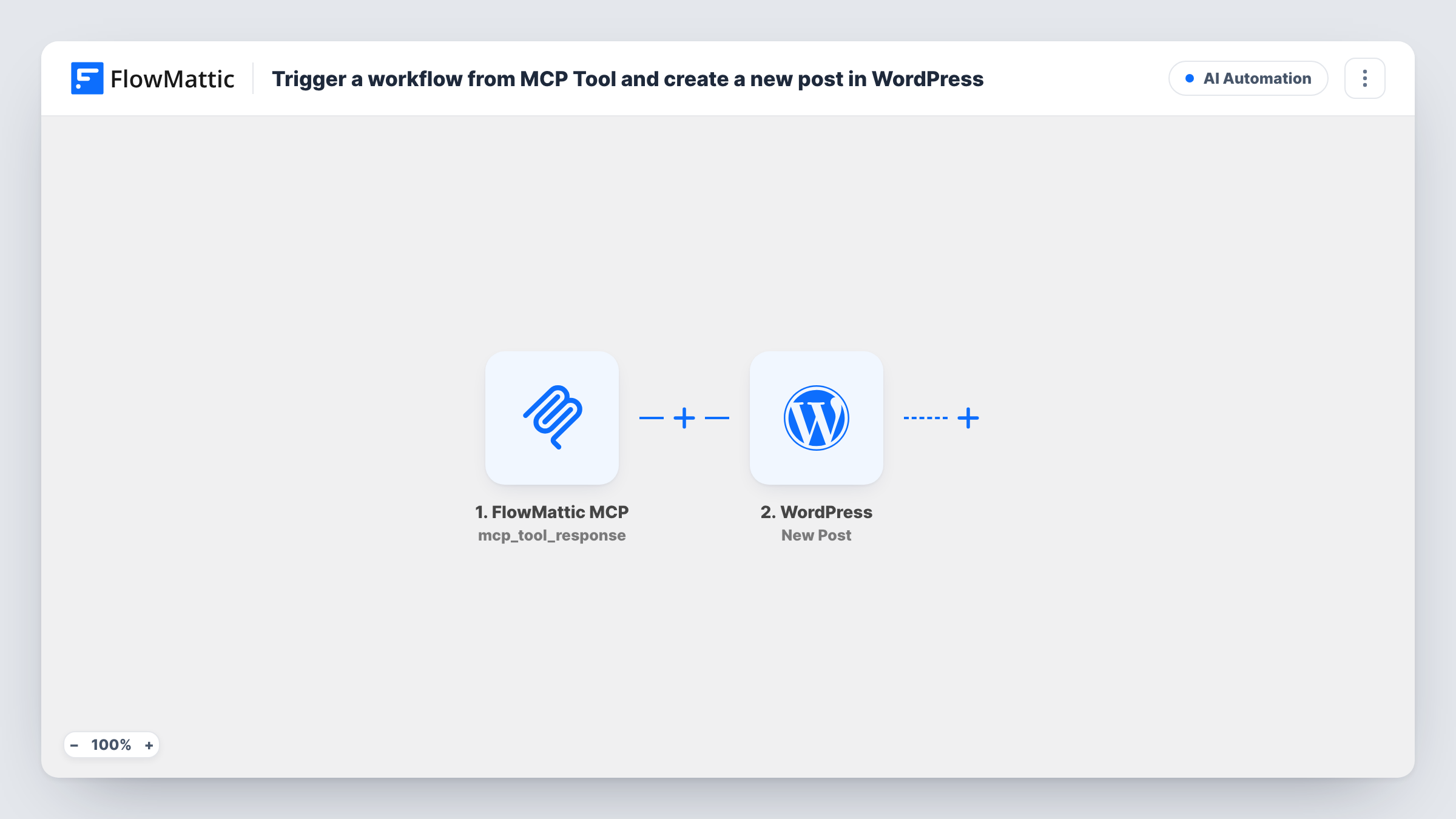
If you draft content with an AI assistant, the last step is usually copying the text into the WordPress editor. This workflow gives the assistant a tool for that. When an MCP client connected to your FlowMattic MCP server calls the tool, the workflow creates a post on your site and tells the assistant what happened.
The FlowMattic MCP trigger, Workflow MCP Tool Triggered, runs when the MCP tool tied to this workflow is executed. You create that tool yourself: save the workflow, open the FlowMattic MCP Server page, add a new tool, choose Workflow as the execution method and select this workflow. The input parameters you add to the tool, such as a title and the post content, are what the assistant fills in and what reaches the next step.
The WordPress New Post step creates the post. It ships unmapped, so map the tool's parameters into the post fields after import. The final MCP Tool Response step sends key and value pairs back to the assistant. It is empty in the template, and FlowMattic returns an error for a response with no parameters, so add at least one, for example a message and the new post's ID from step 2.
Any AI client connected to your MCP server can call this tool, so test whether posts are published or saved as drafts before you rely on it.
Drafts from a writing session
A blogger brainstorms an article with an AI assistant, then asks it to save the result to WordPress, and the post appears in the dashboard ready for editing.
Quick announcements
A shop owner tells an AI client to post a short holiday opening-hours notice, and the workflow creates the post with the title and text the assistant passes.
Content agent with a publishing tool
An agency gives its content agent this MCP tool, so the agent can place finished pieces on the client's site instead of handing them over as text.
How this workflow runs
What happens at each step once the workflow is on, and what you need before you import it.
 FlowMattic MCP Workflow MCP Tool Triggered
Runs when your AI client executes the MCP tool linked to this workflow. The input parameters you defined for the tool, such as title and content, are passed on.
- WordPress New Post
Creates a WordPress post from the tool's input. Nothing is mapped yet: map the title and content parameters into the post after import, then make a test call to see how the post is saved.
- FlowMattic MCP MCP Tool Response
Returns key and value pairs to the AI client as the tool's result. The template has none, so add at least one, such as a confirmation message and the post ID from the New Post step.
What you need
- FlowMatticCore
After importing, map your own data. To keep the template universal, not every step is pre-filled. Open each step in the builder and connect your accounts and fields (channels, lists, sheets, recipients) before you switch the workflow on.
Make it yours
Changes worth making after you import it.
- Describe each input parameter clearly when you create the MCP tool, for example "Post title, plain text", so the assistant knows what to send in each field.
- Return the post's link or ID in the MCP Tool Response step. The assistant can then quote it back to you and you can open the new post straight away.
- Have posts saved as drafts at first, if the New Post step lets you, so a person reviews every AI-written post before it goes live.
Questions about this workflow
How does my AI assistant get access to this WordPress post tool?
Through your FlowMattic MCP server. Create a tool there that runs this workflow, then connect your MCP client to the server. The assistant sees the tool and decides when to call it.
What does the assistant hear back after the post is created?
Whatever you put in the MCP Tool Response step. It ships empty, and a response with no parameters returns an error, so add fields such as a message and the post ID.
Can the assistant publish posts without me seeing them first?
It comes down to your New Post step configuration. Make a test call and check the post's status in WordPress before you give the tool to an assistant you don't supervise.
Which post fields can the AI fill in through MCP?
Only the ones you expose as input parameters on the MCP tool and map into the New Post step, such as the title and content.
More AI Automation workflows
Other ready-to-import templates from the same category.







Import this workflow into your WordPress site
Download the JSON, import it from the Workflows screen and connect your accounts. Every run stays on your server, with no per-task fees.
30-day money-back guarantee Unlimited workflows and runs Self-hosted