

Trigger a workflow from MCP Tool and fetch data for a user from SureCart
Your AI assistant calls this workflow as an MCP tool with an email address, FlowMattic looks that customer up in SureCart, and the details you choose go back to the assistant as the tool’s answer.
 FlowMattic MCP
 Surecart
3 steps Setup ~5 min Used on 3.1k sites Free to import
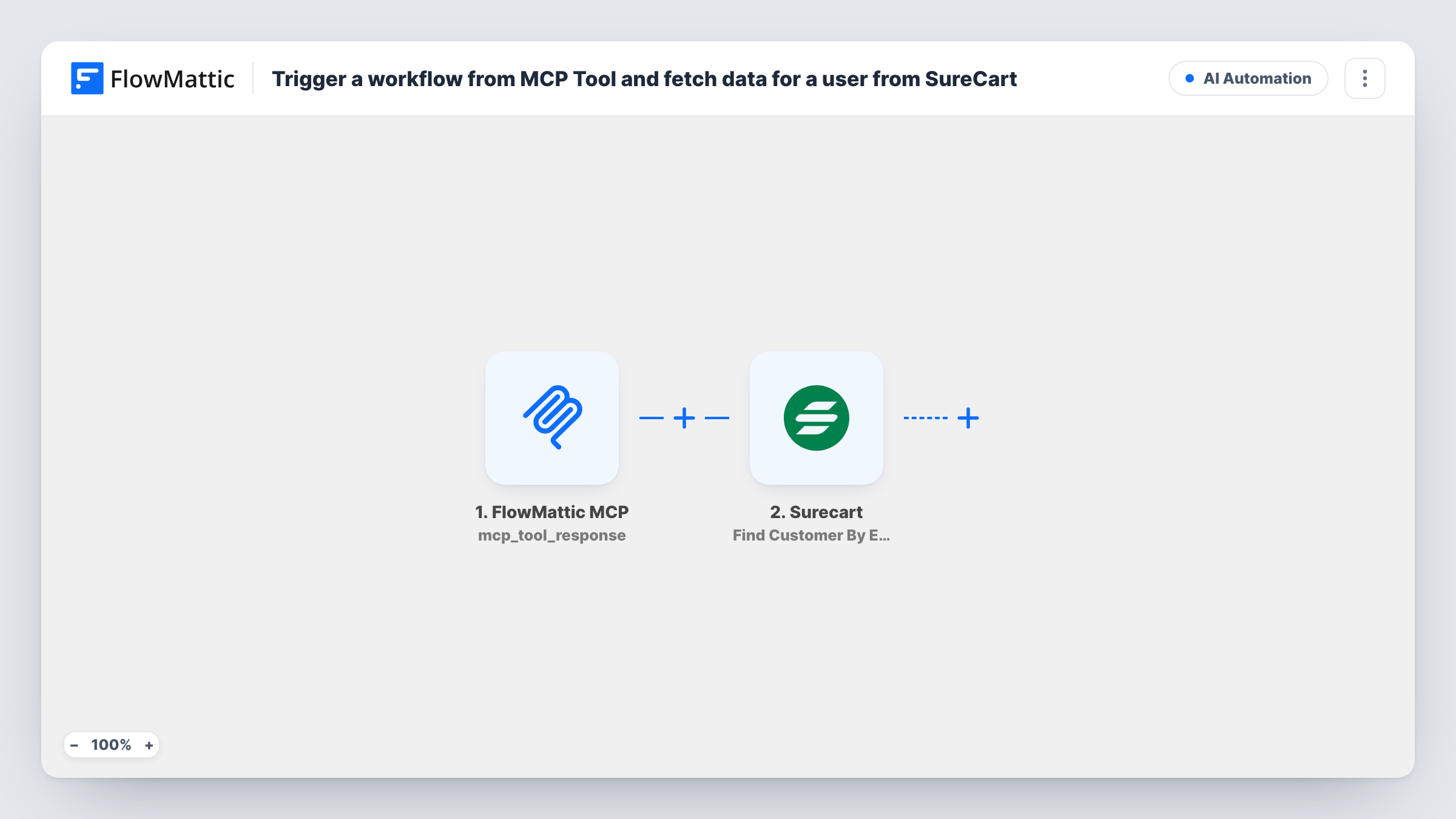
What this workflow does
An AI assistant that helps with store questions is far more useful when it can see who it is talking about. This workflow gives it one narrow, read-only lookup: ask SureCart for the customer that matches an email, and hand the record back. The assistant never gets wider access to your store than this one search.
The FlowMattic MCP trigger starts a run when an MCP client, such as Claude or another assistant connected to your FlowMattic MCP server, executes the tool tied to this workflow. You create that tool on the FlowMattic MCP Server page, choose Workflow as the execution method, select this workflow, and add an input parameter for the email address the assistant should send.
The SureCart Find Customer By Email step then retrieves that customer's details. It ships unmapped, so after import you connect SureCart and map the email parameter from the trigger into it.
The last step, MCP Tool Response, decides what the assistant reads back. It also ships empty, and FlowMattic returns an error to the caller when no response parameters are set, so add the SureCart fields you want to share, such as the customer's name and ID. Test by calling the tool with a known customer's email and compare the result with Task History.
Support chats that start with context
A support agent asks their AI assistant who a buyer is, and the assistant calls the tool with the buyer's email to see the SureCart customer record before replying.
Checking a customer before a refund decision
A store owner working in an AI chat confirms that an email belongs to a real SureCart customer before looking further into a refund request.
Agent workflows that need a customer ID
A team's AI agent gets the SureCart customer ID back from this tool, which it can then pass to other MCP tools that act on that customer.
How this workflow runs
What happens at each step once the workflow is on, and what you need before you import it.
 FlowMattic MCP Workflow MCP Tool Triggered
Starts when an MCP client executes the tool you link to this workflow. The input parameters you define on that tool, such as the customer's email, arrive here for the later steps.
- Surecart Find Customer By Email
Retrieves the SureCart customer that matches an email address. Unmapped in the template: connect your SureCart store and map the email parameter that the MCP trigger received.
- FlowMattic MCP MCP Tool Response
Sends the result back to the assistant that called the tool. Add the SureCart customer fields it should see as response parameters; with none set, the step returns an error to the caller.
What you need
- FlowMatticCore
- SureCart AccountAccount
After importing, map your own data. To keep the template universal, not every step is pre-filled. Open each step in the builder and connect your accounts and fields (channels, lists, sheets, recipients) before you switch the workflow on.
Make it yours
Changes worth making after you import it.
- Describe the MCP tool clearly on the FlowMattic MCP Server page, for example "Look up a SureCart customer by email", so the assistant knows when to call it and which input to send.
- Return only the fields the assistant needs, such as name and customer ID, rather than the whole SureCart record.
- To include the customer's orders, add SureCart's Find Order By Customer Email action between Find Customer By Email and MCP Tool Response, and add its results to the response parameters.
- Map a short message into the response for the case where SureCart finds nobody, so the assistant can say the email isn't a customer instead of guessing.
Questions about this workflow
Which AI assistants can call this SureCart lookup?
Any MCP client connected to your FlowMattic MCP server. You add the tool on the FlowMattic MCP Server page, point it at this workflow, and give it the email input parameter.
What does the assistant get back from SureCart?
Only what you put in the MCP Tool Response step. The step ships empty, so pick the customer fields from the SureCart step's test result that the assistant should read.
What happens when the email isn't a SureCart customer?
SureCart finds no match, and the response carries whatever the lookup returned. Call the tool once with an unknown address and check Task History to see that output, then decide what the response should say.
Can the assistant change SureCart data through this tool?
No. The only SureCart step is Find Customer By Email, which reads a record. Changing customers would need a separate workflow with an update action.
More AI Automation workflows
Other ready-to-import templates from the same category.





Import this workflow into your WordPress site
Download the JSON, import it from the Workflows screen and connect your accounts. Every run stays on your server, with no per-task fees.
30-day money-back guarantee Unlimited workflows and runs Self-hosted