

Update a HubSpot CRM contact when a Userpilot feature tag is triggered
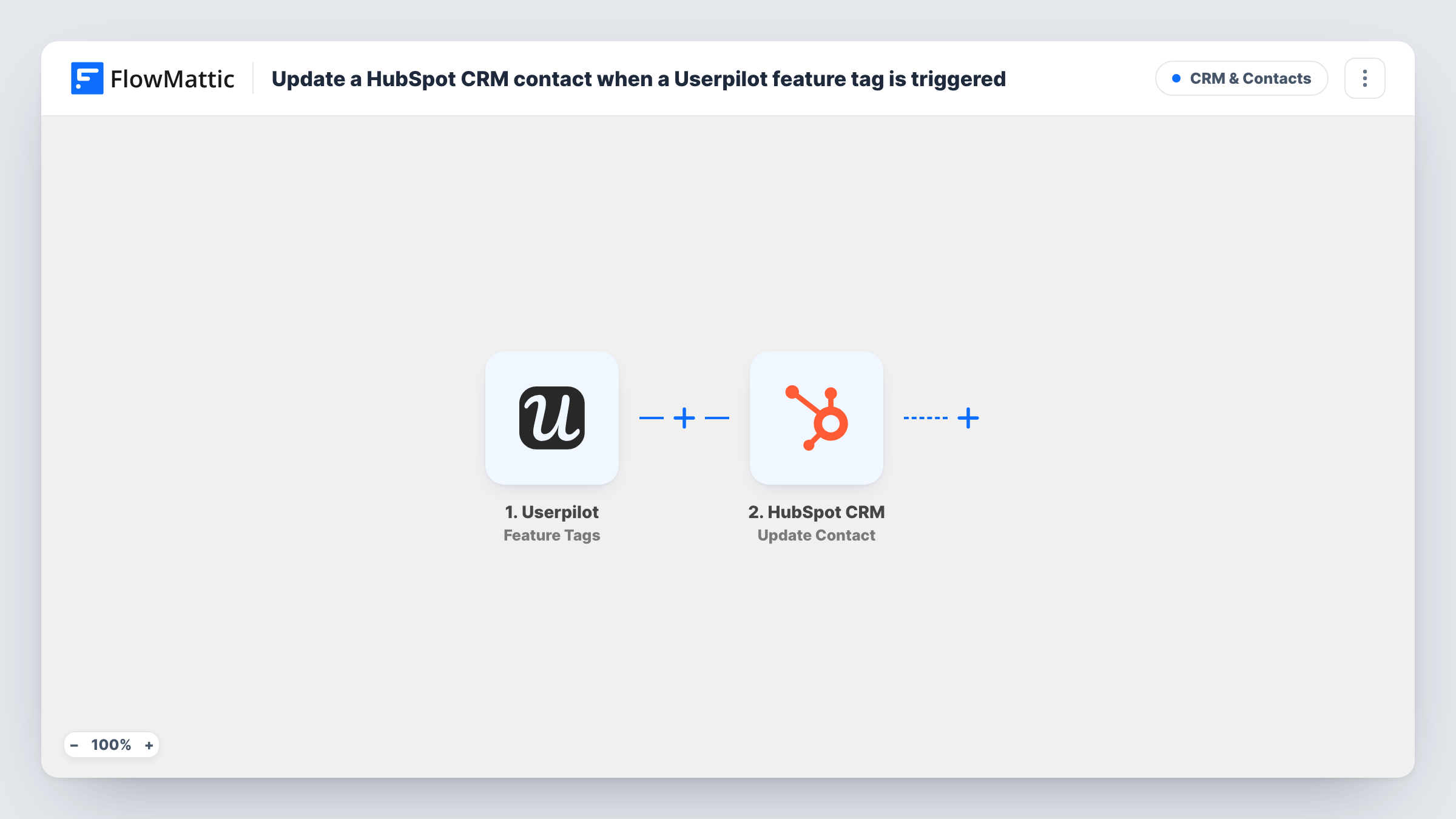
When a user clicks, hovers over or types into a Userpilot feature tag, FlowMattic updates that user’s existing HubSpot CRM contact, found by email address or contact ID, with the usage details you map.
 Userpilot
 HubSpot CRM
2 steps Setup ~5 min Used on 3.4k sites Free to import
What this workflow does
Product teams tag key features in Userpilot to see who uses them. Sales and marketing, working in HubSpot, rarely see that data. This workflow writes feature activity onto the user's HubSpot contact, so a rep can tell whether a trial user has tried the feature that matters before reaching out.
The Userpilot Feature Tags trigger fires when a feature tag is clicked, hovered over or receives text input. FlowMattic then runs the HubSpot CRM Update Contact step for that person. HubSpot contacts are resolved from an email address or a contact ID, so if the Userpilot data includes the user's email, mapping it is enough.
Nothing is mapped in the HubSpot step on import. Connect HubSpot, map the email address from the trigger data into the contact field, and choose properties to record the activity, for example a custom property holding the feature name. Interact with a tagged feature yourself, then open Task History to see what Userpilot sent and whether an email is there.
Every interaction with a tagged feature starts a run, including hovers, so busy features can update the same contact many times. Only people already in HubSpot are updated.
Trial users who reached the key feature
A SaaS sales rep filters HubSpot contacts by a Used reporting feature property before choosing which trial users to call this week.
Feature-based nurture emails
A marketing team sends HubSpot emails about advanced settings only to users whose contact shows they have already clicked the basic settings feature tag.
Customer success adoption checks
A success manager reviews which accounts have touched a newly launched feature, using the property this workflow writes to each HubSpot contact.
How this workflow runs
What happens at each step once the workflow is on, and what you need before you import it.
 Userpilot Feature Tags
Fires when a Userpilot feature tag is clicked, hovered over or receives text input. Check a test run in Task History for the user fields it sends, including whether the user's email is one of them.
- HubSpot CRM Update Contact
Updates the user's existing HubSpot contact. The template sets no fields: map the email from the Userpilot data into the contact field, or a HubSpot contact ID if you store it in Userpilot, then choose the properties to change.
What you need
- FlowMatticCore
- Userpilot AccountAccount
- HubSpot CRM AccountAccount
After importing, map your own data. To keep the template universal, not every step is pre-filled. Open each step in the builder and connect your accounts and fields (channels, lists, sheets, recipients) before you switch the workflow on.
Make it yours
Changes worth making after you import it.
- Put a Filter between the Userpilot trigger and the Update Contact step that continues only for the interaction type or feature tag you care about, using a field from a test run, so hovers don't update HubSpot each time.
- Make sure you pass users' email addresses to Userpilot when you identify them, since the HubSpot step needs an email or a contact ID to find the person.
- Create one HubSpot property per important feature, such as Used export, so each feature tag sets its own field rather than overwriting a shared one.
Questions about this workflow
Do hovers on a Userpilot feature tag start the workflow?
Yes. Feature Tags fires on clicks, hovers and text input. To keep only some interactions, put a Filter between the Userpilot trigger and the Update Contact step with a condition on a field you see in a test run.
How is the Userpilot user matched to a HubSpot contact?
Through the email address you map into the step's contact field, which FlowMattic's HubSpot integration can resolve along with contact IDs. Confirm in Task History that Userpilot sends the email for your users.
Will users who aren't HubSpot contacts be created?
No. Update Contact changes contacts HubSpot already has and doesn't add new ones. Task History shows HubSpot's reply for each feature interaction.
More CRM & Contacts workflows
Other ready-to-import templates from the same category.




Import this workflow into your WordPress site
Download the JSON, import it from the Workflows screen and connect your accounts. Every run stays on your server, with no per-task fees.
30-day money-back guarantee Unlimited workflows and runs Self-hosted