

Update a HubSpot CRM contact when an IdentityCheck response is complete
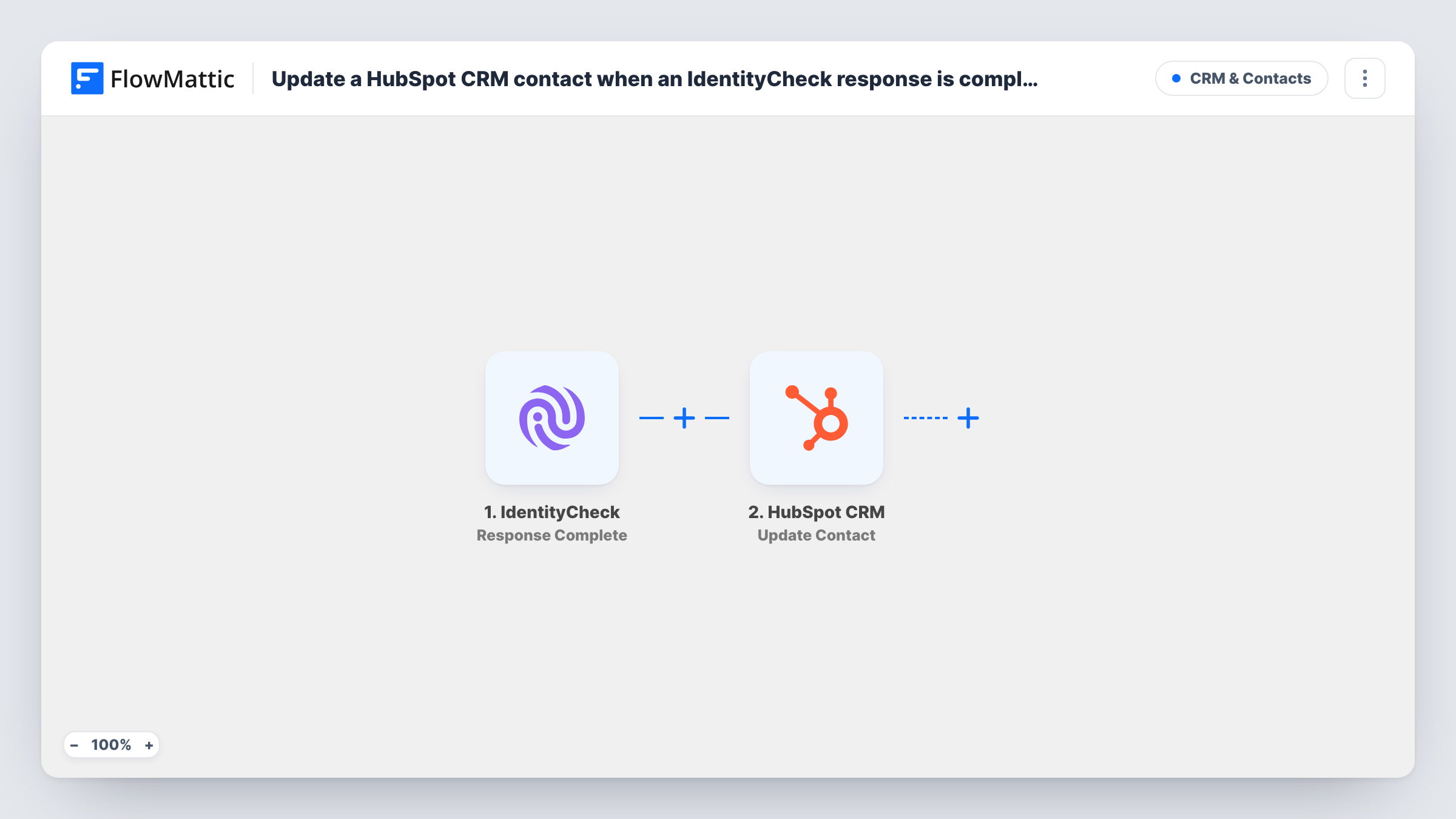
When someone completes an IdentityCheck post-verification form, FlowMattic updates their existing HubSpot CRM contact, found by email address or contact ID, with the response details you map.
 IdentityCheck
 HubSpot CRM
2 steps Setup ~5 min Used on 1.3k sites Free to import
What this workflow does
Businesses that verify customers before onboarding them, such as lenders, rental agencies or marketplaces, often run the rest of the relationship from HubSpot. Once a person finishes the follow-up form in IdentityCheck, the team in HubSpot should know, so they can move to the next step without checking another dashboard.
The IdentityCheck Response Complete trigger fires when a post-verification form is completed. FlowMattic then hands the response data to the HubSpot CRM Update Contact action. Since the HubSpot integration resolves contacts by email address or contact ID, you can point it at the person with their email and skip any lookup.
The HubSpot step is blank in the template. After you import, connect HubSpot and map the email address from the trigger data into the contact field. Then pick the properties that should record the result, for example a custom property noting that the form is complete. Complete a test form, then read Task History to see what IdentityCheck sent and HubSpot's reply.
This flow only updates people who are already HubSpot contacts. It doesn't create a record for anyone else.
Onboarding checklist in the CRM
A lending broker's team sees a Verification form complete property switch on in HubSpot and moves the client to the next onboarding stage.
Tenant screening follow-up
A letting agency tracks applicants in HubSpot and knows which ones have finished IdentityCheck's follow-up form before arranging viewings.
Marketplace seller approvals
A marketplace operator filters HubSpot contacts by the completion property to find sellers ready for a final review.
How this workflow runs
What happens at each step once the workflow is on, and what you need before you import it.
 IdentityCheck Response Complete
Starts a run when a person completes a post-verification form in IdentityCheck. FlowMattic forwards the form response, and a test run in Task History shows which fields it holds, such as an email address.
- HubSpot CRM Update Contact
Updates an existing HubSpot contact. After import, set the email from the IdentityCheck data as the contact (a HubSpot contact ID is also accepted), then choose the properties that record the completed form, since none are set in the template.
What you need
- FlowMatticCore
- IdentityCheck AccountAccount
- HubSpot CRM AccountAccount
After importing, map your own data. To keep the template universal, not every step is pre-filled. Open each step in the builder and connect your accounts and fields (channels, lists, sheets, recipients) before you switch the workflow on.
Make it yours
Changes worth making after you import it.
- Create a custom HubSpot property such as IdentityCheck form completed before mapping, and set it in the Update Contact step so your team can filter on it.
- Put a Filter between the IdentityCheck trigger and the Update Contact step that continues only when the email field is not empty, so responses without an address stop before HubSpot.
- FlowMattic's IdentityCheck integration also has a Verification Decision trigger. Use it in a second workflow if HubSpot should record the verification outcome as well.
Questions about this workflow
Which IdentityCheck event starts this workflow?
Response Complete, which fires when a post-verification form is completed. It is a separate event from the verification decision, which has a trigger of its own in FlowMattic.
How does HubSpot know which contact completed the form?
You map the person's email address from the IdentityCheck data into the step's contact field. HubSpot contacts are resolved by email address or contact ID, so there's no lookup step. Check a test run to make sure the email is there.
Are people who aren't in HubSpot added as contacts?
No. Update Contact edits existing contacts only. Task History shows HubSpot's reply for each IdentityCheck response.
More CRM & Contacts workflows
Other ready-to-import templates from the same category.





Import this workflow into your WordPress site
Download the JSON, import it from the Workflows screen and connect your accounts. Every run stays on your server, with no per-task fees.
30-day money-back guarantee Unlimited workflows and runs Self-hosted