

Update the matching HubSpot CRM contact when a HappyFox ticket is updated
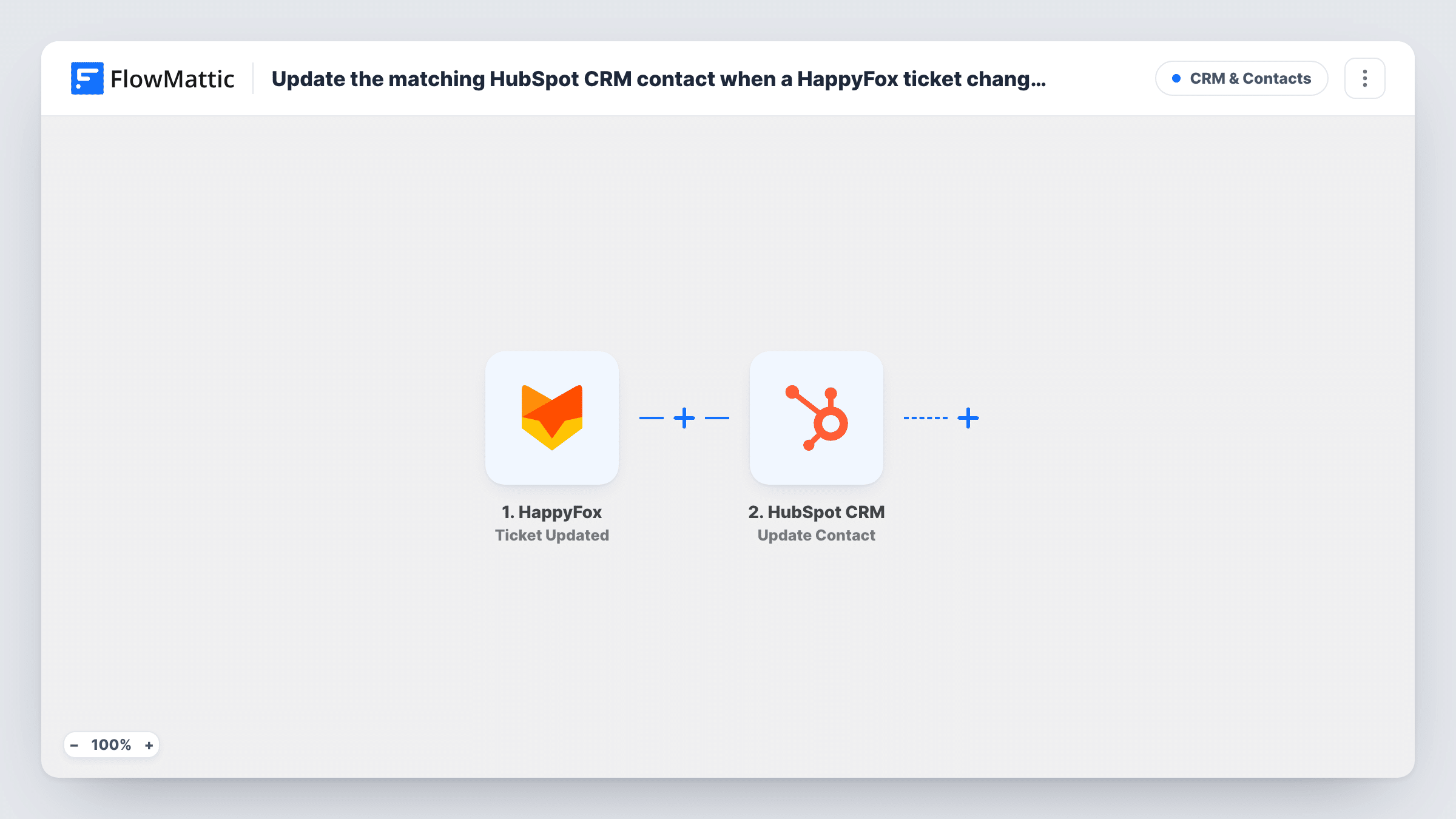
Each time a HappyFox ticket is updated, FlowMattic changes the requester’s existing HubSpot CRM contact, found by email address or contact ID, with the ticket details you choose to map.
 HappyFox
 HubSpot CRM
2 steps Setup ~5 min Used on 1.2k sites Free to import
What this workflow does
Support tickets often hold things your sales or account team should see in HubSpot: a customer who keeps raising issues, a ticket that changed status, a priority that went up. This workflow carries that across each time a HappyFox ticket is updated, so the contact record reflects what support knows.
The HappyFox Ticket Updated trigger starts a run whenever a ticket is updated, and FlowMattic passes the ticket data to the next step. The HubSpot CRM Update Contact step then changes the matching contact. FlowMattic's HubSpot integration finds a contact by either an email address or a HubSpot contact ID, so you don't need a separate lookup step.
Update Contact ships unmapped. After import, connect HubSpot, map the requester's email address from the trigger data into the step's contact field, and choose which contact properties to change and which ticket values fill them. Run a test update, then open Task History to confirm the email is in the HappyFox data and to read HubSpot's reply.
The step edits people who are already in HubSpot; it doesn't create contacts. Every update to a ticket starts its own run, so a busy ticket can update the same contact several times in a day.
Ticket status on the sales record
An account manager opens a customer's HubSpot contact before a renewal call and sees the latest HappyFox ticket status, written into a custom property you mapped.
Finding customers with urgent issues
A success team maps the ticket priority into a HubSpot property, then filters contacts by it to see who has an urgent support problem right now.
Support context for sales follow-ups
Before a sales rep emails a customer about an upgrade, they check the HubSpot contact for the most recent HappyFox ticket details and adjust the message.
How this workflow runs
What happens at each step once the workflow is on, and what you need before you import it.
 HappyFox Ticket Updated
Starts a run each time a ticket is updated in HappyFox. The ticket's data is passed on for mapping; check a test run in Task History to see which fields it includes, such as the requester's email.
- HubSpot CRM Update Contact
Updates a contact that already exists in HubSpot. The step ships unmapped: connect your account, map the requester's email (or a HubSpot contact ID, if the ticket data has one) into the contact field, then pick the properties to change.
What you need
- FlowMatticCore
- HappyFox AccountAccount
- HubSpot CRM AccountAccount
After importing, map your own data. To keep the template universal, not every step is pre-filled. Open each step in the builder and connect your accounts and fields (channels, lists, sheets, recipients) before you switch the workflow on.
Make it yours
Changes worth making after you import it.
- Create a custom contact property in HubSpot, such as Latest HappyFox status, before you map, so ticket details land in a field of their own instead of overwriting one your sales team uses.
- Put a Filter between the HappyFox trigger and the Update Contact step that continues only when the requester email is not empty, so updates without an address stop before HubSpot.
- To tell sales as well, add a Slack Send Channel Message step after Update Contact and map the ticket details you want the channel to see.
- If some HappyFox requesters aren't in HubSpot yet, add them with FlowMattic's HubSpot Create Contact action in a separate workflow, since Update Contact only edits existing contacts.
Questions about this workflow
Does this create a HubSpot contact for new HappyFox requesters?
No. Update Contact changes a contact that's already in HubSpot and never adds one. Task History shows HubSpot's reply for each run. To add new people, use the HubSpot Create Contact action in a separate workflow.
How does HubSpot know which contact a HappyFox ticket belongs to?
You map the requester's email address from the trigger data into the step's contact field. FlowMattic's HubSpot integration resolves a contact by email address or by HubSpot contact ID, so no lookup step is needed. Check a test run to confirm the email is in the ticket data.
Which HappyFox ticket updates start the workflow?
Every update to a ticket starts a run. To act on only some, put a Filter between the HappyFox trigger and the Update Contact step and set its condition on a ticket field you can see in a test run, such as the status.
Which HubSpot contact properties does it change?
Only the ones you set. The template leaves the Update Contact step empty, so after import you pick the properties and map HappyFox ticket values into them.
More CRM & Contacts workflows
Other ready-to-import templates from the same category.




Import this workflow into your WordPress site
Download the JSON, import it from the Workflows screen and connect your accounts. Every run stays on your server, with no per-task fees.
30-day money-back guarantee Unlimited workflows and runs Self-hosted