

Create a FluentCRM contact from each new Sitejet form submission
Every form submitted on your Sitejet website creates a FluentCRM contact, or updates the matching one by email, so your Sitejet enquiries become contacts you can email from WordPress.
 Sitejet
 FluentCRM
2 steps Setup ~5 min Used on 559 sites Free to import
What this workflow does
Your website may be built in Sitejet while your email marketing runs in FluentCRM on WordPress. Form enquiries then live in one system and your contact list in another. This template links them, so each Sitejet submission ends up as a FluentCRM contact without exports.
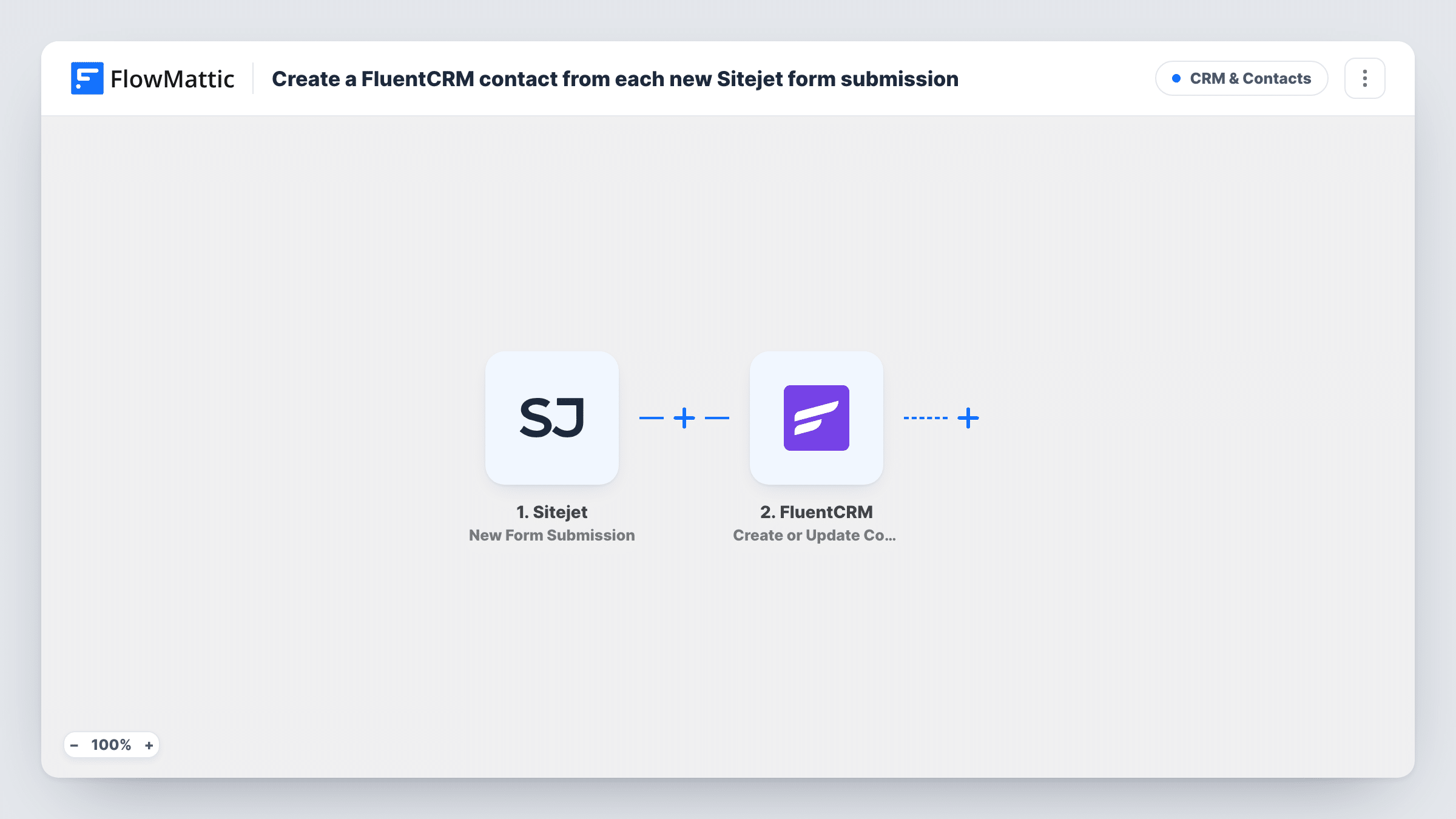
The Sitejet trigger, New Form Submission, fires when a visitor submits a form on your Sitejet site, and the submitted fields become values you can map. The FluentCRM step uses Create or Update Contact. Matching happens by email: an address FluentCRM has never seen creates a contact, while an address it already holds updates that contact with the values you mapped.
Every submission runs the FluentCRM step, as there is no Filter. A visitor who sends the form twice stays a single contact, but a blank field in the second submission can overwrite a value you already had if that field is mapped. FluentCRM runs inside your WordPress site, so contacts are stored there.
Agency client sites on Sitejet
An agency builds a client's site in Sitejet and runs the client's newsletter in FluentCRM. Contact form enquiries become contacts the client can email.
Quote requests for a local trade business
A plumber's Sitejet quote form feeds FluentCRM, so each person who asks for a quote can receive follow-up emails.
Event interest form
Visitors register interest in an upcoming event through a Sitejet form, and FluentCRM holds them as contacts ready for the announcement email.
How this workflow runs
What happens at each step once the workflow is on, and what you need before you import it.
 Sitejet New Form Submission
Fires when a new form submission occurs on your Sitejet website. Each submitted field is passed on so it can be mapped to FluentCRM contact fields.
- FluentCRM Create or Update Contact
Creates a FluentCRM contact from the submission, or updates the contact with the same email address. Map the email field and any name or phone fields your Sitejet form collects.
What you need
- FlowMatticCore
- Sitejet AccountAccount
- FluentCRM PluginPlugin
After importing, map your own data. To keep the template universal, not every step is pre-filled. Open each step in the builder and connect your accounts and fields (channels, lists, sheets, recipients) before you switch the workflow on.
Make it yours
Changes worth making after you import it.
- Make the email field required in your Sitejet form. FluentCRM matches contacts by email, so a submission without one gives it nothing to create or update.
- Add FluentCRM's Add Tags to Contact step after this one with a tag such as Sitejet enquiry. The contact exists by then, so the tag tells you where they came from.
- Send one test submission from your Sitejet site after import so FlowMattic captures the field names, then map them in the FluentCRM step.
Questions about this workflow
What happens if the Sitejet visitor is already a FluentCRM contact?
FluentCRM matches on email address, so the existing contact is updated rather than duplicated. Mapped fields take the new values, which can include blanks if the visitor left a field empty.
Where does FluentCRM have to be installed for Sitejet leads to arrive?
On your WordPress site. FluentCRM is a WordPress plugin, so it must be active on the WordPress site where FlowMattic runs. Sitejet itself stays wherever your website is hosted.
Are older Sitejet form entries imported?
No. The trigger fires for new submissions, so only forms sent after you activate the workflow reach FluentCRM.
Can I add Sitejet contacts to a FluentCRM list automatically?
Not as imported. Add FluentCRM's Add Lists to Contact step after the Create or Update Contact step, which by then has created the contact.
More CRM & Contacts workflows
Other ready-to-import templates from the same category.






Import this workflow into your WordPress site
Download the JSON, import it from the Workflows screen and connect your accounts. Every run stays on your server, with no per-task fees.
30-day money-back guarantee Unlimited workflows and runs Self-hosted