

Add each new G2 Crowd lead to HubSpot CRM as a contact
When G2 Crowd captures a new lead for your product, this workflow creates a contact in HubSpot CRM from the lead’s details, so your sales team can follow up from the CRM they already use.
 G2 Crowd
 HubSpot CRM
2 steps Setup ~5 min Used on 2.6k sites Free to import
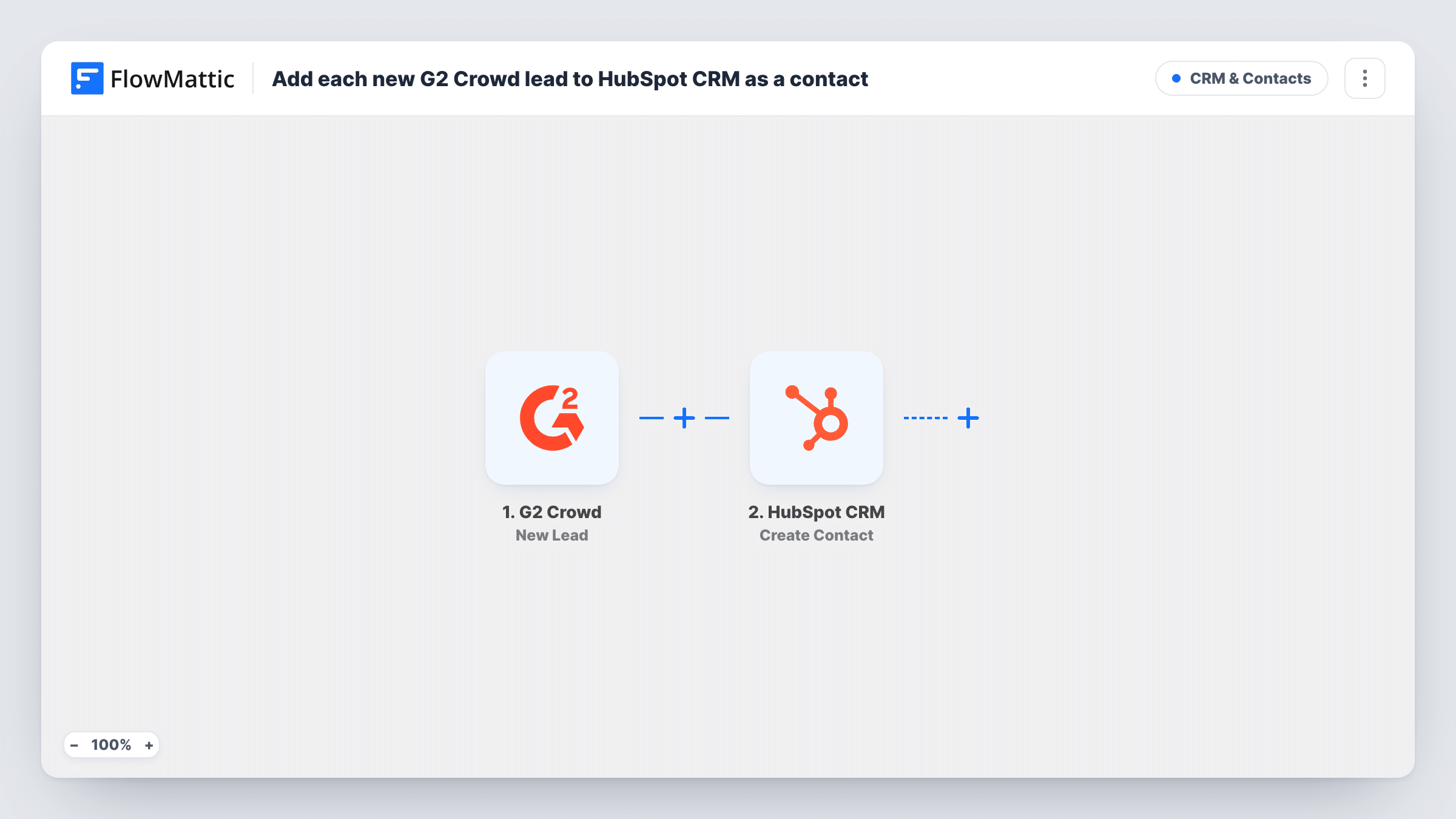
What this workflow does
Buyers who research software on G2 can show interest in your product there, and G2 records them as leads. Those leads are only useful once sales can act on them, which usually means getting them into the CRM. This workflow moves each new G2 lead into HubSpot as a contact.
The G2 Crowd trigger fires when a new lead is captured on the G2 platform. FlowMattic receives the lead's details and makes them available to map. The HubSpot CRM step creates a contact with the properties you choose, for example email, name and company.
You decide what goes into HubSpot by mapping fields after import. A useful extra is a property that records G2 as the source, so these contacts are easy to find in lists and reports. Every run is stored in Task History with G2's data and HubSpot's reply.
Sales follow-up on buyer interest
A SaaS vendor's reps work from HubSpot. Each G2 lead appears there as a contact, ready to be assigned and contacted.
Reporting on G2 as a lead source
Marketing tags contacts from G2 with a source property, then compares them with other channels in HubSpot reports.
Nurture emails for G2 visitors
Contacts created from G2 leads can be added to a HubSpot email sequence aimed at buyers comparing tools.
How this workflow runs
What happens at each step once the workflow is on, and what you need before you import it.
 G2 Crowd New Lead
Fires when a new lead is captured for you on the G2 Crowd platform. The lead's details become available to map into the HubSpot contact.
- HubSpot CRM Create Contact
Creates a contact in HubSpot CRM from the G2 lead. Map email, name, company and a lead source property, then connect HubSpot when you import the workflow.
What you need
- FlowMatticCore
- G2 Crowd AccountAccount
- HubSpot CRM AccountAccount
After importing, map your own data. To keep the template universal, not every step is pre-filled. Open each step in the builder and connect your accounts and fields (channels, lists, sheets, recipients) before you switch the workflow on.
Make it yours
Changes worth making after you import it.
- Map a fixed value such as G2 into a HubSpot lead source property, so you can filter these contacts in lists and reports.
- Add a Slack or email step after HubSpot to tell the sales owner that a G2 lead just arrived.
- After import, let one G2 lead come through, then check Task History to see which fields G2 includes before finishing the mapping.
Questions about this workflow
What if the G2 lead is already a HubSpot contact?
This step creates contacts and does not update existing ones. HubSpot may refuse a duplicate email; the response is listed in Task History for that run.
Are G2 leads from before the import sent to HubSpot?
No. Only leads G2 captures after the workflow is turned on are sent.
Which G2 lead details reach HubSpot CRM?
Only the fields you map in the HubSpot step. G2 decides what the lead event includes, so run a test to see the available fields.
Does every new G2 Crowd lead become a contact?
Yes, as imported. Each lead event runs the HubSpot step. Add a Filter after the trigger if you want to leave some out.
More CRM & Contacts workflows
Other ready-to-import templates from the same category.



Import this workflow into your WordPress site
Download the JSON, import it from the Workflows screen and connect your accounts. Every run stays on your server, with no per-task fees.
30-day money-back guarantee Unlimited workflows and runs Self-hosted