

Create a HubSpot CRM contact from each new LeadGen App lead
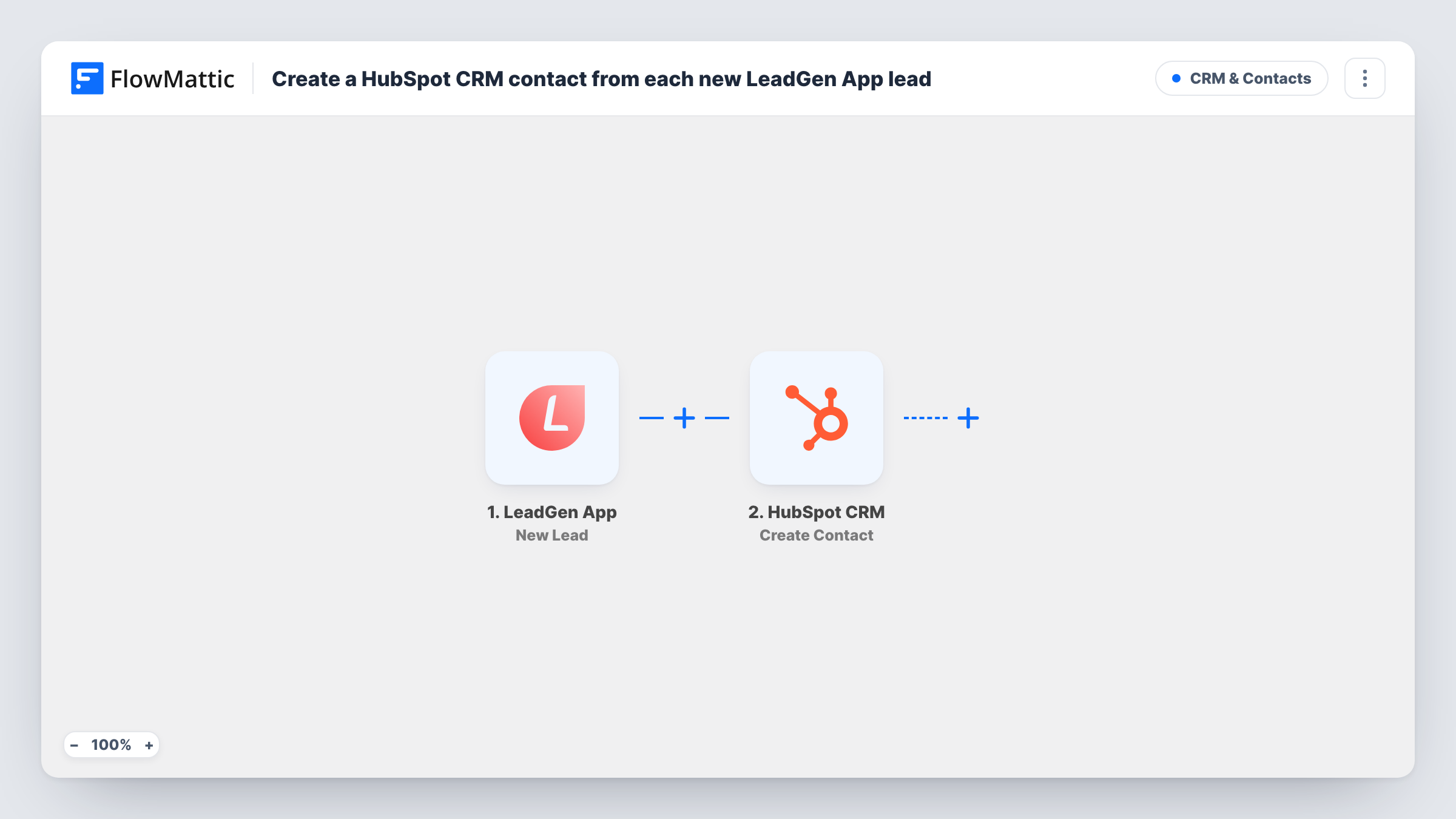
Each new lead received by LeadGen App is created as a contact in HubSpot CRM, using the name, email and answers you map, so your sales team can work it from HubSpot.
 LeadGen App
 HubSpot CRM
2 steps Setup ~5 min Used on 807 sites Free to import
What this workflow does
LeadGen App collects leads through its forms, but your sales team tracks prospects in HubSpot. Moving each lead over by hand delays follow-up and leaves room for mistakes. This workflow creates the HubSpot contact for you when a lead arrives.
The LeadGen App trigger is New Lead, which fires when a new lead is received. The lead's answers, such as name, email and any qualifying questions, become available to map in the next step.
The HubSpot CRM step uses Create Contact to make a new contact record. Map the lead's email to the contact email and fill other properties from the form answers. Because the step only creates contacts, HubSpot may turn down a lead whose email is already in your CRM. Check Task History for HubSpot's reply on any run that didn't add a contact.
Multi-step quote form for a home services firm
Homeowners answer a few questions in a LeadGen App form about the job. Each lead becomes a HubSpot contact with those answers mapped to properties your estimators read.
Landing page for a paid ad campaign
Ad traffic lands on a page with a LeadGen App form. Every lead is created in HubSpot so the sales team can call them from the CRM.
Lead qualification for a B2B service
A LeadGen App form asks for company size and budget. The answers go into HubSpot properties, ready for your reps to sort by.
How this workflow runs
What happens at each step once the workflow is on, and what you need before you import it.
 LeadGen App New Lead
Starts a run for each lead that comes in through LeadGen App. The lead's answers are passed on for mapping. Submit a test lead after import so the fields appear in FlowMattic.
- HubSpot CRM Create Contact
Turns the LeadGen App lead into a fresh HubSpot CRM contact record. Map the lead's email to the contact email, then fill name, phone or company properties from the LeadGen App answers you collect.
What you need
- FlowMatticCore
- LeadGen App AccountAccount
- HubSpot CRM AccountAccount
After importing, map your own data. To keep the template universal, not every step is pre-filled. Open each step in the builder and connect your accounts and fields (channels, lists, sheets, recipients) before you switch the workflow on.
Make it yours
Changes worth making after you import it.
- Make the email question required in your LeadGen App form, so every lead reaching HubSpot has an address to create the contact with.
- If you run several LeadGen App forms, map a fixed value naming the form into a HubSpot property, so you can see which form each contact came from.
- Add a Filter after the trigger that continues only when a qualifying answer meets your bar, such as a budget field that is not empty, if only some leads belong in HubSpot.
Questions about this workflow
What if the LeadGen App lead already exists in HubSpot?
This HubSpot action never edits a contact, it only adds them. HubSpot may decline an email it already holds, and Task History shows the reply on that step. Your existing contact stays as it is.
Which LeadGen App answers can go into HubSpot?
Any answer the lead data carries. Run a test lead, then map each answer to the HubSpot property you want it in.
Are past LeadGen App leads sent to HubSpot?
No. Leads that LeadGen App captured before you switched the workflow on stay where they are.
More CRM & Contacts workflows
Other ready-to-import templates from the same category.






Import this workflow into your WordPress site
Download the JSON, import it from the Workflows screen and connect your accounts. Every run stays on your server, with no per-task fees.
30-day money-back guarantee Unlimited workflows and runs Self-hosted