

When user watches the video partially, add a tag to contact in FluentCRM
When a viewer watches a specific percentage of a Presto Player video, this workflow adds a tag to their existing FluentCRM contact so you can segment people by what they watched.
 Presto Player
 FluentCRM
2 steps Setup ~5 min Used on 433 sites Free to import
What this workflow does
A viewer who gets halfway through your sales video is a different lead from one who never pressed play. Presto Player knows how far people watch, and FluentCRM is where you segment and email them. This workflow links the two with a tag.
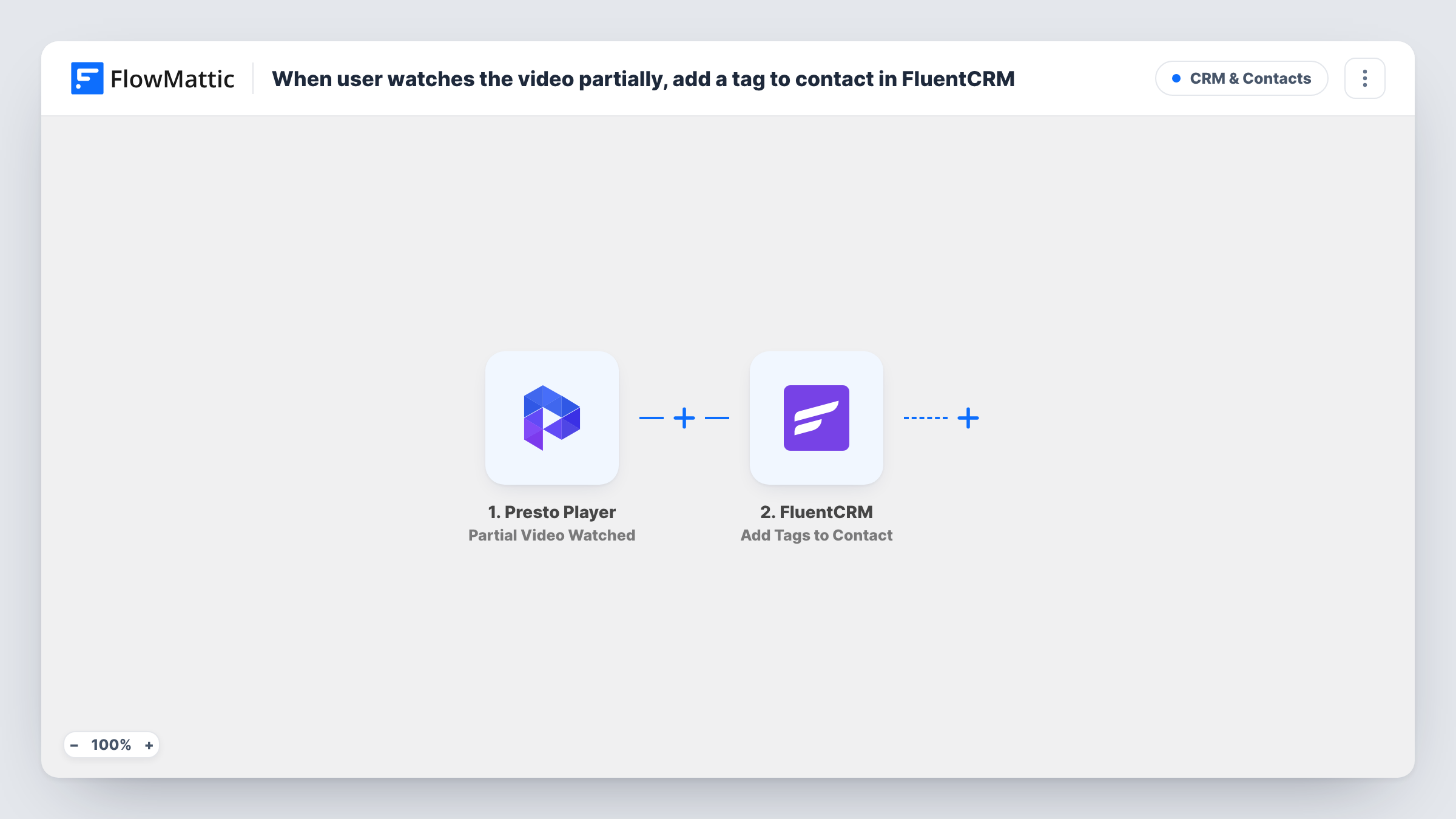
The Presto Player trigger fires when a user watches a specific percentage of a video on your WordPress site. The run picks up whatever video and viewer data Presto Player passes along. The FluentCRM step then runs Add Tags to Contact, which applies the tags you choose to an existing contact.
Because the action works only on contacts that already exist, a viewer with no FluentCRM contact gets no tag. Use it where viewers are logged-in members you already keep in FluentCRM, or add a contact step first. Check a test run to confirm the trigger carries the viewer's email or user details; an anonymous viewer leaves the tag step with no contact to find.
Warm leads from a sales video
Members who watch a set share of your offer video get a tag, and a FluentCRM automation sends them a follow-up email about the offer.
Course lesson progress
Students who reach the chosen point of a lesson video are tagged, so you can email those who started but may not have finished.
Webinar replay interest
Logged-in subscribers who watch part of a replay are tagged, giving you a segment to invite to the next live session.
How this workflow runs
What happens at each step once the workflow is on, and what you need before you import it.
 Presto Player Partial Video Watched
Starts a run when a user watches a specific percentage of a Presto Player video. The video and viewer details Presto Player sends become available to map in the FluentCRM step.
- FluentCRM Add Tags to Contact
Adds the tags you pick to an existing FluentCRM contact. Map the viewer's email or user details from the trigger to find the contact, then test with a known viewer to confirm the tag lands.
What you need
- FlowMatticCore
- Presto Player PluginPlugin
- FluentCRM PluginPlugin
After importing, map your own data. To keep the template universal, not every step is pre-filled. Open each step in the builder and connect your accounts and fields (channels, lists, sheets, recipients) before you switch the workflow on.
Make it yours
Changes worth making after you import it.
- To tag viewers who are not yet contacts, add FluentCRM's Create or Update Contact step before the tag step and map the viewer's email, provided the trigger carries one.
- Add a Filter after the trigger that checks the video title or ID, if Presto Player sends it, so only the videos you care about apply the tag.
- Want a different tag per video? Use a Router with one route per video ID and an Add Tags to Contact step on each. Since each video has its own ID, a single view matches just one route.
Questions about this workflow
What happens if the Presto Player viewer isn't in FluentCRM?
Add Tags to Contact works on existing contacts only, so no tag is added. You can read the FluentCRM step's result in Task History. Add a Create or Update Contact step first to cover new viewers.
Are anonymous Presto Player viewers tagged?
Only if the trigger data identifies them. Watch part of a video while logged out and check the captured data; without an email or user details, there is no contact to tag.
Does a viewer who watches the same video twice get tagged twice?
Each qualifying view runs the workflow again. Adding a tag the contact already has leaves them with that tag, so test once to see how FluentCRM records it.
Do Presto Player and FluentCRM need to run on the same WordPress site?
Yes. Both are WordPress plugins, and FlowMattic needs to be installed on that site to receive the video event and tag the contact.
More CRM & Contacts workflows
Other ready-to-import templates from the same category.





Import this workflow into your WordPress site
Download the JSON, import it from the Workflows screen and connect your accounts. Every run stays on your server, with no per-task fees.
30-day money-back guarantee Unlimited workflows and runs Self-hosted