

Verify new Hexomatic leads with Reoon Email Verifier
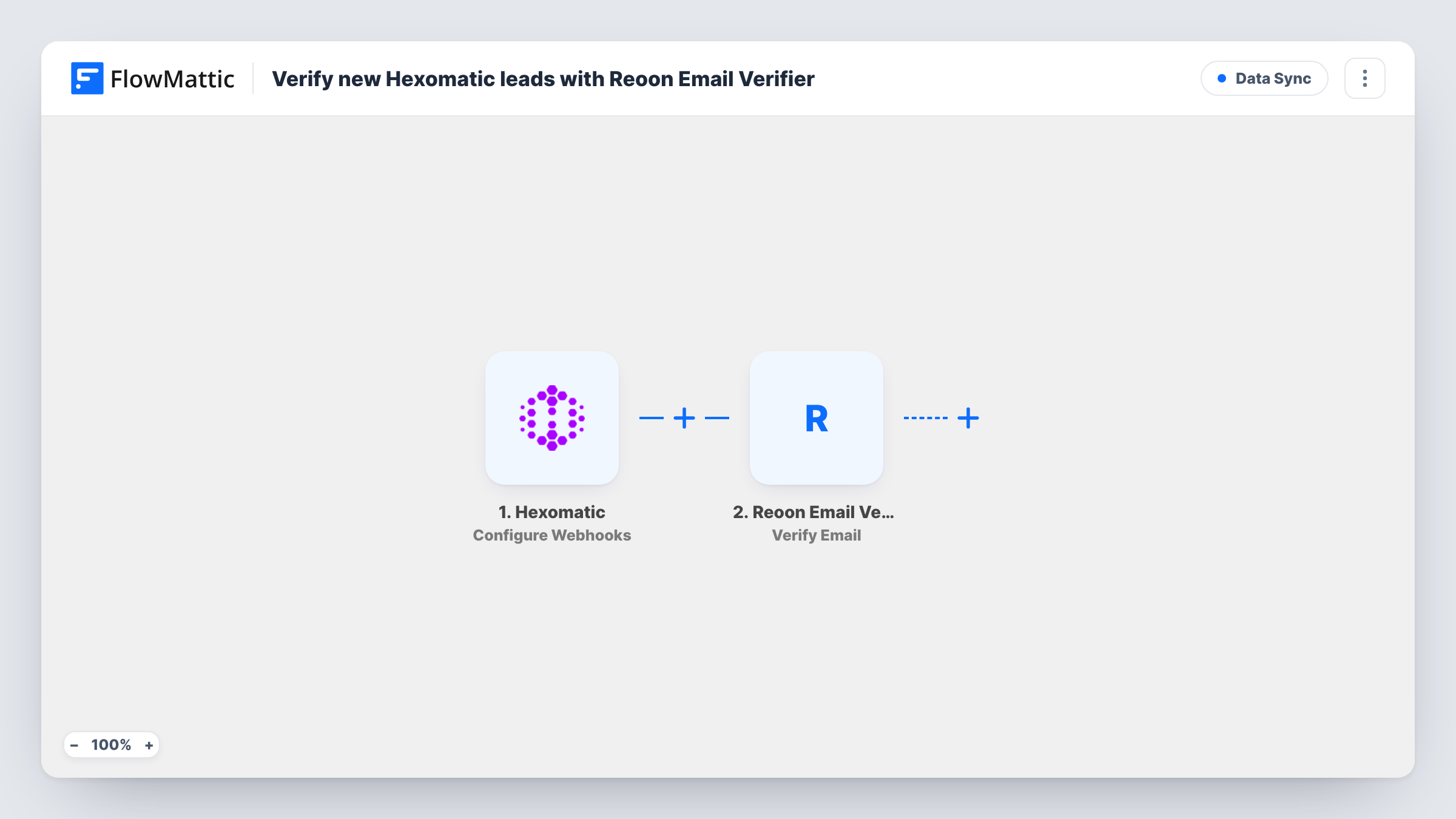
When a Hexomatic automation or scraping recipe finishes, FlowMattic fetches its results, loops through the leads it found and checks each email address with Reoon Email Verifier.
 Hexomatic
 Iterator
 Reoon Email Verifier
4 steps Setup ~8 min Used on 2.1k sites Free to import
What this workflow does
Scraped lead lists often contain old, made-up or mistyped addresses. Checking them before they reach a mailing list or a sales tool protects your sender reputation. This workflow verifies every address from a finished Hexomatic run, one lead at a time.
The Hexomatic Configure Webhooks trigger fires when an automation or scraping recipe completes. Add the webhook URL to the Hexomatic automation that collects your leads. Next, the Get Completed Workflow Data step retrieves that run's results. It ships unmapped, so map the finished automation from the trigger data into it.
An Iterator then loops through the results. Its array field ships empty: pick the list of leads from the previous step's output. For each lead, the Reoon Email Verifier step verifies one email address. Map the email from the current item into it after import.
The template stops at verification. Reoon's verdict for each address shows in Task History, but nothing saves it or acts on it until you add a step after the Reoon step, for example a Google Sheets row or a contact in your CRM. Every lead continues whatever the result, so add a Filter if only valid ones should go on.
Clean scraped directories before outreach
A sales team scrapes a business directory with Hexomatic and checks every email it finds before anyone writes to it.
Check leads from a recurring recipe
An agency's weekly Hexomatic recipe collects new contacts, and each completed run has its addresses checked in Reoon.
Build a verified list over time
A marketer adds a Google Sheets step after the Reoon step and keeps a sheet of every scraped lead with its verification status.
How this workflow runs
What happens at each step once the workflow is on, and what you need before you import it.
 Hexomatic Configure Webhooks
Fires when a Hexomatic automation or scraping recipe completes. Add the FlowMattic webhook URL to the Hexomatic automation that gathers your leads so its finished runs start this workflow.
- Hexomatic Get Completed Workflow Data
Retrieves the data from the completed Hexomatic run. The step ships unmapped: map the finished automation from the trigger, then check a test run to see the results it returns.
- Iterator Loop Through Array
Loops through the results and runs the next step once per item. The array field ships empty, so after import pick the list of leads from the Get Completed Workflow Data output.
- Reoon Email Verifier Verify Email
Verifies the email address of the current lead with Reoon. Map the email from the Iterator's current item. The verdict appears in Task History; add a step after this one to store or use it.
What you need
- FlowMatticCore
- Hexomatic AccountAccount
- Reoon Email Verifier AccountAccount
After importing, map your own data. To keep the template universal, not every step is pre-filled. Open each step in the builder and connect your accounts and fields (channels, lists, sheets, recipients) before you switch the workflow on.
Make it yours
Changes worth making after you import it.
- Add a Google Sheets Add New Row step after the Reoon step and map the email and Reoon's status, so each Hexomatic run leaves a record of verified addresses.
- Add your CRM or email list step after the Reoon step, then put a Filter between the Reoon step and that new step that continues only when Reoon's status is valid. Leads that fail skip only their own remaining steps.
- Make sure your Hexomatic recipe outputs one email per lead, so the Iterator and the Reoon step get a single address to check each time.
Questions about this workflow
Where do the Reoon verification results go?
Nowhere yet. The template ends at the Verify Email step, so the results only show in Task History until you add a step after it that saves or uses them.
Does every Hexomatic automation start this workflow?
Only the ones you add the FlowMattic webhook URL to. Set it on the Hexomatic automation that collects leads, not on unrelated recipes.
Are invalid emails removed from my Hexomatic results?
No. The workflow reads the results and checks each address, but it doesn't change anything in Hexomatic. To keep invalid addresses out of steps you add later, put a Filter between the Reoon step and those steps.
Does each scraped lead use a Reoon check?
Yes. The Iterator runs the Verify Email step once for every item in the results, so a run with many leads makes many Reoon checks.
More Data Sync workflows
Other ready-to-import templates from the same category.







Import this workflow into your WordPress site
Download the JSON, import it from the Workflows screen and connect your accounts. Every run stays on your server, with no per-task fees.
30-day money-back guarantee Unlimited workflows and runs Self-hosted