

When a CCAvenue order status is received, record it in Google Sheets and notify the team in Slack
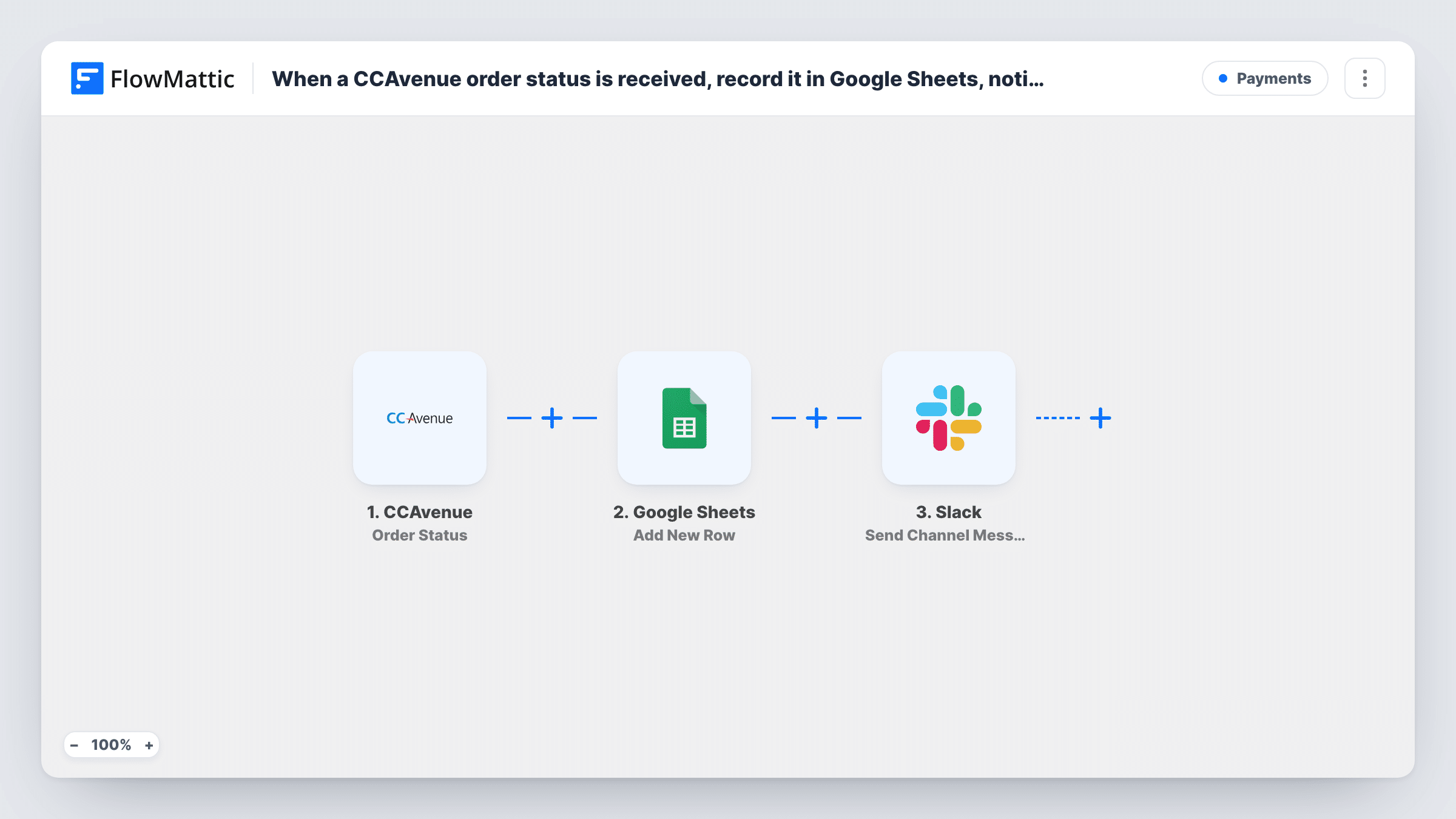
When CCAvenue sends an order status after a customer pays, FlowMattic adds it as a row in Google Sheets and posts a message about the order in a Slack channel.
 CCAvenue
 Google Sheets
 Slack
Slack3 steps Setup ~5 min Used on 1.5k sites Free to import
What this workflow does
If your store or booking site takes payments through CCAvenue, the payment details live in the CCAvenue dashboard, not where your team looks every day. This workflow writes each order status to a spreadsheet you control and tells the team in Slack, so payments are visible without logging in to the gateway.
The CCAvenue trigger receives the order status CCAvenue sends. FlowMattic describes it as firing when a customer completes a payment. The order details, such as the order ID, amount and status, are passed on; a test payment shows exactly which fields CCAvenue includes.
The Google Sheets step adds one row per status. After import you choose the spreadsheet and sheet and map the order fields to your columns. Next, the Slack step posts a message to a channel you pick. It ships without a message, so write the text and map values like the order ID and amount into it.
Both action steps ship unmapped, so nothing is recorded or posted until you finish that setup. Run a test transaction and check Task History before you rely on the log for bookkeeping.
Payment log for an Indian online store
A clothing shop that takes payments through CCAvenue keeps every order status in a Google Sheet the accountant reconciles at month end.
Instant heads-up for the packing team
A gift store posts each paid order in its #orders Slack channel, so the packing team can start on it without checking the dashboard.
Booking payments for a tour operator
A travel company collects tour deposits through CCAvenue and logs each one in a sheet alongside the booking reference for follow-up.
How this workflow runs
What happens at each step once the workflow is on, and what you need before you import it.
 CCAvenue Order Status
Fires when CCAvenue sends an order status, which FlowMattic describes as happening when a customer completes a payment. The order ID, amount and status details are available to later steps.
- Google Sheets Add New Row
Adds a row to the spreadsheet you choose for each order status. No columns are mapped in the template, so connect Google, pick the sheet and map the CCAvenue fields you want to keep.
- Slack Send Channel Message
Sends your team a Slack message about the payment. The template leaves the channel and text empty, so write the message after import and map in details such as the order ID and amount.
What you need
- FlowMatticCore
- CCAvenue AccountAccount
- Google Sheets AccountAccount
- Slack AccountAccount
After importing, map your own data. To keep the template universal, not every step is pre-filled. Open each step in the builder and connect your accounts and fields (channels, lists, sheets, recipients) before you switch the workflow on.
Make it yours
Changes worth making after you import it.
- To alert Slack only for certain statuses, put a Filter between the Google Sheets step and the Slack step that checks the order status field. Every status is still logged in the sheet.
- Don't count on Send Channel Message for a private finance channel: Slack's Send Private Channel Message action covers that, and Send Direct Message reaches a single person.
- Add a column for the date and time of each status in Google Sheets, so the log can be sorted and matched against CCAvenue settlement reports.
Questions about this workflow
Does every CCAvenue order status create a row in Google Sheets?
Yes. Each status CCAvenue sends starts a run, and the run adds one row. Nothing in the template filters by status, so successful and unsuccessful outcomes are both logged if CCAvenue sends them.
Which Slack channel gets the CCAvenue payment message?
You choose it when you set up the Slack step. Pick a public channel there, or change to the private channel action if your finance channel is private.
Can I see the customer's details in the sheet?
If CCAvenue includes them in the order status, yes. Map them into columns in the Add New Row step. A test payment shows what the status carries.
More Payments workflows
Other ready-to-import templates from the same category.






Import this workflow into your WordPress site
Download the JSON, import it from the Workflows screen and connect your accounts. Every run stays on your server, with no per-task fees.
30-day money-back guarantee Unlimited workflows and runs Self-hosted