

When a contact is updated in FluentCRM, add the contact's details as a record in Teable
Each time a contact is updated in FluentCRM, FlowMattic adds a new record with that contact’s details to a Teable table, building a running log of contact changes.
 FluentCRM
 Teable
2 steps Setup ~5 min Used on 3.3k sites Free to import
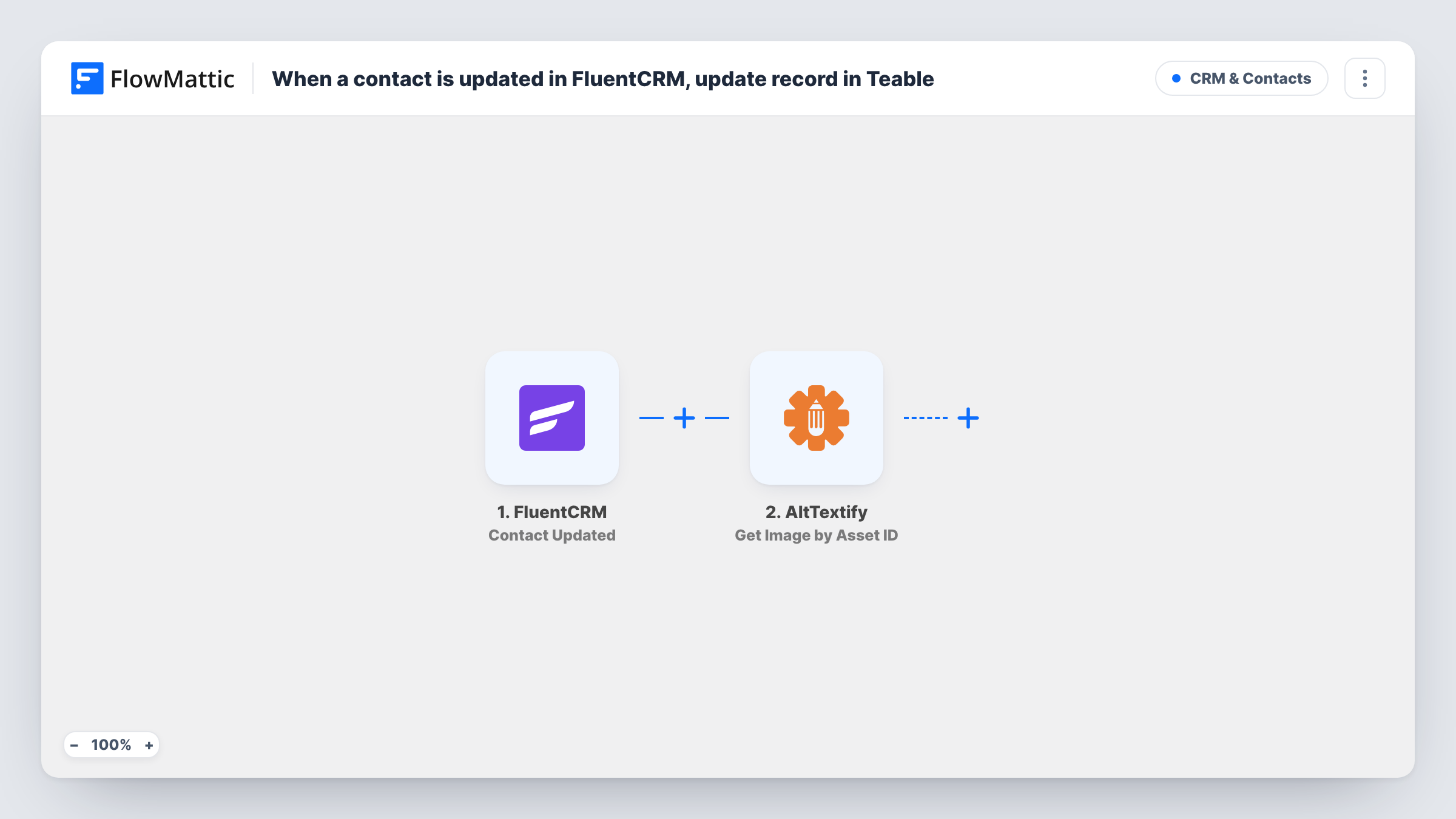
What this workflow does
FluentCRM shows a contact as they are now, but sometimes you want to see how a profile changed over time, or work with contact data in a table your team can filter and share. This workflow writes a fresh record to Teable every time a FluentCRM contact is updated, so the table becomes a history of those updates.
The FluentCRM Contact Updated trigger fires when a contact is updated, and passes the contact's details on, such as the email, name and status. Update a test contact after import to see exactly which values arrive.
The Teable Create Record step then adds one new record to the table you choose. It ships unmapped: connect Teable, pick the table and map the FluentCRM values into your fields. If the trigger sends an updated-at time in your test, give it a field of its own so you can sort the log.
This is a log, not a mirror. Each update adds another record, so a contact edited five times appears five times; the workflow never changes or removes existing Teable records. If you want one row per contact that stays current, you'd need a different setup with a lookup and Teable's Update Record action. Each run, with Teable's reply, is listed in Task History.
Audit trail for contact changes
A membership business keeps every FluentCRM contact update in Teable so it can check when someone's details or status changed.
Contact data for a non-WordPress team
A sales team that doesn't log in to WordPress filters the Teable table to see the latest contact updates from FluentCRM.
Seeing how profiles change over time
A newsletter publisher groups Teable records by email to see which contacts update their details often and what they changed.
How this workflow runs
What happens at each step once the workflow is on, and what you need before you import it.
 FluentCRM Contact Updated
Starts when a contact is updated in FluentCRM. Every update is a separate run, and the contact's current details become available to map into Teable.
- Teable Create Record
Adds a new record to the Teable table you pick. The step ships unmapped: connect Teable, choose the table and map the FluentCRM contact values into your fields.
What you need
- FlowMatticCore
- FluentCRM PluginPlugin
- Teable AccountAccount
After importing, map your own data. To keep the template universal, not every step is pre-filled. Open each step in the builder and connect your accounts and fields (channels, lists, sheets, recipients) before you switch the workflow on.
Make it yours
Changes worth making after you import it.
- Add a date field to the Teable table and map the update time into it, if a test run shows one, so the most recent change sorts first.
- To log only some contacts, put a Filter between the FluentCRM trigger and the Teable step that checks a value such as a tag or status from a test run. Updates it stops add no record.
- Group the Teable table by email address to see each contact's updates together.
Questions about this workflow
Does this keep one Teable record per FluentCRM contact?
No. Each update adds a new record, so the table is a log of updates. The workflow never edits or deletes the records it created earlier.
Which FluentCRM changes start a run?
FlowMattic describes the trigger as firing when a contact is updated in FluentCRM. Test it with the kinds of change you care about, such as an edited name or a status change, and check Task History.
Do I need the Teable table set up before importing?
Yes. Create the table with fields for the contact values you want to keep, then pick it in the Create Record step and map each value after import.
More CRM & Contacts workflows
Other ready-to-import templates from the same category.




Import this workflow into your WordPress site
Download the JSON, import it from the Workflows screen and connect your accounts. Every run stays on your server, with no per-task fees.
30-day money-back guarantee Unlimited workflows and runs Self-hosted