

When a DailyBot check-in response is completed, save it to Airtable, alert the manager in Slack, then update the Airtable status
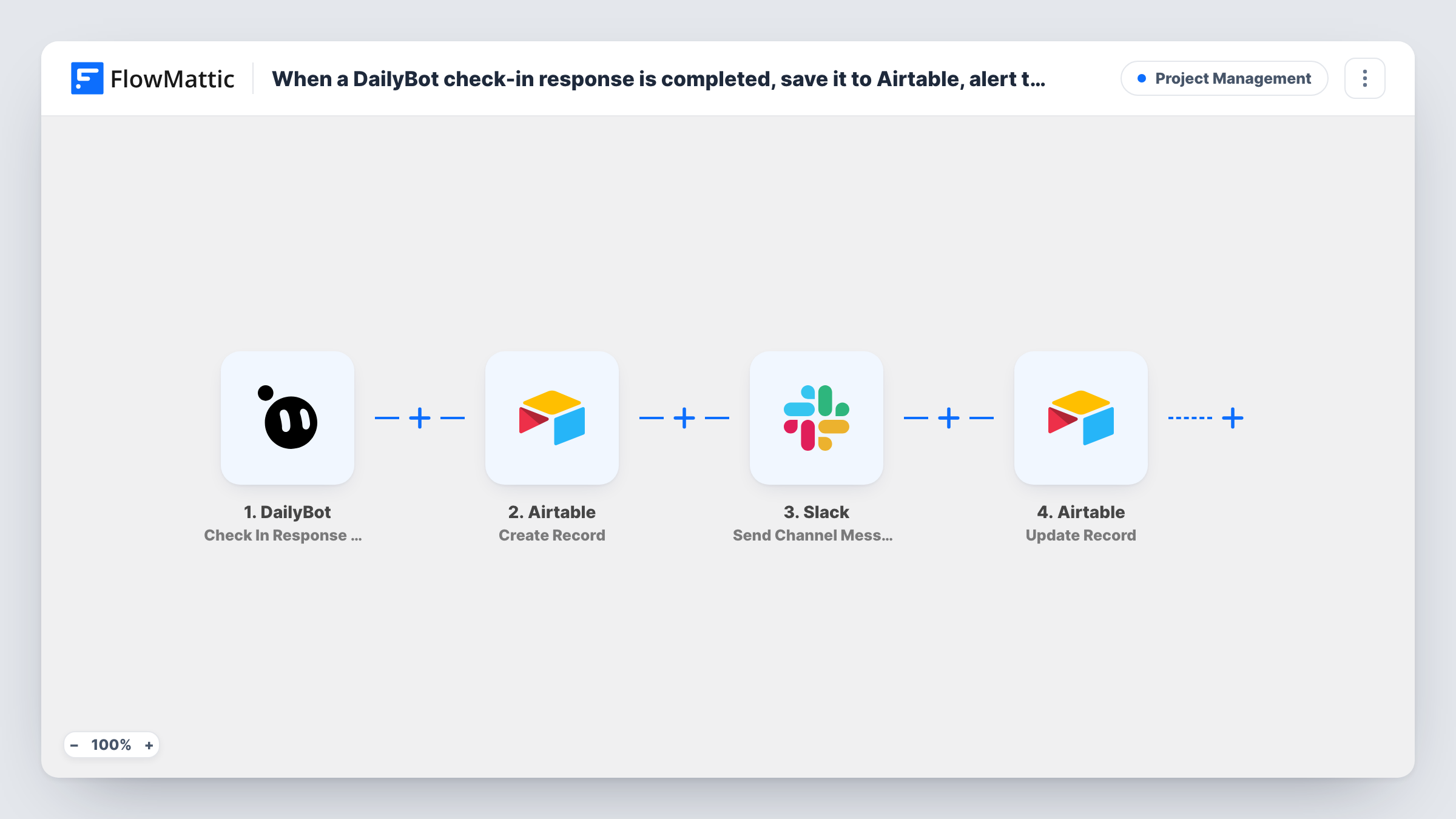
Each completed DailyBot check-in response is saved as an Airtable record, posted to a Slack channel for the manager, and then the same Airtable record is updated with a status you set.
 DailyBot
 Airtable
 Slack
Slack4 steps Setup ~8 min Used on 2.9k sites Productivity Free to import
What this workflow does
Standup answers in DailyBot are useful in the moment but hard to review later. Saving them to Airtable gives managers a table to filter by person or date, and a Slack post means they see each response as it lands.
When someone completes a check-in, the DailyBot trigger passes the response on. The first Airtable step creates a record in the table you choose. Next, Send Channel Message posts in the Slack channel you pick, where your manager reads it. Finally, Update Record changes that same Airtable record, for example to set a status field to a value such as Notified.
For the last step to find the right record, point it at the ID the Create Record step returns. Run one test check-in after import to confirm the update hits the record just created.
The status you set shows that the run reached the last step, not that the manager read the post. Task History lists what every step returned for each check-in.
Daily standups for a remote team
Each engineer's standup answers become an Airtable record, and the team lead reads them in a Slack channel without opening DailyBot.
Weekly review of check-ins
A manager filters the Airtable table by person every Friday to read the week's answers, while the status field shows which ones were posted to Slack.
Client project check-ins
An agency asks contractors to complete a DailyBot check-in at the end of each day. Answers are stored in Airtable and posted to the project's Slack channel.
How this workflow runs
What happens at each step once the workflow is on, and what you need before you import it.
 DailyBot Check In Response Completed
Fires when a DailyBot check-in response is completed. The answers and respondent details are passed to the later steps for mapping.
- Airtable Create Record
Creates a record in your chosen Airtable table from the check-in response. Map the answers to fields, and keep this step's returned record ID for step four.
- Slack Send Channel Message
Posts a message with the check-in details to the Slack channel you choose. Pick a channel your manager follows and write the message from the DailyBot values.
- Airtable Update Record
Changes the record that step two just made in Airtable. Point it at that step's record ID and set the field you use for status, such as a value showing the alert was posted.
What you need
- FlowMatticCore
- DailyBot AccountAccount
- Airtable AccountAccount
- Slack AccountAccount
After importing, map your own data. To keep the template universal, not every step is pre-filled. Open each step in the builder and connect your accounts and fields (channels, lists, sheets, recipients) before you switch the workflow on.
Make it yours
Changes worth making after you import it.
- Slack's Send Channel Message posts to a channel. To message the manager alone, swap that step for Slack's Send Direct Message action.
- Run one test check-in, then open the record in Airtable to confirm step four changed the record step two created, not another one.
- If you only want some check-ins posted, add a Filter on an answer value between the Create Record step and the Slack step. Quiet days stay in Airtable only, and their status isn't updated, since a Filter stops every later step.
Questions about this workflow
Which fields does the DailyBot check-in table in Airtable need?
Fields for the answers and respondent details you map in the Create Record step, plus a status field for the Update Record step to set. A single-select with options such as New and Notified works well.
Does an edited DailyBot check-in update the Airtable record?
No. This workflow uses Check In Response Completed. DailyBot has a separate Check In Response Updated trigger in FlowMattic if you want to handle edits.
How does step four know which Airtable record to change?
You map the record ID returned by the Create Record step into the Update Record step. Run a test check-in after import to confirm the mapping.
Can the manager get the DailyBot alert as a direct Slack message?
Yes. Replace Send Channel Message with Slack's Send Direct Message action and pick the manager as the recipient.
More Project Management workflows
Other ready-to-import templates from the same category.





Import this workflow into your WordPress site
Download the JSON, import it from the Workflows screen and connect your accounts. Every run stays on your server, with no per-task fees.
30-day money-back guarantee Unlimited workflows and runs Self-hosted