

Create Todoist tasks from new Elementor Form Submission
Every Elementor Pro form submission on your site becomes a new Todoist task, with the visitor’s answers mapped into it, so each request is on your to-do list without copying it from email.
 Elementor
 Todoist
2 steps Setup ~5 min Used on 1.1k sites Productivity Free to import
What this workflow does
Form notifications land in an inbox that also holds newsletters, invoices and everything else. A request that needs action can scroll out of sight before anyone acts on it. If you plan your work in Todoist, it makes sense for each request to arrive there as a task.
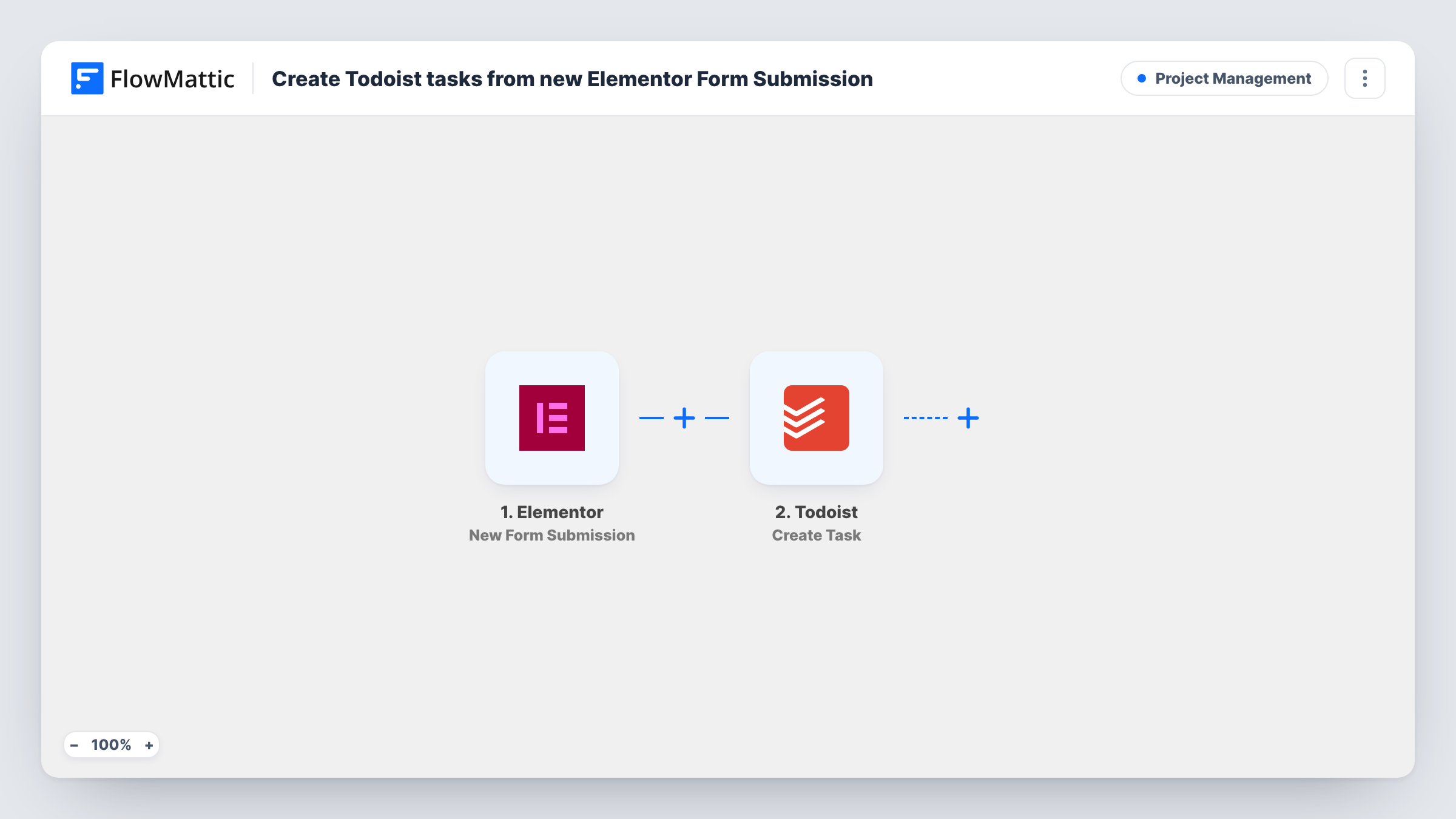
The Elementor trigger runs when a visitor submits a form built with Elementor Pro. The form's fields come into FlowMattic for mapping. The Todoist step then creates a new task in the account you connect. You build the task text from the answers, for example the visitor's name and what they asked for.
There is no filter between the two steps, so every submission produces one task, including test entries and spam that gets past the form. Elementor still handles the entry with its own actions after submit. Task History shows each run and what Todoist sent back.
Quote requests for a freelancer
A designer's Elementor quote form turns each request into a Todoist task, so new enquiries sit next to client work in the same list.
Callback requests
Visitors ask for a phone call through a short form. Each request becomes a task with their name and number, ready to tick off after the call.
Content suggestions
Readers suggest topics through an Elementor form on your blog, and each idea goes to Todoist for you to review later.
How this workflow runs
What happens at each step once the workflow is on, and what you need before you import it.
 Elementor New Form Submission
Starts whenever someone sends one of your Elementor Pro forms. Every field from that form can be used in the Todoist task.
- Todoist Create Task
Adds the request to Todoist as a fresh task. Map the submission's answers into the task text and connect your Todoist account, then check a test run to see where the task lands.
What you need
- FlowMatticCore
- Elementor PluginPlugin
- Todoist AccountAccount
After importing, map your own data. To keep the template universal, not every step is pre-filled. Open each step in the builder and connect your accounts and fields (channels, lists, sheets, recipients) before you switch the workflow on.
Make it yours
Changes worth making after you import it.
- Use more than one Elementor form? Add a Filter after the trigger that continues only for the form you want, if the submission data carries its form name.
- Put the visitor's name and the request in the task text itself, so the task makes sense in Todoist without opening the form entry.
- Send a test submission after import so FlowMattic captures the form fields, then map them in the Todoist step.
Questions about this workflow
Do I need Elementor Pro for the Todoist workflow?
Yes. Elementor's form widget comes with Elementor Pro, so install Pro on the WordPress site where FlowMattic runs before you import this.
Will each Elementor submission create a separate Todoist task?
Yes. Each submission runs the workflow once and creates one task, even when the same person submits twice.
Does Elementor still send its email notification?
Yes. FlowMattic listens for the submission and leaves your form's actions after submit as they are.
Are earlier Elementor form entries turned into tasks?
No. Only submissions made after you turn the workflow on reach Todoist.
More Project Management workflows
Other ready-to-import templates from the same category.





Import this workflow into your WordPress site
Download the JSON, import it from the Workflows screen and connect your accounts. Every run stays on your server, with no per-task fees.
30-day money-back guarantee Unlimited workflows and runs Self-hosted