

When a new folder is created in ClickUp, create table in Teable
Each time someone adds a folder in ClickUp, FlowMattic creates a new table in the Teable base you choose, so a new area of work gets its own place to hold data.
 ClickUp
 Teable
2 steps Setup ~5 min Used on 3.1k sites Productivity Free to import
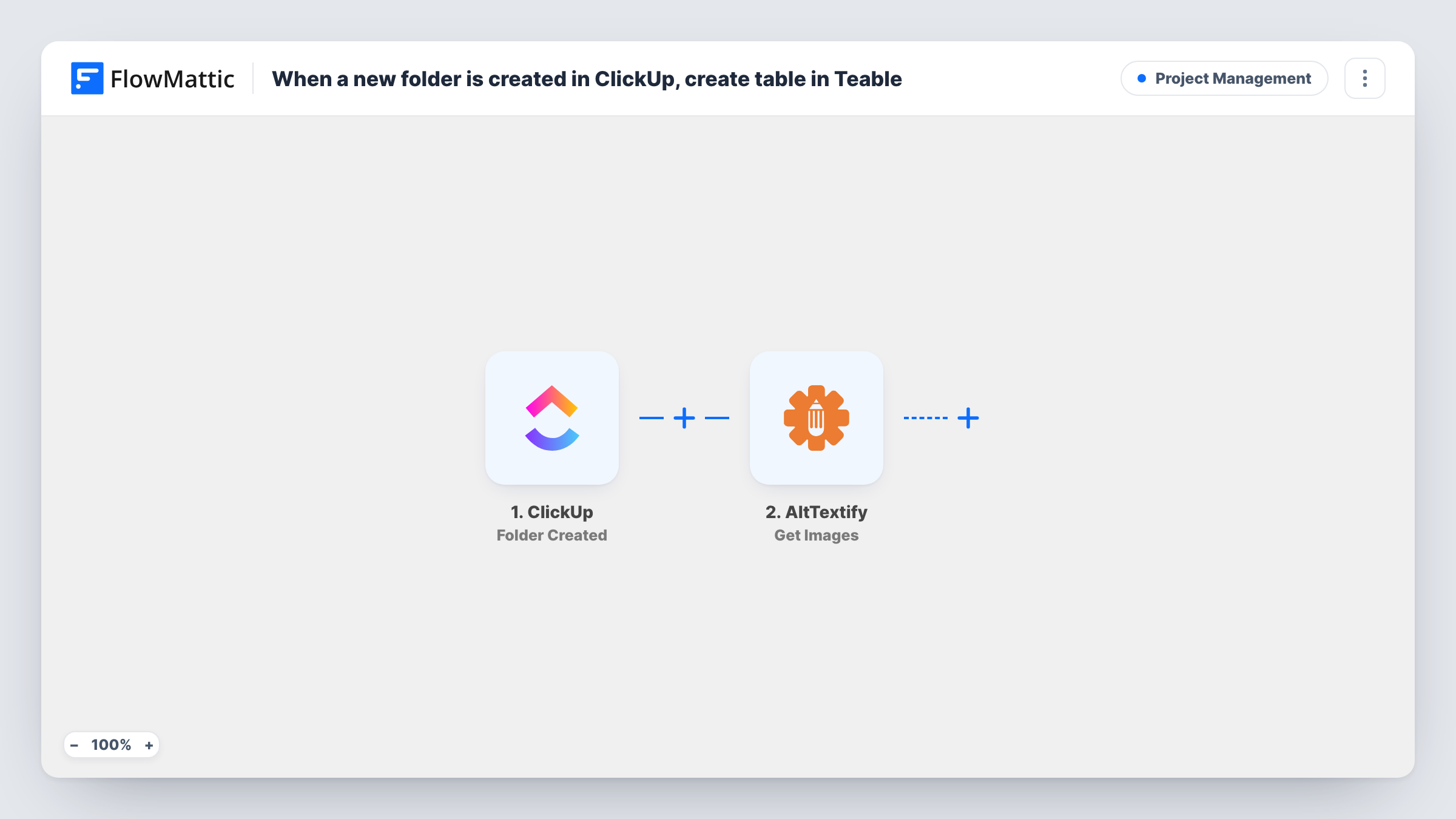
What this workflow does
Teams that plan work in ClickUp folders often keep the structured data for that work somewhere else: client lists, asset inventories, budgets or test results. Setting up a matching table by hand each time a folder appears is easy to forget. This workflow does it for you as soon as the folder exists.
The ClickUp trigger starts a run whenever a new folder is created and passes the folder's details to FlowMattic. The Teable step then creates a table in a base you specify.
The Create Table step ships unmapped. After import you connect your Teable account, pick the base, and map data from the ClickUp folder into the step, for example using the folder's name for the new table. Run a test by adding a folder in ClickUp, then open Task History to see which folder details arrived and what Teable returned.
Every new folder starts its own run, so each one gets its own table. The workflow only creates the empty table; it doesn't copy tasks, lists or later changes from ClickUp. Renaming or deleting the folder afterwards leaves the Teable table as it is.
A tracking table for each new client
An agency opens a ClickUp folder for every new client, and a Teable table with the same name appears in the agency's base, ready for contacts, deliverables and invoices.
Data space for each product launch
A marketing team creates a folder per launch in ClickUp and gets a Teable table where it logs campaign links, spend and results for that launch.
Research projects with their own dataset
A research group starts each study as a ClickUp folder, and the matching Teable table holds the participant records or measurements for that study.
How this workflow runs
What happens at each step once the workflow is on, and what you need before you import it.
 ClickUp Folder Created
Fires when a new folder is created in ClickUp. FlowMattic receives the folder's details so later steps can use them; check a test run to see exactly which ones arrive.
- Teable Create Table
Creates a new table in a Teable base. The step ships unmapped: after import, connect Teable, choose the base, and map the ClickUp folder details you want, such as the name, into the table setup.
What you need
- FlowMatticCore
- ClickUp AccountAccount
- Teable AccountAccount
After importing, map your own data. To keep the template universal, not every step is pre-filled. Open each step in the builder and connect your accounts and fields (channels, lists, sheets, recipients) before you switch the workflow on.
Make it yours
Changes worth making after you import it.
- Put a Filter between the ClickUp trigger and the Teable step that continues only when the folder name contains a word you use for client or project folders, so internal folders don't get tables.
- Use the same naming pattern in both tools, such as reusing the folder's name for the table, so people can find the Teable table that belongs to each ClickUp folder.
- Add a Slack or email step after Create Table to tell the team a new table is ready, with the folder name in the message.
Questions about this workflow
Does the Teable table copy the tasks in the ClickUp folder?
No. The workflow creates one table when the folder is created. It doesn't read the folder's lists or tasks, and later changes in ClickUp aren't sent to Teable.
Which Teable base does the new table go into?
The base you pick in the Create Table step after import. The template doesn't set one, so connect your Teable account and choose the base before you turn the workflow on.
What happens if I rename the ClickUp folder later?
Nothing in Teable changes. The trigger only fires when a folder is created, so a rename doesn't start a run and the table keeps the name it was given.
Are folders that already exist in ClickUp included?
No. Only folders created after the workflow is active start a run. Create tables for your existing folders in Teable by hand.
More Project Management workflows
Other ready-to-import templates from the same category.



Import this workflow into your WordPress site
Download the JSON, import it from the Workflows screen and connect your accounts. Every run stays on your server, with no per-task fees.
30-day money-back guarantee Unlimited workflows and runs Self-hosted