

Create a ClickUp task when a reply is created on a BoldDesk ticket
Each time a reply is created on a BoldDesk ticket, FlowMattic creates a task in ClickUp from it, so the work that comes out of support conversations is tracked in your team’s ClickUp lists.
 BoldDesk
 ClickUp
2 steps Setup ~5 min Used on 1.0k sites Productivity Free to import
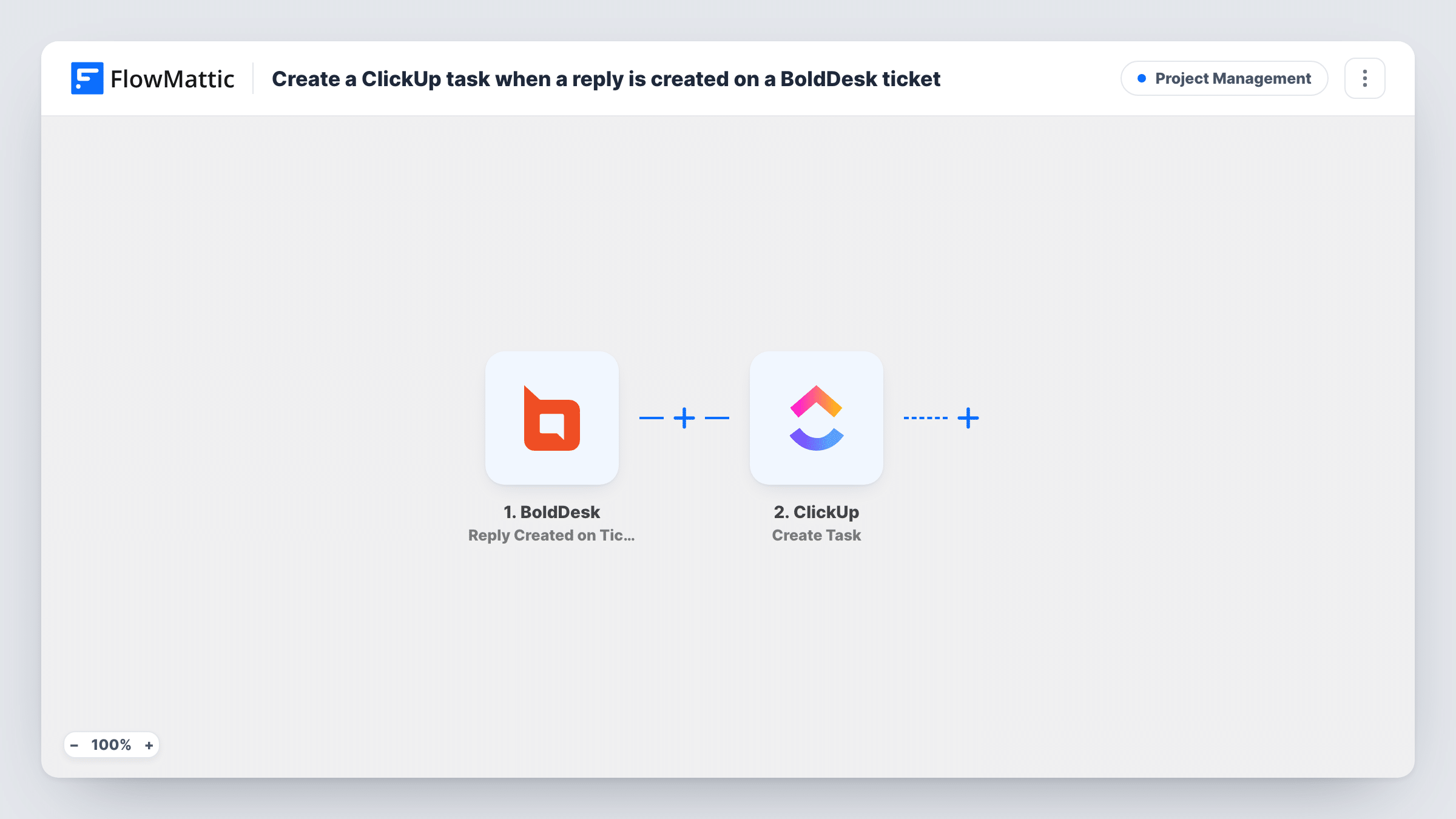
What this workflow does
Support replies often carry work for another team: a bug to look at, a refund to check, a feature request to log. If that work stays inside the help desk, the people who do it may never see it. This workflow turns each new BoldDesk reply into a ClickUp task.
The BoldDesk trigger, Reply Created on Ticket, fires when a reply is created on a ticket. The reply and ticket details become values you can map. The ClickUp step, Create Task, then creates a new task, which you build from those values, for example the ticket subject as the task name and the reply text in the description.
Be aware of volume. Every reply on every ticket fires the trigger, so a ticket with ten replies creates ten tasks. Plan a Filter after the trigger, for example on a keyword or on who wrote the reply, before turning it on. Each reply's run is logged in Task History.
Engineering tasks from support replies
With a Filter on a word like bug, replies where an agent confirms a bug become ClickUp tasks in the engineering list, with the ticket details attached.
Small team tracking every customer reply
A two-person business on a low-volume help desk wants each customer reply as a ClickUp task, so replies show up in the same list as the rest of their work.
Account managers following key customers
If the reply data names the customer or company, filter on it so replies from important accounts become tasks for the account manager.
How this workflow runs
What happens at each step once the workflow is on, and what you need before you import it.
 BoldDesk Reply Created on Ticket
Runs when a reply is created on a BoldDesk ticket. The reply and ticket details are passed to the ClickUp step for mapping.
- ClickUp Create Task
Turns the BoldDesk reply into a new ClickUp task. Connect your ClickUp account, choose where the task goes, and build its name and description from the BoldDesk reply and ticket values.
What you need
- FlowMatticCore
- BoldDesk AccountAccount
- ClickUp AccountAccount
After importing, map your own data. To keep the template universal, not every step is pre-filled. Open each step in the builder and connect your accounts and fields (channels, lists, sheets, recipients) before you switch the workflow on.
Make it yours
Changes worth making after you import it.
- Add a Filter after the trigger before you turn the workflow on. Without one, every reply on every ticket, from agents and customers alike, creates a task.
- Put the ticket ID or number in the task name, so anyone looking at the ClickUp task can find the BoldDesk conversation quickly.
- If the trigger's data shows whether the reply came from an agent or a customer, filter on that value to create tasks only from customer replies.
Questions about this workflow
Will every BoldDesk reply create a ClickUp task?
As imported, yes. The trigger fires for each reply on any ticket, and there is no Filter. Add one after the trigger to limit which replies become tasks.
Does a BoldDesk ticket with several replies make several ClickUp tasks?
Yes. Each reply is its own run and creates its own task. If you want one task per ticket, use BoldDesk's Ticket Created trigger in a separate workflow instead.
Does closing the ClickUp task update the BoldDesk ticket?
No. The workflow only sends data from BoldDesk to ClickUp. Ticket status in BoldDesk is unchanged by anything done in ClickUp.
Which ClickUp list does the BoldDesk task go to?
Whichever list you point the Create Task step at once the template is imported. Run a test reply to check that tasks land where you expect.
More Project Management workflows
Other ready-to-import templates from the same category.






Import this workflow into your WordPress site
Download the JSON, import it from the Workflows screen and connect your accounts. Every run stays on your server, with no per-task fees.
30-day money-back guarantee Unlimited workflows and runs Self-hosted