

When a FareHarbor item notification fires, update the item row in Airtable and alert the team in Slack
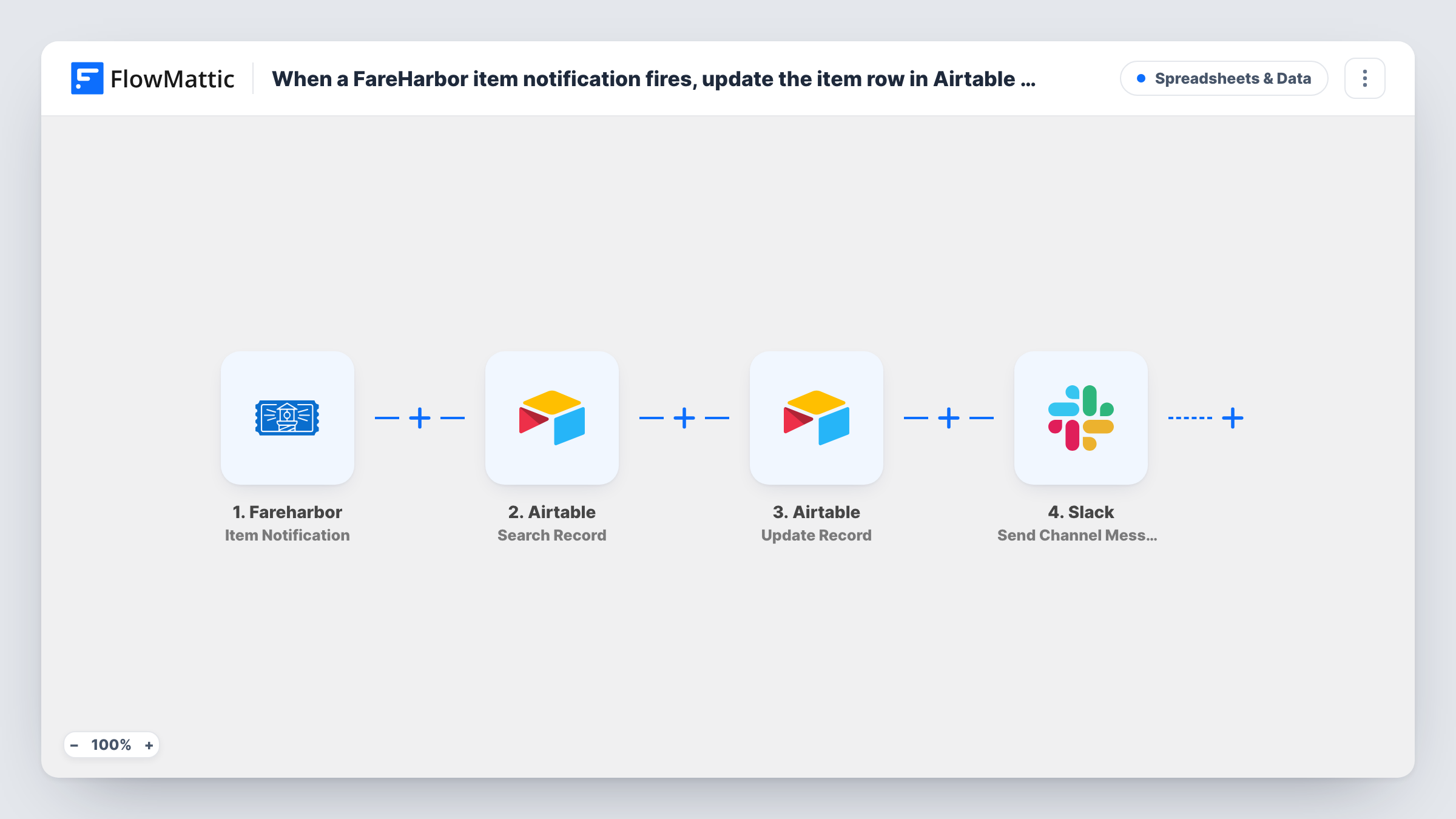
When FareHarbor sends an item notification, FlowMattic finds the item’s record in Airtable, updates it with the new details and posts a note to a Slack channel.
 Fareharbor
 Airtable
 Slack
4 steps Setup ~8 min Used on 1.0k sites Free to import
What this workflow does
Many operators keep a master list of their tours and activities in Airtable for pricing notes, staffing and planning. When an item changes in FareHarbor, that list can fall behind. This workflow keeps the Airtable record current and tells the team in Slack what changed, all from one FareHarbor notification.
The FareHarbor trigger starts a run on each item notification, which FlowMattic describes as an item-related event. The first Airtable step then searches your base with a filter formula, and the second step updates the record that search returns. Your table needs a column that holds something FareHarbor sends for the item, such as its name or ID, so the formula can match it.
Finally, Slack gets a note in the channel of your choice. None of the three actions come mapped, so after import you pick the base and table, write the search formula, map the record ID from the search into the update along with the fields to change, then choose the channel and write the message.
Each notification runs every step once. If the search finds no matching record, Airtable has nothing to update, so test with an item you know is in the table and check Task History for what each step returned.
Tour list that stays in step with FareHarbor
A boat tour company tracks each tour in Airtable with internal notes, and the row's FareHarbor fields refresh when the item changes.
Team alert when an activity changes
An adventure park posts to its #operations channel whenever an item notification arrives, so front desk staff know to check the listing.
Planning base for several guides
A multi-guide outfit keeps item details in an Airtable base that guides read, and the Slack note tells them which item was just updated.
How this workflow runs
What happens at each step once the workflow is on, and what you need before you import it.
 Fareharbor Item Notification
Starts a run when FareHarbor sends an item notification. FlowMattic describes it as an item-related event; check a test run to see which item fields, such as the name and ID, it carries.
- Airtable Search Record
Looks up the matching Airtable record using a filter formula. The step ships unmapped: pick the base and table, then write a formula that compares your item column with the value from FareHarbor.
- Airtable Update Record
Changes the record the search found. Map the record ID from the Search Record step so Airtable knows which row to change, then map the FareHarbor item fields into the columns you want refreshed.
- Slack Send Channel Message
Tells the team in Slack about the item change. Nothing is set in the template, so pick the channel and write the text, mapping in the item name or other details so the team can see which item changed.
What you need
- FlowMatticCore
- FareHarbor AccountAccount
- Airtable AccountAccount
- Slack AccountAccount
After importing, map your own data. To keep the template universal, not every step is pre-filled. Open each step in the builder and connect your accounts and fields (channels, lists, sheets, recipients) before you switch the workflow on.
Make it yours
Changes worth making after you import it.
- Store FareHarbor's item ID in its own Airtable column and match on it in the search formula. Names can change, while the ID stays the same.
- To skip FareHarbor items the table doesn't hold, add a Filter between the Search Record step and the Update Record step that checks the returned record ID is not empty. Those runs then stop before both the update and the Slack note.
- To add unknown items, put a Router between Search Record and Update Record: one route for a record ID that is not empty runs the update, one for an empty ID runs Create Record. End both with a Join and keep Slack after it.
- Mention the fields that changed in the Slack message, mapped from the FareHarbor notification, so the team doesn't have to open Airtable to find out.
Questions about this workflow
Does my Airtable base need a record for each FareHarbor item already?
Yes. The workflow searches for an existing record and updates it; it doesn't create one. Add your items to the table first, with a column the search formula can match on.
How does the Airtable update know which record to change?
You map the record ID returned by the Search Record step into the Update Record step after import. The search finds the row, and the update uses its ID.
Can the FareHarbor alert go to a private Slack channel?
As imported, the alert goes out through Send Channel Message. Replace it with Slack's Send Private Channel Message action for a private one, or Send Direct Message to alert a single person about each FareHarbor item.
Which item details reach Airtable and Slack?
Only the ones you map. All three action steps are empty in the template, so you choose which FareHarbor fields fill Airtable columns and which appear in the Slack text.
More Spreadsheets & Data workflows
Other ready-to-import templates from the same category.





Import this workflow into your WordPress site
Download the JSON, import it from the Workflows screen and connect your accounts. Every run stays on your server, with no per-task fees.
30-day money-back guarantee Unlimited workflows and runs Self-hosted