

When a form is submitted in FluentForms, create a Google Slides presentation from a template
Each Fluent Forms submission makes a new Google Slides presentation from a template you choose, so every request starts with its own copy of your deck, ready for you to add to and share.
 Fluent Forms
 Google Slides
2 steps Setup ~5 min Used on 687 sites Free to import
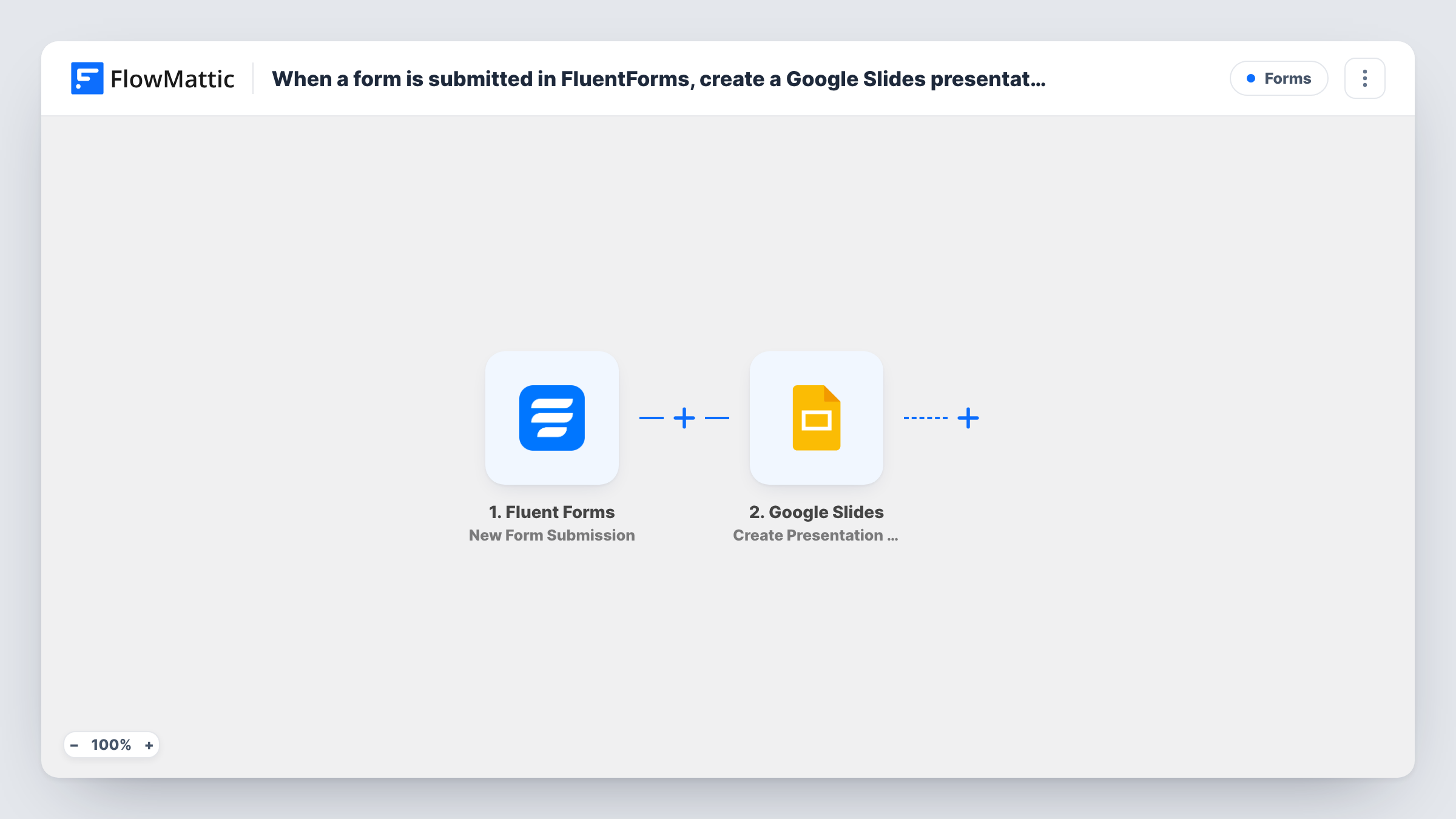
What this workflow does
If you answer form requests with a presentation, you probably start each one by copying the same template deck. That copy step is easy to forget and adds clutter when done by hand. This workflow makes a fresh presentation from your template for every Fluent Forms submission.
The Fluent Forms trigger runs when a form on your WordPress site receives a new submission, and every answer becomes data you can map. The Google Slides step uses Create Presentation From Template, which creates a new presentation from the template you pick in your Google account.
The template doesn't promise that form answers appear on the slides. Check the step after import to see what you can map, such as the presentation's name. To put answers on a slide, add Google Slides' Insert Text action after this step. The run then passes the new presentation to it, and Insert Text places your mapped text into a text box or shape. You can check every run, and what Google returned, in Task History.
Proposal decks for agency enquiries
A prospect fills in a project brief with Fluent Forms, and a copy of your proposal template is ready in Google Slides for the account manager to finish.
Course or coaching onboarding
Each new client's intake form creates their own copy of an onboarding deck that you go through on the first call.
Internal requests for pitch materials
Sales reps submit a short form with the prospect's name, and each request gets its own deck from the company template.
How this workflow runs
What happens at each step once the workflow is on, and what you need before you import it.
 Fluent Forms New Form Submission
Starts a run for each new entry to the Fluent Forms form you pick. Every answer from the form is passed on and can be mapped in the Google Slides step.
- Google Slides Create Presentation From Template
Creates a new Google Slides presentation from the template you select. Connect your Google account, pick the template, and map any values the step offers, such as a name built from form answers.
What you need
- FlowMatticCore
- Fluent Forms PluginPlugin
- Google Slides AccountAccount
After importing, map your own data. To keep the template universal, not every step is pre-filled. Open each step in the builder and connect your accounts and fields (channels, lists, sheets, recipients) before you switch the workflow on.
Make it yours
Changes worth making after you import it.
- Add Google Slides' Insert Text action after this step to place form answers, such as the client's name, into a text box on the new presentation.
- Add Create a Presentation Export Link after the presentation step if you want a link you can send on in a later step, such as an email.
- Add a Filter after the trigger if only one kind of request should get a deck, for example when a service dropdown equals Proposal.
Questions about this workflow
Do the Fluent Forms answers appear in the Google Slides deck automatically?
Not as imported. The step makes a new presentation from your template. Add the Insert Text action after it to write form answers onto a slide.
Who can see the new Google Slides presentation?
It is created in the Google account you connect, so it follows that account's sharing. Share it from Google Slides, or add steps that send a link.
Does the template presentation change?
No. The step creates a new presentation from it, so your template stays as it is for the next submission.
Will the Fluent Forms entry still appear in my form entries?
Yes. FlowMattic reacts after the form is submitted, so Fluent Forms keeps the entry in its own list as it always does.
More Forms workflows
Other ready-to-import templates from the same category.





Import this workflow into your WordPress site
Download the JSON, import it from the Workflows screen and connect your accounts. Every run stays on your server, with no per-task fees.
30-day money-back guarantee Unlimited workflows and runs Self-hosted