

When a form is submitted on GoZen Forms, Send a campaign in MailerLite
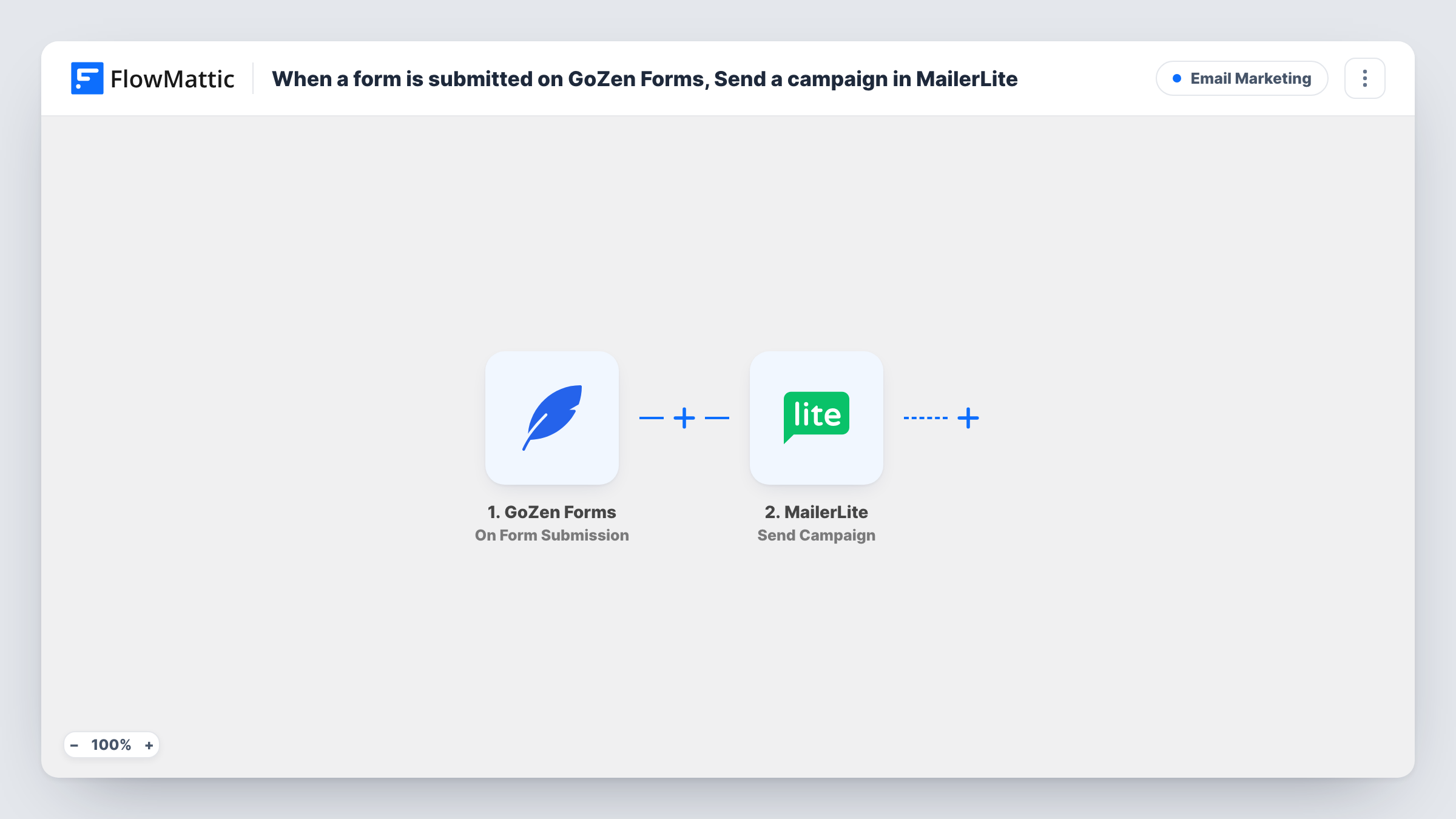
Each time someone submits a GoZen Forms form, this workflow has MailerLite send a campaign. It suits small, low-volume forms where every entry should set off the same mailing.
 GoZen Forms
 MailerLite
2 steps Setup ~5 min Used on 1.6k sites Free to import
What this workflow does
Some forms exist to start a mailing. A staff request form, an approval form or a short internal sign-off can all be the moment you want a prepared email to go out. This workflow connects that moment to MailerLite, so you don't have to log in and press send yourself.
The GoZen Forms trigger starts a run for every new GoZen Forms entry it receives. FlowMattic then runs MailerLite's Send Campaign action, which sends a campaign from your MailerLite account. You can map the submitted answers into the step where it accepts them, then run a test to see exactly which campaign goes out and to which recipients.
Be clear about what this flow does not do. It does not add the person who filled in the form to MailerLite, and it does not send a personal email to them. It sends a campaign, and it does so on every submission. Ten entries in a day means ten sends. If what you want is a welcome email for each new person, the tips below cover a better setup.
Approved announcement goes out from a form
A manager fills in a short GoZen form to sign off a news item, and the submission sets off the MailerLite campaign carrying that announcement.
Event-day mailing on a staff form
A coordinator submits a GoZen check-in form when the doors open, and MailerLite sends the campaign that tells your list the event has started.
How this workflow runs
What happens at each step once the workflow is on, and what you need before you import it.
 GoZen Forms On Form Submission
Fires each time a GoZen Forms form is submitted. The answers from that entry are passed on, so you can use them in the MailerLite step.
- MailerLite Send Campaign
Sends a campaign from your MailerLite account. Connect MailerLite on import, map any form answers the step accepts, and use a test run to confirm which campaign and recipients it uses.
What you need
- FlowMatticCore
- GoZen Forms AccountAccount
- MailerLite AccountAccount
After importing, map your own data. To keep the template universal, not every step is pre-filled. Open each step in the builder and connect your accounts and fields (channels, lists, sheets, recipients) before you switch the workflow on.
Make it yours
Changes worth making after you import it.
- To welcome each new person instead, swap this step for MailerLite's Create or Update Subscriber and let a MailerLite automation send the welcome email to them.
- Add a Filter after the trigger so only entries with a chosen answer, such as an approval box set to yes, send the campaign. Every other entry then stops at the Filter.
- Test with a campaign sent to a small group that contains only your own address, so a test entry doesn't email your whole list.
Questions about this workflow
Does the GoZen Forms submitter get added to MailerLite?
No. The only MailerLite step is Send Campaign. To add the person, place MailerLite's Create or Update Subscriber step before it and map the form's email field, if your form collects one.
Will MailerLite send the campaign again for every GoZen entry?
Yes. There is no Filter in the template, so each submission runs the Send Campaign step. Add a Filter if only some entries should send it.
Which MailerLite recipients receive the campaign?
That depends on how you set up the Send Campaign step and the campaign in MailerLite. Run one test submission and check the result in Task History and in MailerLite before turning the workflow on.
More Email Marketing workflows
Other ready-to-import templates from the same category.






Import this workflow into your WordPress site
Download the JSON, import it from the Workflows screen and connect your accounts. Every run stays on your server, with no per-task fees.
30-day money-back guarantee Unlimited workflows and runs Self-hosted