

Send a thank-you email via Gmail when a Givebutter ticket is created
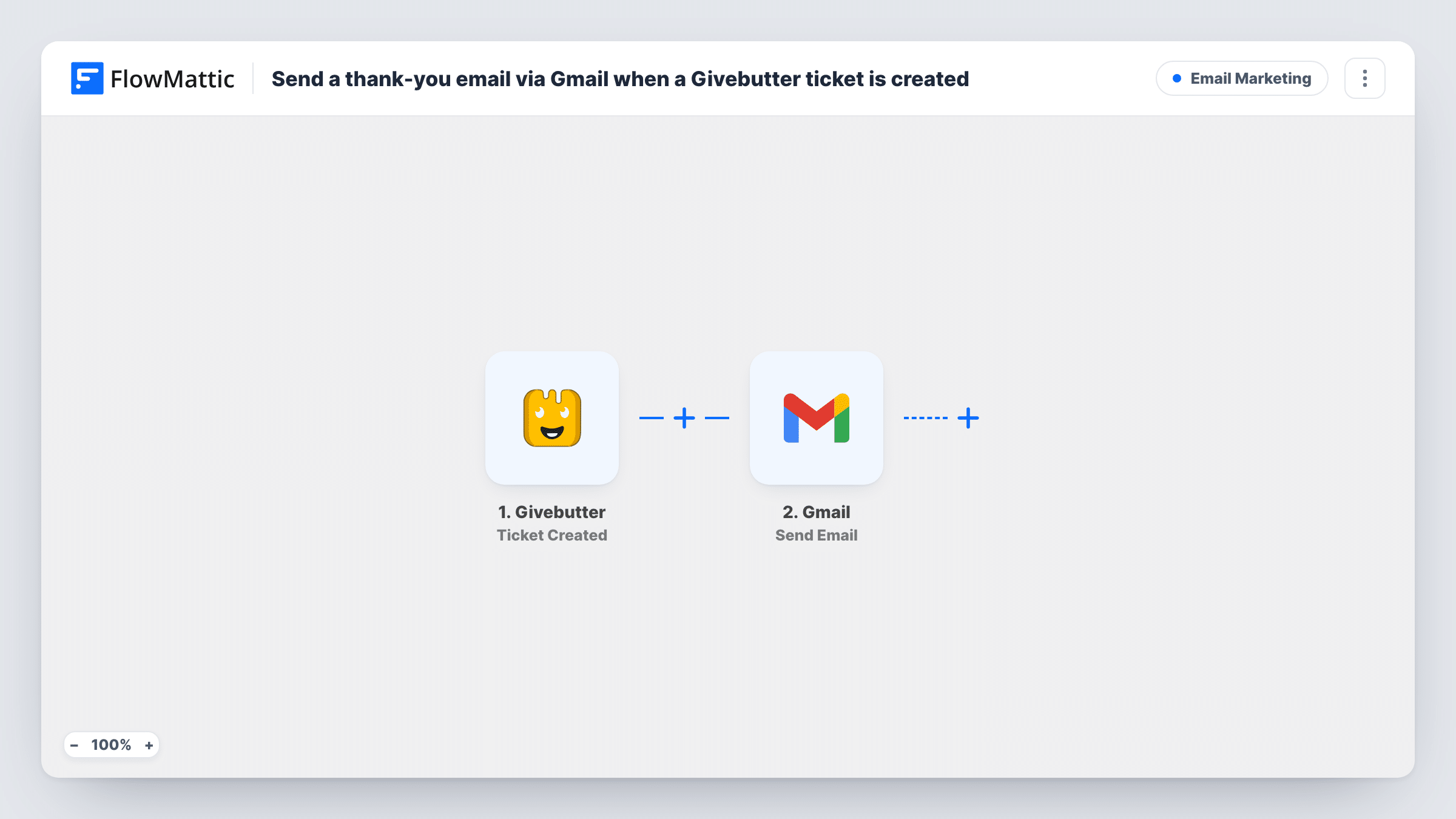
When a ticket is created in Givebutter, FlowMattic sends a thank-you email from your Gmail account, written by you and filled with the ticket details, so supporters hear from your organisation personally.
 Givebutter
 Gmail
Gmail2 steps Setup ~5 min Used on 798 sites Free to import
What this workflow does
People who buy a ticket to your fundraiser through Givebutter are supporting your cause, and a note from a real inbox feels different from a system receipt. This workflow sends that note through Gmail each time a ticket is created.
The trigger fires when a ticket is created in your Givebutter account. The ticket's details become data you can map. The Gmail step then sends an email to the recipient: map the ticket holder's email address from the Givebutter data, write your subject and thank-you text, and add values such as their name or the event, where the ticket data includes them.
The message comes from the Gmail account you connect, so replies reach a person on your team. Givebutter's own confirmations are not changed by this workflow. Check a test run in Task History to confirm which email address and name fields the ticket data holds before you go live.
Gala ticket buyers
Each guest who buys a ticket to your annual gala gets a thank-you from your development director's Gmail, mentioning the event by name.
Charity run sign-ups
Runners who buy entry tickets through Givebutter receive a personal note thanking them for running for your cause.
Small community events
A volunteer-run group sells tickets to a bake sale or concert, and every buyer gets a short thank-you from the group's shared Gmail account.
How this workflow runs
What happens at each step once the workflow is on, and what you need before you import it.
 Givebutter Ticket Created
Fires when a ticket is created in your Givebutter account. The ticket details are passed on so the email can use them.
- Gmail Send Email
Emails the supporter a thank-you through the Gmail account you connect. Map the ticket holder's email address from Givebutter as the recipient, then write your thank-you subject and message with ticket details placed where you want them.
What you need
- FlowMatticCore
- Givebutter AccountAccount
- Gmail AccountAccount
After importing, map your own data. To keep the template universal, not every step is pre-filled. Open each step in the builder and connect your accounts and fields (channels, lists, sheets, recipients) before you switch the workflow on.
Make it yours
Changes worth making after you import it.
- Add a Filter after the Givebutter trigger to send the thank-you only for tickets to a particular campaign or event, using a value from the ticket data.
- Add a Delay before the Gmail step if you would rather the thank-you arrive a few hours after the purchase than straight away.
- Create a test ticket after import so FlowMattic captures Givebutter's data, then map the recipient and name fields in the Gmail step.
Questions about this workflow
Does this replace Givebutter's own ticket confirmation?
No. Givebutter sends whatever it normally sends. This adds a separate thank-you from your Gmail account.
Who receives the Gmail thank-you for a Givebutter ticket?
Whoever you map as the recipient, normally the email address in the ticket data. Run a test to confirm which address the trigger provides.
Will donations without a ticket get the email too?
No. The trigger is Ticket Created. Givebutter also has a Transaction Succeeded trigger in FlowMattic if you want a similar flow for other payments.
Can I send the thank-you from a shared Gmail address?
Yes. Connect whichever Gmail account you want the email to come from when you import the workflow.
More Email Marketing workflows
Other ready-to-import templates from the same category.





Import this workflow into your WordPress site
Download the JSON, import it from the Workflows screen and connect your accounts. Every run stays on your server, with no per-task fees.
30-day money-back guarantee Unlimited workflows and runs Self-hosted