

When a Funraise transaction is edited, find the donor row in Google Sheets, notify finance in Slack, then update the amount in Google Sheets
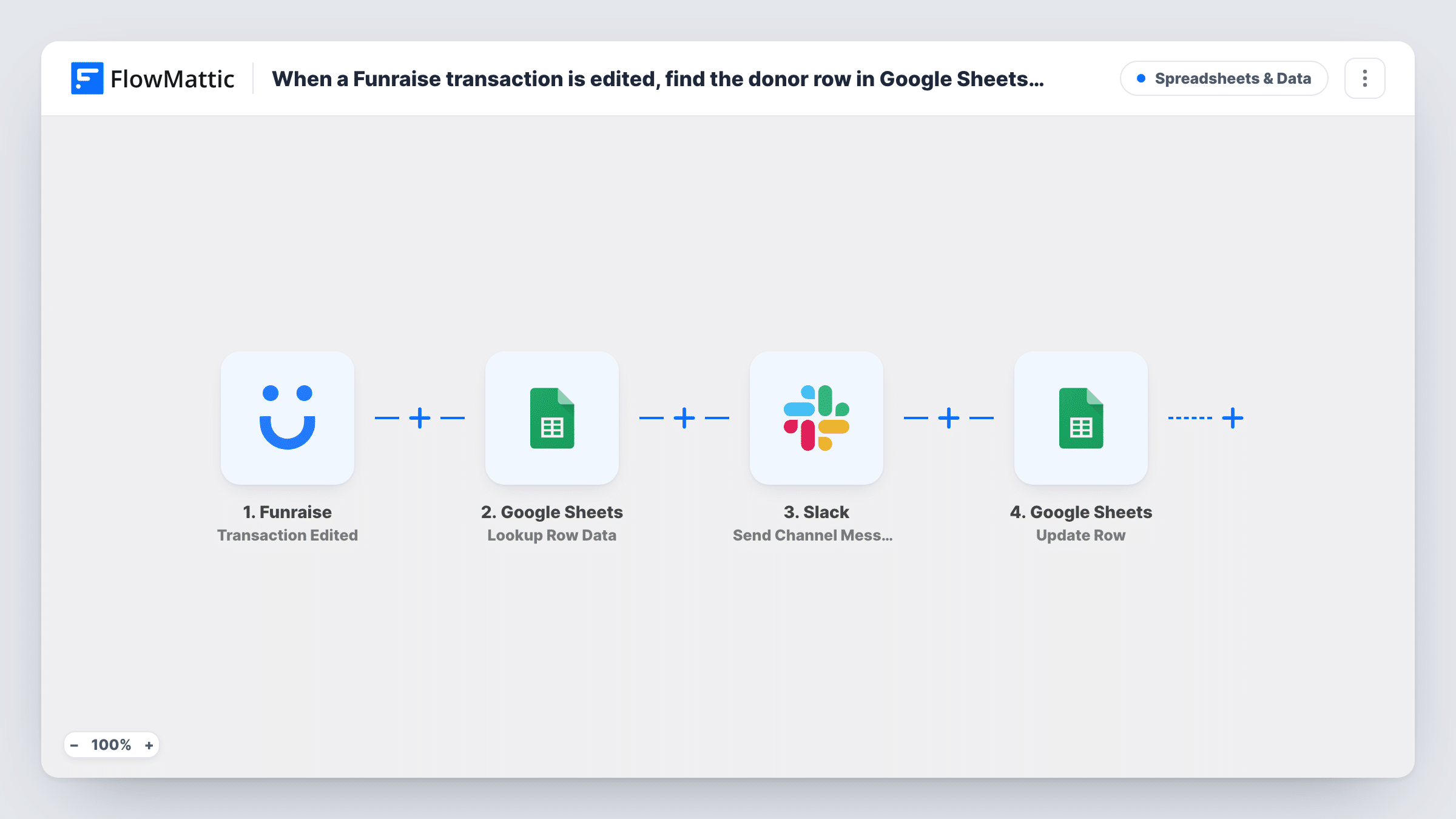
When a Funraise transaction is edited, this workflow finds the donor’s row in your Google Sheets donation log, posts a note to your finance channel in Slack, and updates that row with the new amount.
 Funraise
 Google Sheets
 Slack
4 steps Setup ~8 min Used on 392 sites Free to import
What this workflow does
Donations change after they are recorded. A gift is corrected, a recurring amount is adjusted, a typo is fixed in Funraise. If your finance team keeps its own donation log in a spreadsheet, those edits never reach it unless someone notices. This workflow carries each edit to the sheet and tells finance it happened.
The Funraise trigger fires whenever a transaction is edited. FlowMattic then searches your Google Sheets spreadsheet for the matching row, using a value from the transaction such as the donor email or transaction ID. Next, a message goes to the Slack channel you pick, built from the transaction details and anything the lookup returned. Last, the row found in step two is updated with the mapped data, such as the new amount.
The lookup is what makes the update possible: it supplies the row to change. Choose a lookup column that is unique per transaction, or several gifts from one donor could match. Task History shows each run, including the row that was found and the values written.
Keeping a board-level donation log correct
Your treasurer reports from a spreadsheet. When staff fix a gift amount in Funraise, the sheet changes too and the treasurer sees the note in Slack.
Reconciling corrected recurring gifts
A donor changes a monthly gift and the transaction is edited. Finance gets a Slack message with the new figure, and the log row shows it.
Audit trail for edited transactions
Each edit posts to a dedicated Slack channel, giving finance a running list of changes to check against bank records.
How this workflow runs
What happens at each step once the workflow is on, and what you need before you import it.
 Funraise Transaction Edited
Fires whenever a transaction is edited in Funraise. The transaction details, such as donor, amount and transaction ID, are available to the later steps.
- Google Sheets Lookup Row Data
Searches your chosen spreadsheet for the row that matches a value from the Funraise transaction. Pick a lookup column that holds a unique value, such as the transaction ID.
- Slack Send Channel Message
Sends a note to whichever Slack channel finance reads. Write the text and insert values from the transaction and from the row that was found, such as the old and new amount.
- Google Sheets Update Row
Updates the row found in the lookup step with the mapped data. Map the new amount from Funraise to the amount column, and any other columns you want to keep in step.
What you need
- FlowMatticCore
- Funraise AccountAccount
- Google Sheets AccountAccount
- Slack AccountAccount
After importing, map your own data. To keep the template universal, not every step is pre-filled. Open each step in the builder and connect your accounts and fields (channels, lists, sheets, recipients) before you switch the workflow on.
Make it yours
Changes worth making after you import it.
- Store the Funraise transaction ID in its own column and look rows up by it. A donor email can match several gifts, and the wrong row could be updated.
- Add a Filter after the lookup that continues only when a row was found, so the Slack message and update are skipped for transactions missing from the sheet.
- Include the previous amount from the found row in the Slack text, next to the new one from Funraise, so finance can see the change at a glance.
Questions about this workflow
What happens if the Funraise transaction isn't in my Google Sheet?
The lookup finds no row. As imported, the run carries on: the Slack message still posts and the Update Row step has no row to change, which Task History will show. Add a Filter after the lookup to stop the run instead.
Does this add new Funraise donations to the sheet?
No. It reacts to edited transactions only and changes rows that already exist. Pair it with a separate workflow on a new-transaction trigger to add rows.
Which Slack channel does the finance note go to?
The one you select in the Slack step after import. Connect your Slack workspace and pick the channel your finance team reads.
Can the workflow update more than the amount column?
Yes. The Update Row step writes whatever you map, so you can also refresh fields such as date or payment status from the Funraise transaction.
More Spreadsheets & Data workflows
Other ready-to-import templates from the same category.




Import this workflow into your WordPress site
Download the JSON, import it from the Workflows screen and connect your accounts. Every run stays on your server, with no per-task fees.
30-day money-back guarantee Unlimited workflows and runs Self-hosted