

When a Givebutter transaction succeeds, log it in Google Sheets, add the donor to FluentCRM, and notify the team in Slack
When a Givebutter transaction succeeds, this workflow adds it to a Google Sheets ledger, creates or updates the donor as a FluentCRM contact, and posts a message in Slack, so records, your email list and your team all get the gift at once.
 Givebutter
 Google Sheets
 FluentCRM
 Slack
4 steps Setup ~8 min Used on 2.3k sites Free to import
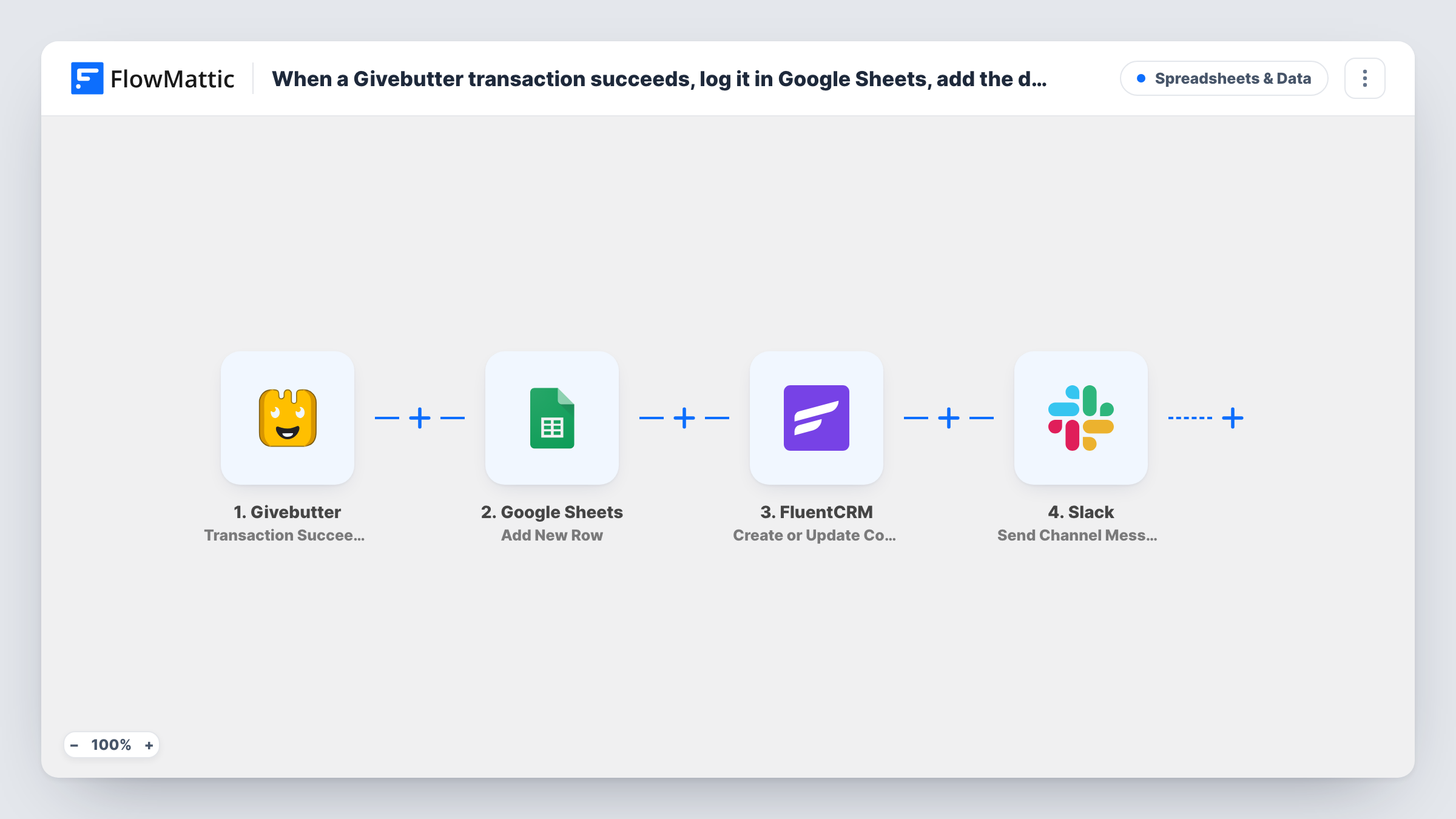
What this workflow does
A completed gift usually sets off three chores: someone logs it, someone adds the donor to the mailing list, and someone tells the team. When they are done by different people at different times, donors slip through. This workflow does all three from one Givebutter event.
The Givebutter trigger, Transaction Succeeded, fires for each successful transaction. The data first goes to Google Sheets, where Add New Row writes it to your ledger. Next, FluentCRM Create or Update Contact matches the donor by email on your WordPress site: a new donor becomes a contact, and a returning one has their record updated. Finally, Slack Send Channel Message posts your note about the gift to the channel you choose.
Each step runs even if an earlier one returns an error, so a sheet problem won't stop the donor reaching FluentCRM or the team hearing about it. Task History shows which step failed. Run a small test donation after import to capture Givebutter's values and map all three steps.
Donor follow-up through FluentCRM
Every donor lands in FluentCRM, so you can send thank-you emails and campaign updates from WordPress.
Live gift alerts during a campaign
On giving day, the Slack channel gets a message for each completed gift while the sheet keeps the running total for the finance lead.
One record for repeat donors
A supporter who gives three times stays one FluentCRM contact with updated details, while the sheet keeps all three gifts as separate rows.
How this workflow runs
What happens at each step once the workflow is on, and what you need before you import it.
 Givebutter Transaction Succeeded
Starts the run for every successful Givebutter payment, once you link the Givebutter account. The donor and payment details become available to map into the sheet, FluentCRM and Slack.
- Google Sheets Add New Row
Writes the transaction to a new row in your Google Sheets ledger. Add column headings for the values you want, such as amount, donor and campaign, then map the Givebutter data and connect your Google account.
- FluentCRM Create or Update Contact
Creates the donor as a FluentCRM contact, or updates the contact that already has that email address. Map the Givebutter email and name into it, and test with an address you know to see the result in FluentCRM.
- Slack Send Channel Message
Posts a message about the gift to the Slack channel you pick. Write the text with the donor's name, amount or campaign from the Givebutter data so the team can see what came in.
What you need
- FlowMatticCore
- Givebutter AccountAccount
- Google Sheets AccountAccount
- FluentCRM PluginPlugin
- Slack AccountAccount
After importing, map your own data. To keep the template universal, not every step is pre-filled. Open each step in the builder and connect your accounts and fields (channels, lists, sheets, recipients) before you switch the workflow on.
Make it yours
Changes worth making after you import it.
- Map the Givebutter campaign into both the Slack message and a sheet column, if the test run shows it, so you can tell which appeal each gift belongs to.
- Add a Filter in front of the Slack step on the amount if the team only wants to hear about larger gifts. The sheet and FluentCRM steps still run for every transaction because they come first.
- Make one small test donation with your own email, then check the new row, the FluentCRM contact and the Slack post before you switch the workflow on.
Questions about this workflow
What happens when a Givebutter donor is already in FluentCRM?
Create or Update Contact matches by email address, so the existing contact is updated instead of being created twice. The sheet still gets a new row for the gift.
Where does the Givebutter donor's FluentCRM contact get created?
In the FluentCRM plugin on the WordPress site where FlowMattic runs, so both plugins need to be installed on that same site.
Are Givebutter transactions that fail or are pending included?
No. The trigger only fires for successful transactions, so failed or pending ones never reach Google Sheets, FluentCRM or Slack.
Does the Givebutter donor receive an email from this workflow?
No. None of the four steps emails the donor. Any receipt comes from Givebutter, and any FluentCRM email depends on automations you set up in FluentCRM.
More Spreadsheets & Data workflows
Other ready-to-import templates from the same category.




Import this workflow into your WordPress site
Download the JSON, import it from the Workflows screen and connect your accounts. Every run stays on your server, with no per-task fees.
30-day money-back guarantee Unlimited workflows and runs Self-hosted