

When a LinkedCamp campaign completes, log the result in Google Sheets and notify the team in Slack
When a LinkedCamp campaign completes, FlowMattic adds its details to a Google Sheets row and posts a message to a Slack channel, so your team has a record of each finished campaign and hears about it where they already talk.
 LinkedCamp
 Google Sheets
 Slack
3 steps Setup ~5 min Used on 1.5k sites Free to import
What this workflow does
LinkedIn outreach campaigns in LinkedCamp run for days or weeks, and nobody watches them all the way through. When one finishes, someone has to notice, note the result and tell the team. This workflow does that the moment LinkedCamp reports a campaign as completed.
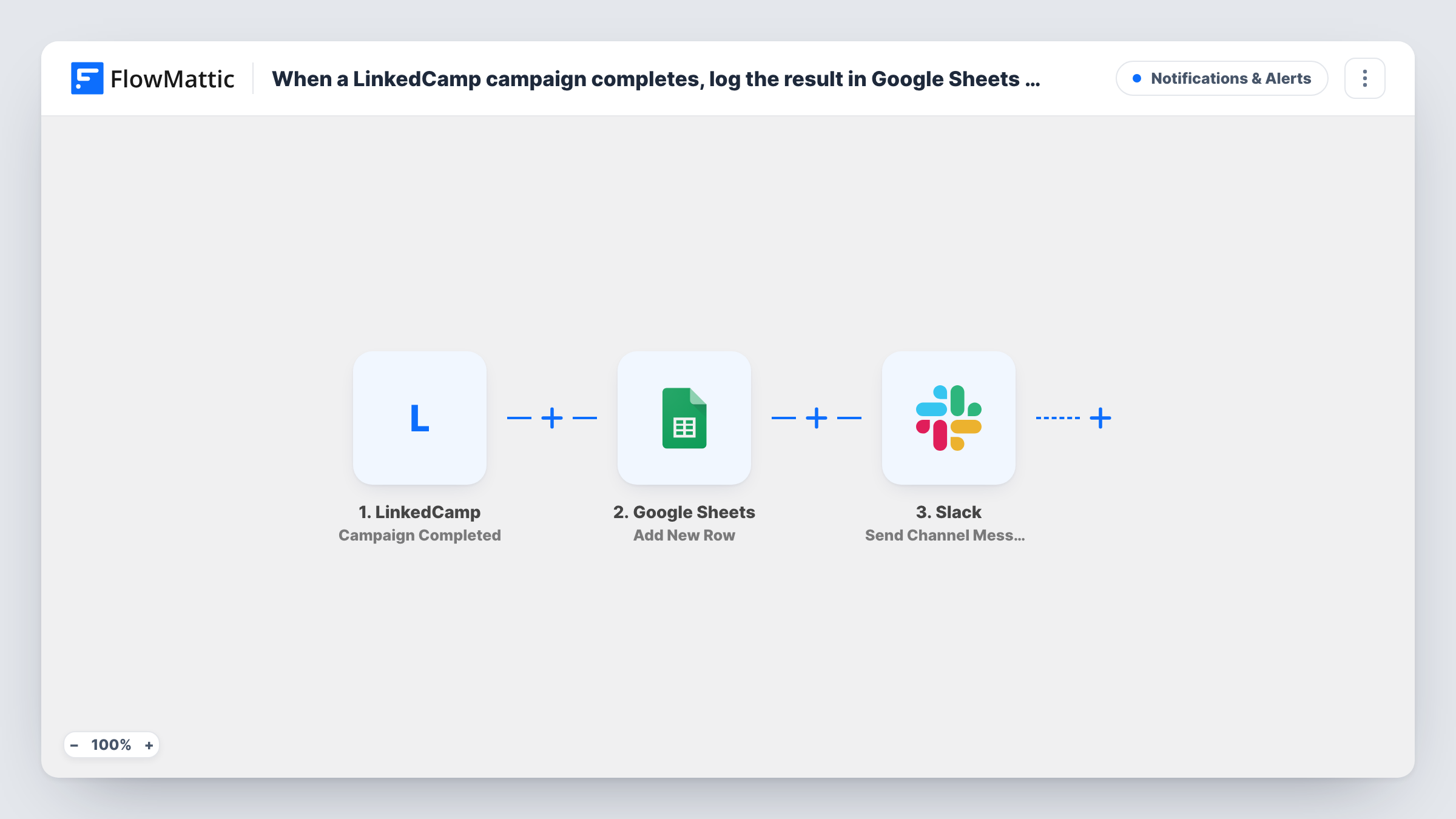
The LinkedCamp trigger, Campaign Completed, starts a run when a campaign is completed. The campaign data LinkedCamp sends becomes values you can map. First, the Google Sheets step adds a row to your campaign log, with the campaign name and whatever results the event includes in their own columns.
Then the Slack step posts a message to the channel you pick. You write the text and drop in the same campaign values, so the team sees which campaign ended without opening LinkedCamp. Each finished campaign gives one row and one message. Task History lists every run, which helps if a row or message is missing.
Agency running outreach for several clients
Each client campaign that finishes lands in one sheet, and the account team's Slack channel gets a note to plan the next round.
Sales team reviewing campaign history
The sheet builds into a history of every completed LinkedCamp campaign, which a sales lead can sort by date when planning new outreach.
Founder-led LinkedIn prospecting
A founder who runs campaigns alone gets a Slack reminder when one ends, plus a sheet entry to look back on.
How this workflow runs
What happens at each step once the workflow is on, and what you need before you import it.
 LinkedCamp Campaign Completed
Starts the workflow when a LinkedCamp campaign is completed. The campaign data from the event is passed on for mapping in Google Sheets and Slack.
- Google Sheets Add New Row
Adds a row to the Google Sheets spreadsheet you pick for each completed campaign. Map the campaign name and any result values LinkedCamp sends to the sheet's columns.
- Slack Send Channel Message
Sends a note about the finished campaign to a Slack channel of your choice. Write the text and insert campaign values, such as the campaign name, so the team knows which one finished.
What you need
- FlowMatticCore
- LinkedCamp AccountAccount
- Google Sheets AccountAccount
- Slack AccountAccount
After importing, map your own data. To keep the template universal, not every step is pre-filled. Open each step in the builder and connect your accounts and fields (channels, lists, sheets, recipients) before you switch the workflow on.
Make it yours
Changes worth making after you import it.
- Swap the Slack step for Slack's Send Private Channel Message action if your sales team discusses campaigns in a private channel.
- Add a date column to the sheet and map a time value from the LinkedCamp event, so the log sorts by when each campaign finished.
- Complete a short test campaign after import so FlowMattic captures LinkedCamp's data, then map it in both steps before you switch the workflow on.
Questions about this workflow
What results from LinkedCamp end up in the sheet?
Whatever the Campaign Completed event includes, mapped to the columns you choose. A test run shows the exact values LinkedCamp sends.
Does Slack get a message for every finished LinkedCamp campaign?
Yes. There is no Filter, so every completed campaign adds a row and posts a message. Add a Filter after the trigger if you only care about some campaigns.
Can the Slack message go to one person instead of a channel?
Yes. Replace the step with Slack's Send Direct Message action and pick the person, keeping the same campaign values in the text.
Are LinkedCamp campaigns that finished earlier added?
No. Only campaigns that complete after the workflow is turned on start a run.
More Notifications & Alerts workflows
Other ready-to-import templates from the same category.




Import this workflow into your WordPress site
Download the JSON, import it from the Workflows screen and connect your accounts. Every run stays on your server, with no per-task fees.
30-day money-back guarantee Unlimited workflows and runs Self-hosted