

When a Magic Link is clicked, add the user to a group in MailerLite
Each click on your FlowMattic Magic Link creates or updates the clicker as a MailerLite subscriber by email, then adds that subscriber to the MailerLite group you choose.
 Magic Link
 MailerLite
3 steps Setup ~5 min Used on 1.4k sites Free to import
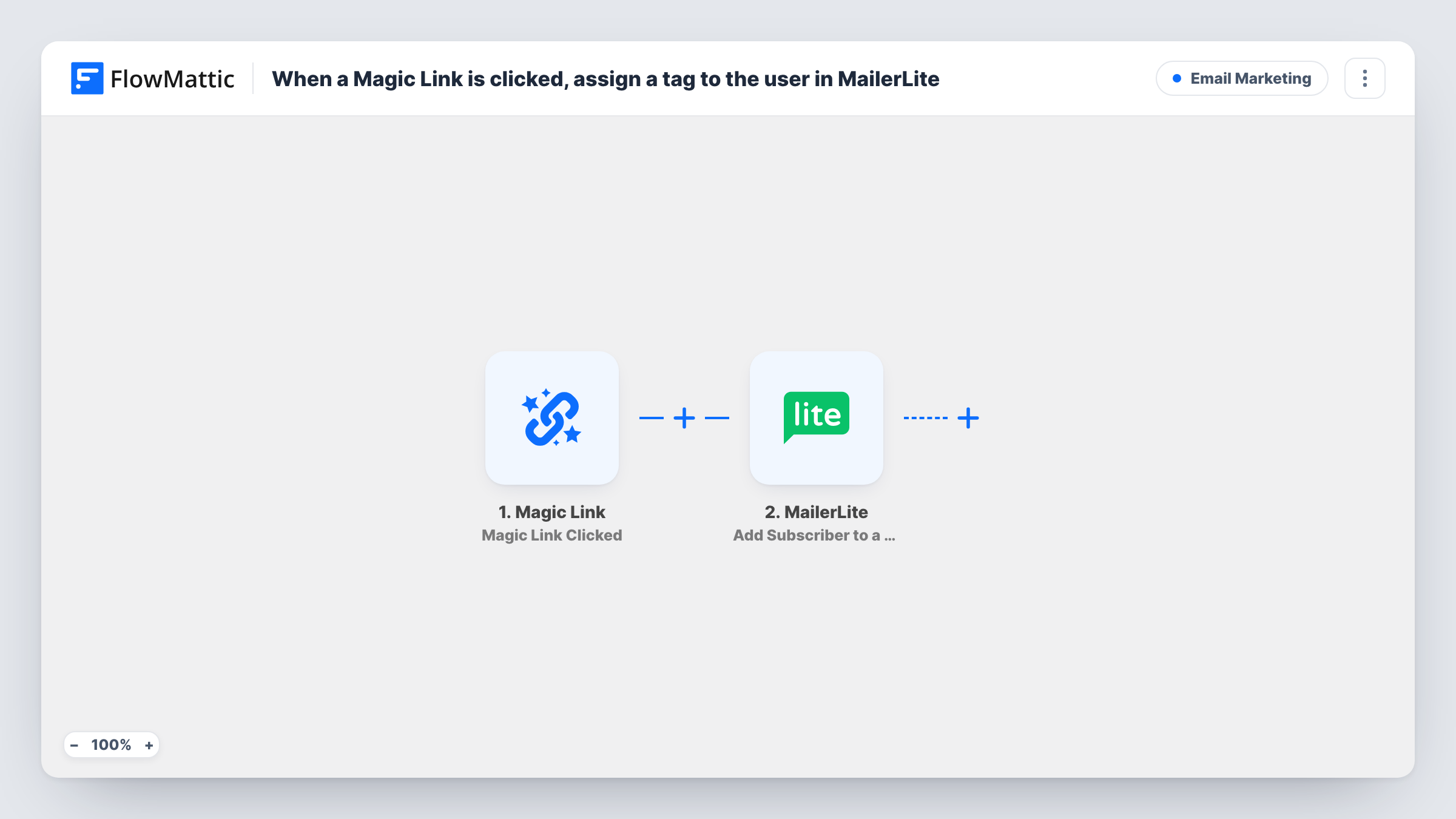
What this workflow does
A link in an email, a members page or a course lesson can say more about someone than a form does: they clicked because they want the webinar replay, the beta, or the advanced guide. This workflow turns that click into a group membership in MailerLite, so you can send follow-ups only to the people who showed that interest.
The Magic Link trigger runs when your link is clicked. The template maps the trigger's user email value into MailerLite, so click the link once after import and check Task History to confirm it carries the address you expect.
Step 2 uses Create or Update Subscriber with that email. If the address is new to MailerLite a subscriber is created; if it is already there, the existing subscriber is updated. Step 3 then takes the subscriber ID returned by step 2 and adds that person to a group. Since step 2 creates the subscriber when needed, first-time clickers already exist in MailerLite by the time the group step runs. You choose the group when you set up step 3.
Repeat clicks run the workflow again. MailerLite decides how to treat someone who is already in the group; Task History shows its response for each repeat.
Interest groups from a newsletter link
A software company puts a Magic Link under "Tell me when the API launches" on its members page, and everyone who clicks lands in a MailerLite group for the launch email.
Webinar replay requests
A coach links "Send me the replay" in the members area, and the clickers join a MailerLite group that receives the recording and a follow-up sequence.
Course upsell segment
An online school adds a Magic Link at the end of a free lesson, and students who click are grouped in MailerLite for the paid course announcement.
How this workflow runs
What happens at each step once the workflow is on, and what you need before you import it.
 Magic Link Magic Link Clicked
Fires each time the Magic Link is clicked. The click's data, including the user email value the next step maps, becomes available; test it once to see exactly what is captured.
- MailerLite Create or Update Subscriber
Creates the person as a MailerLite subscriber, or updates them if the email already exists. The template maps the Magic Link's user email; connect your MailerLite account and add any custom fields you want.
- MailerLite Add Subscriber to a Group
Adds the subscriber from step 2 to a MailerLite group, using the subscriber ID step 2 returns. Pick the group you want clickers to join when you set up the step.
What you need
- FlowMatticCore
- MailerLite AccountAccount
After importing, map your own data. To keep the template universal, not every step is pre-filled. Open each step in the builder and connect your accounts and fields (channels, lists, sheets, recipients) before you switch the workflow on.
Make it yours
Changes worth making after you import it.
- Create one MailerLite group per link topic, such as "Replay requested", and a separate copy of this workflow for each Magic Link, so the group tells you which link someone clicked.
- Put a Filter between the Magic Link trigger and the Create or Update Subscriber step that continues only when the user email is not empty, so clicks without an address stop before MailerLite.
- Start a MailerLite automation from the group, so joining it sends the follow-up email you promised next to the link.
Questions about this workflow
What if the clicker is already a MailerLite subscriber?
Create or Update Subscriber updates the existing subscriber instead of making a new one. Step 3 then adds that same subscriber to the group.
Whose email does MailerLite receive from the Magic Link?
The user email value the Magic Link trigger provides. Click the link yourself after import and read Task History to confirm the address is captured as you expect.
Can the MailerLite group change depending on which link was clicked?
Not in one copy of this workflow; step 3 adds everyone to the group you set. Import the template once per Magic Link and pick a different group in each.
More Email Marketing workflows
Other ready-to-import templates from the same category.







Import this workflow into your WordPress site
Download the JSON, import it from the Workflows screen and connect your accounts. Every run stays on your server, with no per-task fees.
30-day money-back guarantee Unlimited workflows and runs Self-hosted