

When a Marketo webhook fires, create a Zoho CRM lead and log it in Google Sheets
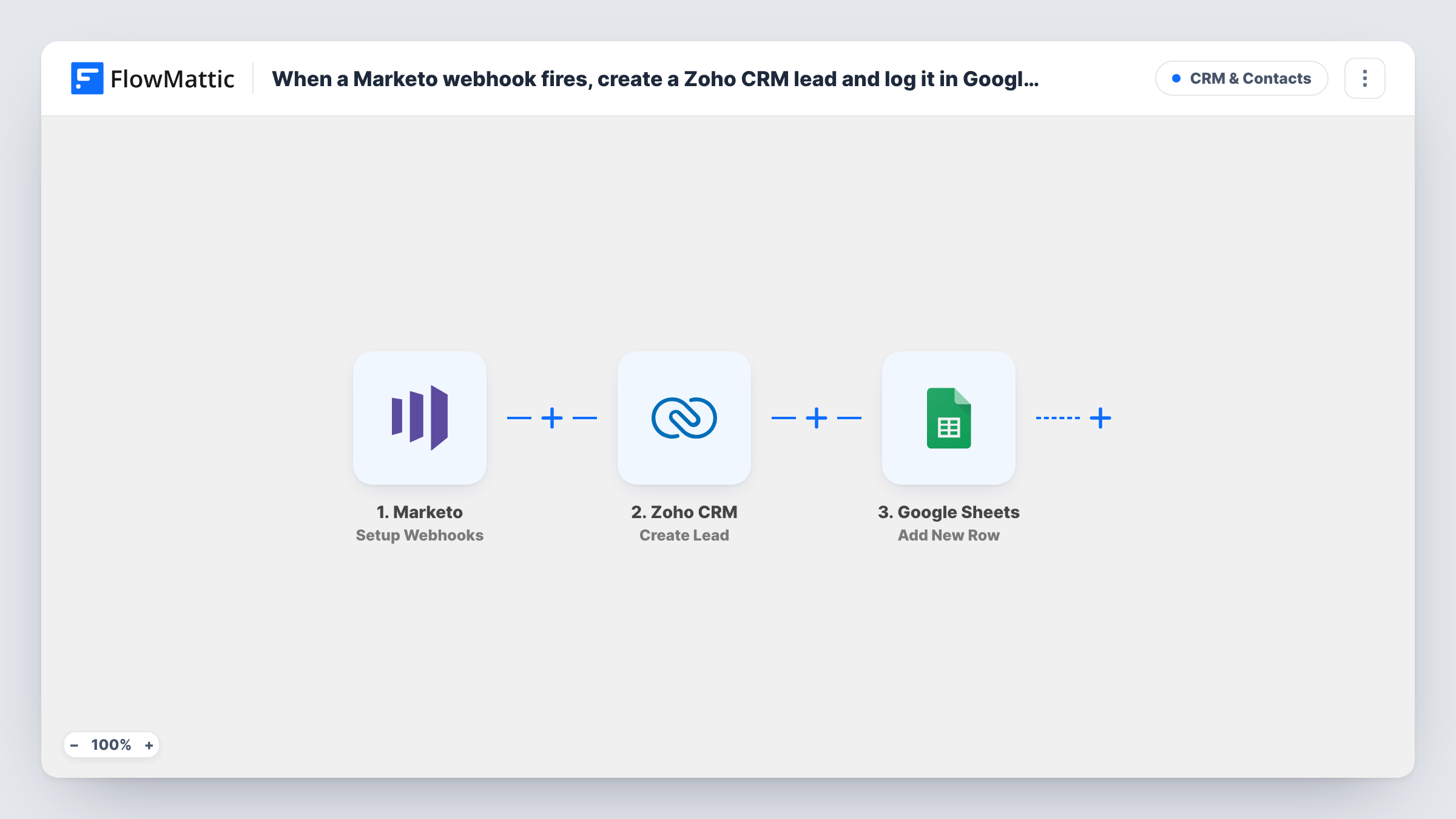
When Marketo sends a webhook event to FlowMattic, this workflow creates a lead in Zoho CRM from the data and then logs the same lead in a Google Sheets row, giving sales the lead and you a running record.
 Marketo
 Zoho CRM
 Google Sheets
3 steps Setup ~5 min Used on 2.7k sites Free to import
What this workflow does
Marketing runs campaigns in Marketo while sales works in Zoho CRM. Leads that sit in one system and not the other get missed. This workflow carries Marketo leads into Zoho CRM and keeps a copy of each one in a spreadsheet.
The Marketo trigger receives the events you specify in Marketo. Decide which event should mean a new sales lead, and send only that one. FlowMattic then runs Zoho CRM's Create Lead with the fields you map, such as name, email and company. Last, Google Sheets adds a row with the lead details, and you can also map the Zoho CRM response into a column.
Each event received runs both steps. If Zoho CRM returns an error for a lead, the Google Sheets row is still written, and Task History shows the error on the Zoho step.
Hand scored leads to sales
A Marketo campaign calls the webhook when a lead reaches your sales-ready score. Zoho CRM gets the lead for the sales team, and the sheet tracks how many were handed over.
Trade show follow-up
Badge scans imported into Marketo send their event to the workflow. Reps find the leads in Zoho CRM, and the event manager reviews the sheet.
Audit the Marketo to Zoho handoff
Ops keeps the Google Sheets log beside Zoho CRM, so a lead that never showed up in the CRM can be traced to its row and its run in Task History.
How this workflow runs
What happens at each step once the workflow is on, and what you need before you import it.
 Marketo Setup Webhooks
Receives the Marketo events you specify. Set Marketo to send only the event that should create a sales lead, then send a test so FlowMattic captures the fields.
- Zoho CRM Create Lead
Adds the Marketo person to Zoho CRM as a fresh lead. Map the Marketo fields into the lead, connect your Zoho CRM account, and run a test to see which values the step requires.
- Google Sheets Add New Row
Writes one row per event to the Google Sheets spreadsheet you select. Map the Marketo lead details, and the lead ID from Zoho CRM if you want it, to the columns.
What you need
- FlowMatticCore
- Marketo AccountAccount
- Zoho CRM AccountAccount
- Google Sheets AccountAccount
After importing, map your own data. To keep the template universal, not every step is pre-filled. Open each step in the builder and connect your accounts and fields (channels, lists, sheets, recipients) before you switch the workflow on.
Make it yours
Changes worth making after you import it.
- If the Zoho CRM response includes the new lead's ID, map it into its own sheet column. You can then open the CRM record straight from the log when someone asks about a lead.
- Add a Filter after the trigger that continues only when the email field is not empty, so incomplete Marketo records don't create Zoho leads.
- Send one test lead from Marketo after import, then check the new Zoho CRM lead and the sheet row before you switch on the Marketo campaign.
Questions about this workflow
Which Marketo event should call this workflow?
Only the one that means a lead is ready for Zoho CRM. The trigger accepts the events you specify, and each one it receives creates a lead and a row, so extra events mean extra leads.
Will Zoho CRM create a duplicate if the lead already exists?
Create Lead creates a new lead each time it runs. Whether Zoho CRM blocks a duplicate depends on your Zoho settings, so test with a known email and check Task History.
What if Zoho CRM rejects the Marketo lead?
The run carries on to Google Sheets, so the row is still added. Task History shows the Zoho CRM error, which helps you fix the mapping or the account connection.
Does the sheet update when the lead changes in Zoho CRM?
No. The row is written once when the Marketo event arrives, and later changes in either system are not copied to it.
More CRM & Contacts workflows
Other ready-to-import templates from the same category.






Import this workflow into your WordPress site
Download the JSON, import it from the Workflows screen and connect your accounts. Every run stays on your server, with no per-task fees.
30-day money-back guarantee Unlimited workflows and runs Self-hosted